![logolimanobkg-1.png]](https://help.easyllama.com/hs-fs/hubfs/logolimanobkg-1.png?height=40&name=logolimanobkg-1.png)
If you have enabled the feature that forces Learners to log in via SAML/SSO, they will still need to log in, even when using a direct link.
Before You Start
What You'll Need
- Administrative access to the EasyLlama dashboard
- Learner with assigned courses (not yet completed)
- Access to the Learners tab
Important Notes
- The Notify button is only clickable if the learner has assigned courses that are not yet completed
- If SAML/SSO login is enabled, learners will still need to log in even when using the direct link
- This method works for sharing links via email, Slack, Teams, or any messaging platform
Copy and Share an Individual Training Link
Step 1: Locate the Learner
- Go to the Learners tab in the EasyLlama dashboard.
- Use the search to find the learner.
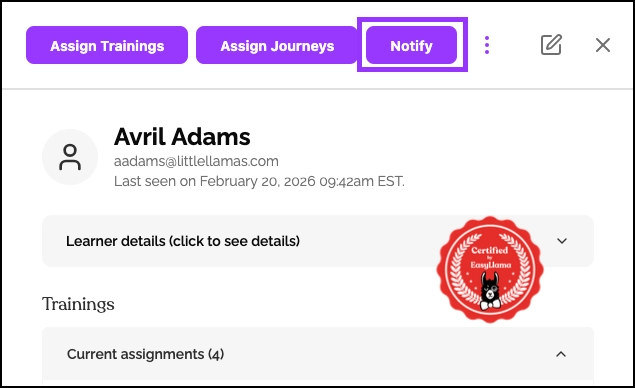
- Click on their name to open their Learner profile.
Step 2: Access the Copy Link Option
- At the top of the learner's profile, click the Notify button.
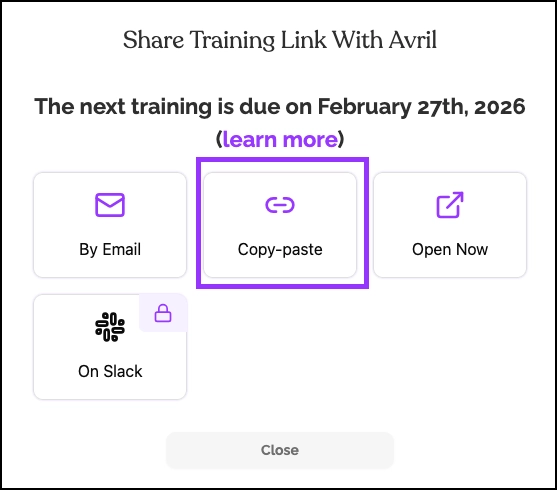
- Click on the "Copy-Paste" option.
Step 3: Copy the Link
You'll see a confirmation notice that the link has been copied to your clipboard, and the training link is now ready to use.
Step 4: Share the Link
Paste the copied link into:
- Your own email to the learner
- A Slack direct message or channel
- Microsoft Teams chat
- Any other messaging platform
- A browser URL bar for testing
When to Use This Method
Reasons to copy/paste a training link:
- Personal touch: You prefer direct communication over automated emails
- Email issues: Learner isn't receiving automated notifications
- Supervisor delivery: Need to send link to a supervisor to open for the learner
- Multiple channels: Sharing via Slack, Teams, or other internal tools
- Quick testing: Testing the training experience for a specific learner
When this method won't work:
- No assigned courses: The Notify button is not clickable if no courses are assigned and not yet completed
- SAML/SSO required: Even with a direct link, learners must authenticate if SSO is enabled
Helpful Tips
Learner’s training links are unique
Always verify you're copying from the correct learner's profile. Each learner has a unique training link.
The link does not bypass SSO
The direct link does not bypass SAML/SSO authentication. Learners will still need to log in.
Ensure the Learner has an “incomplete” assigned courses
The Notify button is only available for learners with incomplete assigned courses.
Quick Questions
Why isn't the Notify button clickable?
The Notify button only appears for learners with assigned courses that are not yet completed. If all courses are complete or none are assigned, the button will be inactive.
Can I use this for multiple learners at once?
No. This link is unique to a user. For bulk sharing, use the bulk notification feature instead of copying individual links. This method is best for one-off or small group sharing.
Will the learner need to log in?
Yes. If your organization uses SAML/SSO, learners must authenticate even when using a direct link.
Llama Fact: Llamas communicate with each other using a variety of sounds and postures—similar to how this feature gives you flexible options to communicate training links to your learners!