![logolimanobkg-1.png]](https://help.easyllama.com/hs-fs/hubfs/logolimanobkg-1.png?height=40&name=logolimanobkg-1.png)
Before You Start
What Happens When You Archive
Learners with 0-50% course progress
- Permanently deleted if no courses are completed over 50%
- Seats returned to your balance (if the seat is less than 12 months old)
- Not recoverable through unarchiving
Learners with 51% and up course progress
- Archived (preserved in system)
- Training history retained
- Eligible for unarchiving if needed
- Seats not returned (training progress preserved)
Learners with completed courses
- Always archived (never permanently deleted)
- Full training history preserved
- Always eligible for unarchiving
What You’ll Need
- Administrative access to the EasyLlama dashboard
- Identification of Learners to archive (terminated, duplicates, inactive)
- Understanding of seat recovery rules
- Access to Learners tab
Quick Reference
- Primary method: Bulk archive using check boxes and action menu
- Alternative: Archive individual Learners from their profiles
Bulk Archive Learners
Step 1: Select Learners to archive
- Log in to the Dashboard.
- From the left navigation menu, click Learners.
- Use the filters or search to find the Learners that need to be archived.
- At the top of the screen, when Learners is selected, a purple action bar appears.
- You can select and take action on one page (100 Learners) at a time, or click Select All to select all Learners. Navigating to another page deselects all users on the previous one.
Step 2: Return Seats to Your Balance (Optional)
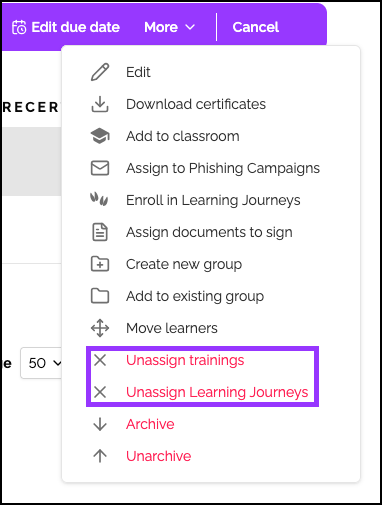
For large-scale archiving, consider unassigning courses first to ensure seat recovery.
If you have >50 Learners who are assigned courses that are at 50% completion or under, click More > Unassign Trainings to return seats to your balance, then proceed to step 3.
Step 3: Archive Learners
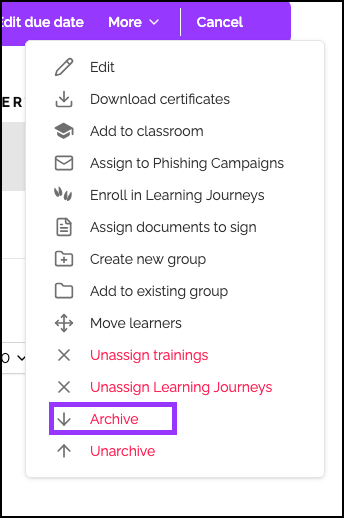
Click More in the purple action bar and select Archive.
Step 3: Confirm and complete
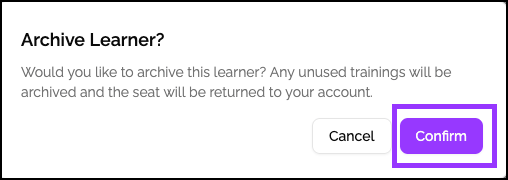
A confirmation pop-up shows the number of Learners to be archived. Verify the count and click Confirm to complete.
Archive Individual Learners
Step 1: Access the Learner profile
- Log in to the Dashboard.
- From the left navigation menu, click Learners.
- Use the filters or search to find the Learners that need to be archived.
- Click the Learner’s name to access their profile.
Step 2: Enter edit mode
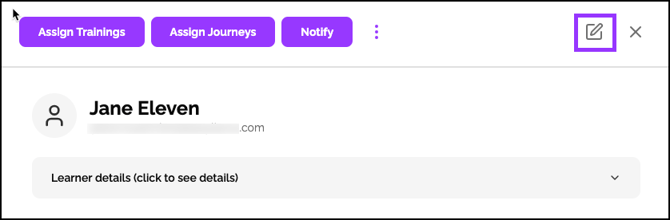
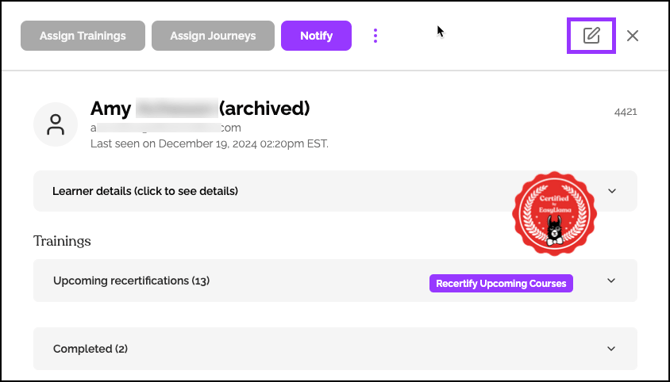
At the top-right of the profile screen, click the Edit (pencil) icon.
Step 3: Archive Learner
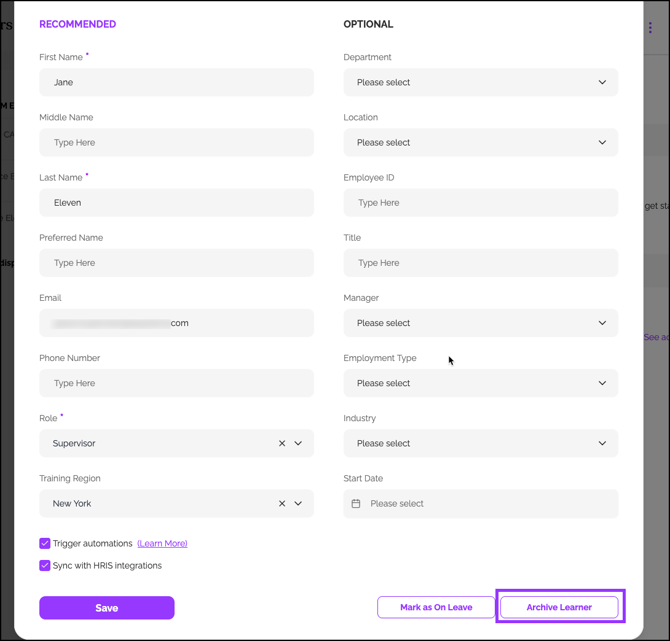
Scroll down to the bottom of the screen and click Archive Learner. To verify the action, click Confirm.
View and Unarchive Learners
NOTE: Archived learners are learners who were once assigned training and then archived. They can be unarchived if needed.
Step 1: View archived Learner
- Log in to the Dashboard.
- From the left navigation menu, click Learners.
- At the top-right of the Learner’s tab, click Show Filters.
- Toggle Only Show Archived Learners.
- Click Apply.
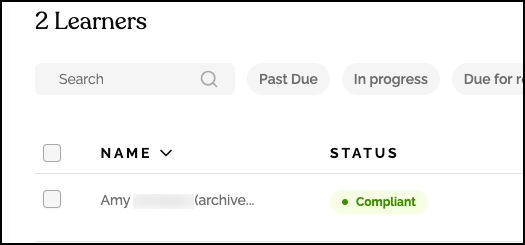
- View the list showing (archived) next to Learner names.
Step 2: Unarchive a Learner
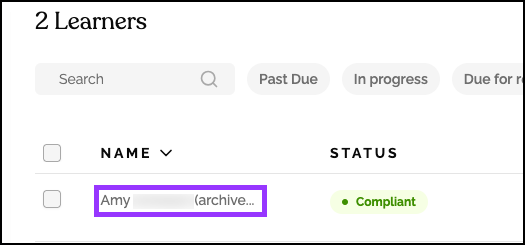
- Click the archived Learner name to access their profile.
- At the top right of the Learner’s profile, click the Edit (pencil) icon.
- On the bottom left, click Unarchive Learner.
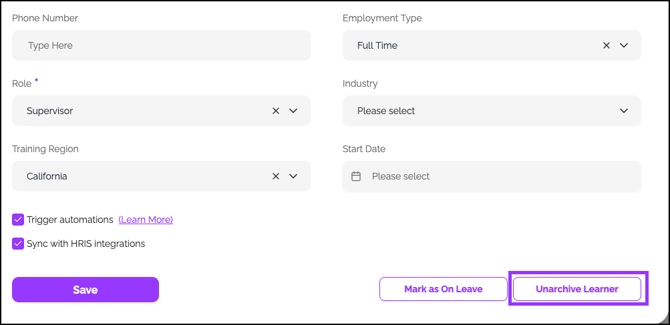
- The Learner returns to the active list.
Helpful Tips
Avoid Bulk archiving without seat consideration
For Learners with assigned but unstarted courses, unassign them from courses first to recover seats before archiving.
Only some seats are returned
Seats only return for Learners with a course completion of 50% or less, as long as the seat is less than 12 months old.
Remember to check completion percentages
Learners with 50% or more progress are archived (not trashed) and don’t free up seats. Verify progress before bulk operations.
Quick Questions
Can I unarchive multiple Learners at once?
Yes. Learners who have been archived (not trashed) can be unarchived using the bulk menu. On the Learners screen, filter for archived learners, select the desired learners, then use the More menu to unarchive them.
What happens to a Learner's training history when archived?
Training history is preserved for Learners who have made more than 50% progress or completed courses. Learners with 0-50% progress are permanently deleted.
Why aren’t the seats being returned when I archive Learners?
Seats only return if: 1) Learner had 0-50% progress, 2) Seat is less than 12 months old, and 3) Courses were unassigned before archiving.
How long do archived Learners remain in the system?
Learners with over 50% progress or completed courses remain archived indefinitely. Learners with 0-50% progress are permanently deleted immediately.
Llama Fact: Llamas have excellent long-term memory and recognize herd members even after long separations—similar to how archived Learners retain their training history for future reference!