![logolimanobkg-1.png]](https://help.easyllama.com/hs-fs/hubfs/logolimanobkg-1.png?height=40&name=logolimanobkg-1.png)
Before You Start
What You'll Need
- Administrative access to the EasyLlama dashboard
- Learner with an upcoming recertification scheduled
- Understanding of the correct new course based on learner's region/role
- Access to the Learners tab
Common Scenarios
Sometimes, especially with Harassment Prevention, a learner may need to take a different course for their next recertification. Common scenarios include:
- Moving to a different region (different state requirements)
- Promotion to supervisor status (supervisor version required)
In many cases, when these changes occur, the new course should be immediately assigned, replacing the old recertification with the new one. If the course needs to be immediately assigned, please use this article instead: Assign immediate training for new supervisor/region
If you'd like to research when specific course changes are mandated for a particular state, you can find guidelines using our interactive map.
When to Use This Method
- The learner's next recertification should use a different course
- You want to update the scheduled course without affecting current assignments
- The change is for the next renewal cycle, not immediate training
Change the Recertification Course
Step 1: Access the learner's profile
- Go to the Learners tab
- Click on the learner's name to open their training profile
Step 2: Locate upcoming recertification
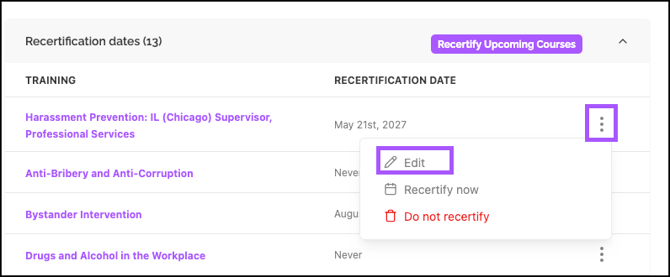
Scroll to the Upcoming Recertifications section of the profile.
Step 3: Open edit options
- Click the three dots (⋮) to the right of the course
- Select Edit.
Step 4: Select the new course
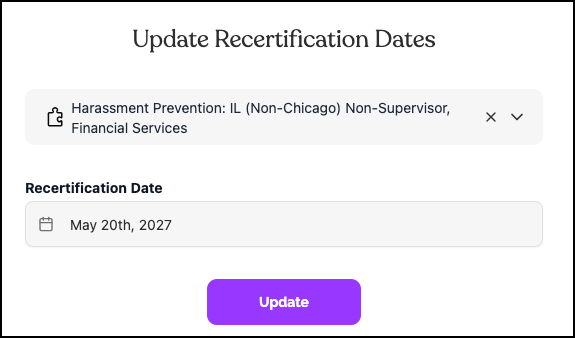
- Click on the name of the current course to open the dropdown list
- Browse or search for the correct replacement course
- Click to select the new course
- If needed, update the recertification date.
Step 5: Confirm and update
- Review the selection to ensure it's correct
- Click Update to apply the change
- The learner's upcoming recertification now reflects the new course
Helpful Tips
Double-check the course version
Double-check that the new course matches the learner's current region, role, and any industry requirements.
Verify changes
Always review the selection before clicking "update" to ensure the correct course is selected.
This method updates the next recertification only. If the learner needs immediate training, assign the course directly instead.
Quick Questions
Does changing the recertification course affect current assignments?
No. This only updates the next scheduled recertification. Current training assignments remain unchanged.
What if the learner needs the new course immediately?
Assign the course directly using bulk actions or individual assignment rather than changing the future recertification.
Can I change recertification courses for multiple learners at once?
This feature is for individual learners only. For bulk changes, consider using bulk recertification or contact Support by clicking Help > Contact Us in the EasyLlama Dashboard.
How do I know which course to select?
Check the learner's current region and role in their profile. The correct course typically matches both.
Llama Fact: Llamas adapt to new environments and social structures throughout their lives—similar to how learners may need different training as their roles and locations change!