![logolimanobkg-1.png]](https://help.easyllama.com/hs-fs/hubfs/logolimanobkg-1.png?height=40&name=logolimanobkg-1.png)
Discover the information contained within Learner's Training Profile, including notifications sent, information about them, training history, recertification dates, and more!
What You'll Need
- An EasyLlama admin account with permissions to access learner profiles
Access the Learner’s Training Profile
- Go to the Learners tab in the dashboard.
- Hover over any learner's name in the list.
- Click on the name to open their profile overlay.
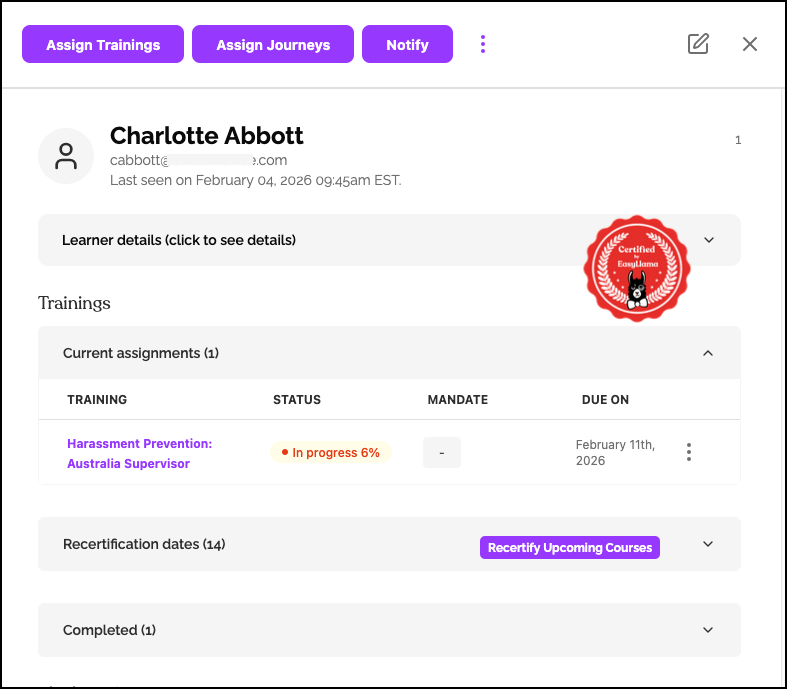
Note: The profile opens as an overlay on your current dashboard view, as shown below. Click the 'X' in the top-right to close it.
Profile Sections Explained
Action Buttons (Top Purple Bar)

- Assign Trainings – Assign new courses to the learner
- Assign Journeys – Enroll the learner in a Learning Journey
- Notify – Send a reminder about assigned courses
- Three dot icon - Assign documents, open the learner portal, archive user
Edit Profile (Pencil Icon)
Click the pencil icon in the top-right to edit learner details like email, role, location, and more. See Edit a Learner's Profile Information for detailed instructions.
Learner Details
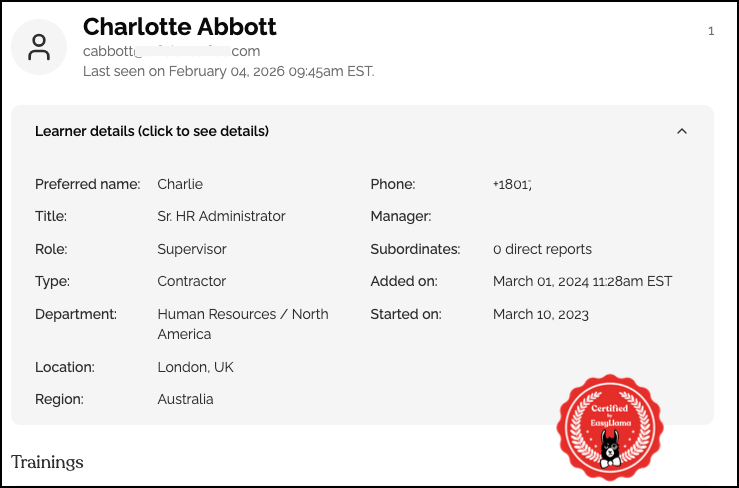
Expand this section to view basic information about the learner (role, region, employment type, etc.).
Learning Journeys Section
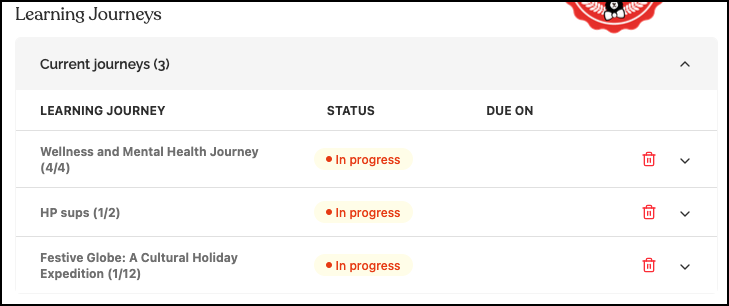
Shows any Learning Journeys the learner is enrolled in, along with their progress. You can:
- Click a Journey name to expand and see detailed information, like status or due dates
- Remove the learner from a Journey if needed
Training Section
This section has three subsections (click headings to expand/collapse):
Current Assignments
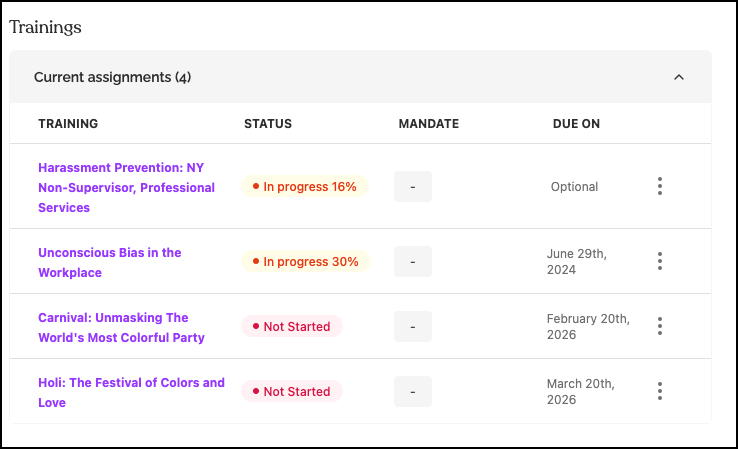
- Shows courses assigned but not yet completed
- Displays progress percentage and due date
- Click the three dots menu to:
- Notify the learner
- Open the training
- Change the due date
- Remove the course (if under 10% complete)
Upcoming Recertifications
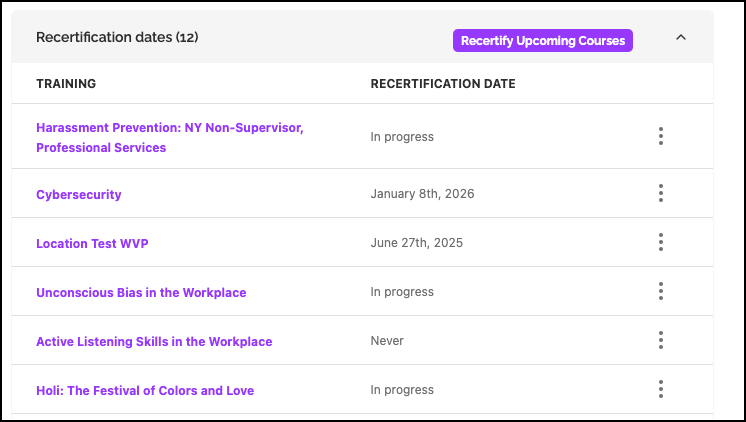
- Lists recertification dates for assigned or completed courses
- Click the three dots menu to:
- Edit the recertification course or date
- Recertify now
- Choose not to recertify
Completed Courses
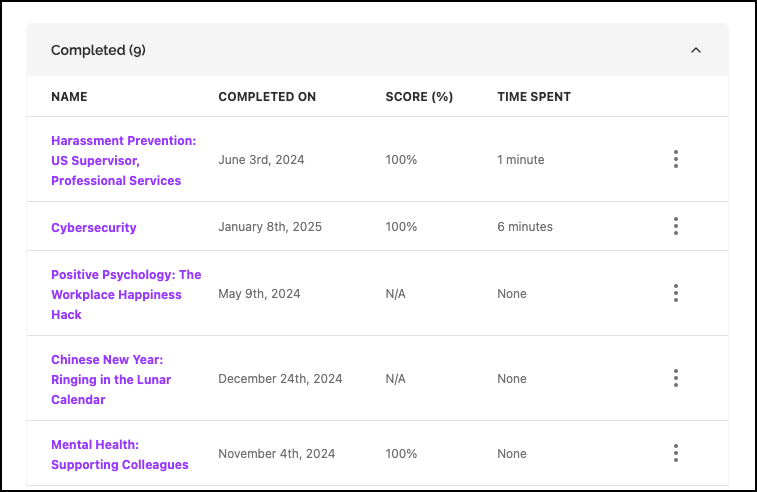
- History of all courses completed by the learner
- Shows completion date and approximate time spent
- Click the three dots menu to download the certificate of completion
Phishing Campaigns
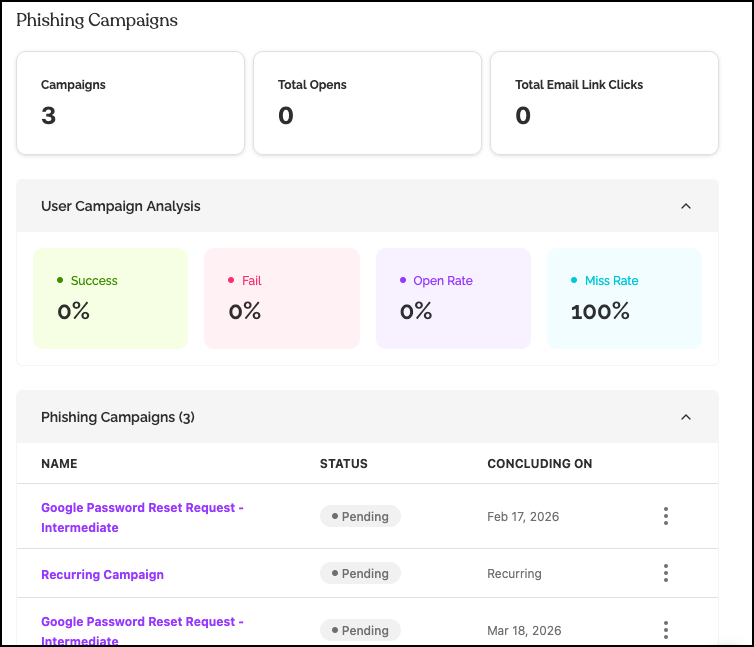
For those using the Phishing Simulator, the Learner's profile shows:
- Data about the user - how many campaigns they were involved in, and the result of those campaigns
- Expand Phishing Campaigns to reveiw individual campaigns assigned to the user, including thier status, and when the campaign will conclude.
- Click the three dots icon to view the campaign
Documents
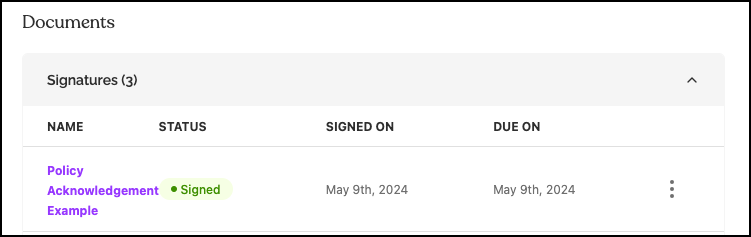
- History of all documents assigned to the user
- Shows the status, when it was signed, and when it was due
- Click the three dots menu to download the signature, if applicable
Activity History
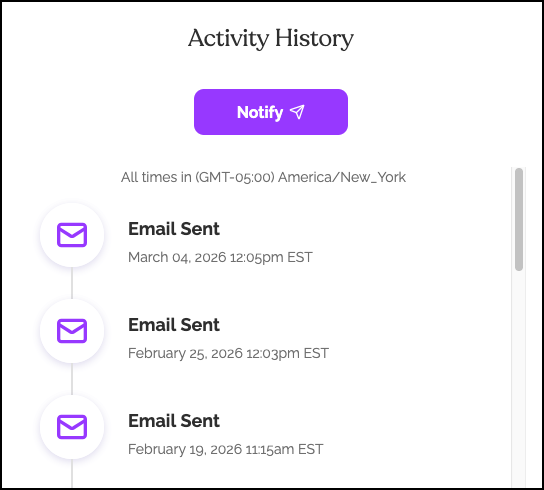
Under Notification Reminders, click See activity history to view a pop-up showing all email notifications sent to the learner.
Frequently Asked Questions
Can I see what emails were sent to a learner?
Yes. Click See activity history to view a log of all email notifications sent to that learner.
How do I remove a course that was assigned by mistake?
In the Current Assignments section, click the three dots next to the course and select Remove. Note: this is only available for courses under 10% complete.
How do I download a learner's certificate?
Go to the Completed Courses section, click the three dots next to the course, and select Download certificate.
Can I change a recertification date from the profile?
Yes. In the Upcoming Recertifications section, click the three dots next to the course and choose Edit recertification.
What does "Open the training" do?
It opens the course as if you were the learner, allowing you to preview the training content.
How do I see a learner's progress on a Learning Journey?
Expand the Learning Journeys section and click on the Journey name for detailed progress information.
Related Articles
- Edit a Learner's Profile Information: Individual and Bulk Updating
- Unassigning Courses - Removing Assigned Courses
- How to Download Certificates
Llama Fact: Llamas are known to be excellent listeners and observers—just like a Training Profile helps you keep a close watch on each learner's progress!