![logolimanobkg-1.png]](https://help.easyllama.com/hs-fs/hubfs/logolimanobkg-1.png?height=40&name=logolimanobkg-1.png)
Before You Start
What You'll Need
- Full admin access to the HiBob account
- Administrative access to the EasyLlama Dashboard
- Access to HiBob Settings and EasyLlama Settings > Integrations
Fields that Sync
| HiBob Field | EasyLlama Field |
|---|---|
| Name | Name |
| Title | Title |
| Department | Department |
| Start date | Start date |
| Mobile phone | Phone |
| Employment contract | Employment type |
| Site address | Location |
| Work manager / reports to | Manager |
| isManager | Role |
Connect HiBob in EasyLlama
Step 1: Connect to the HiBob Integration
- Log in to the Dashboard.
- From the left navigation menu, click Settings > Integrations.
- Locate the BOB integration.
- Click Connect. You are redirected to HiBob to complete the integration.
Step 2: Authorize App Permissions & People Data Access
- Expand View employee data > People drop-downs to ensure you are sharing the data you intend to share with EasyLlama.
- Next, select whose data EasyLlama can access. Options are:
- All company
- Select by condition
- Select by name
- The number of employees that will be synced appears. To proceed, click Authorize.
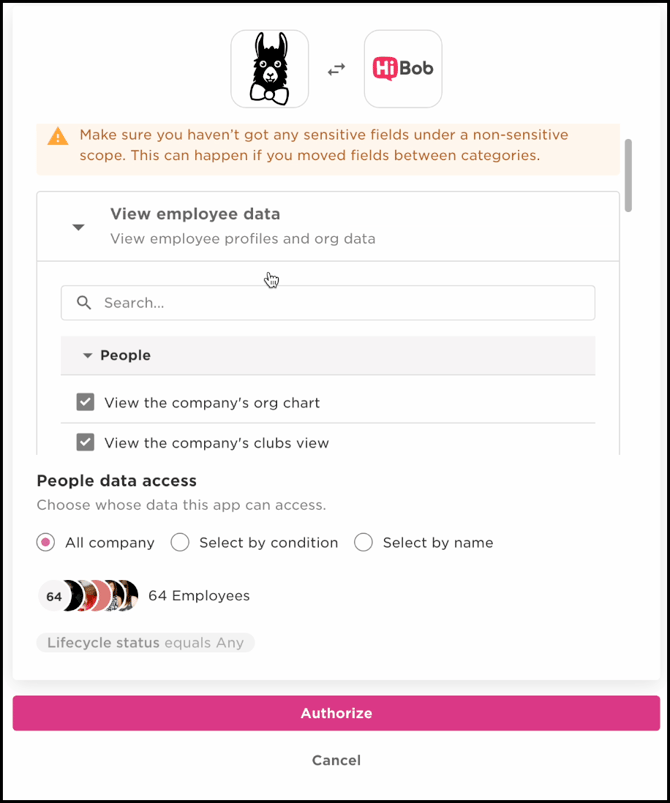
After authorization, you are redirected to EasyLlama to complete setup.
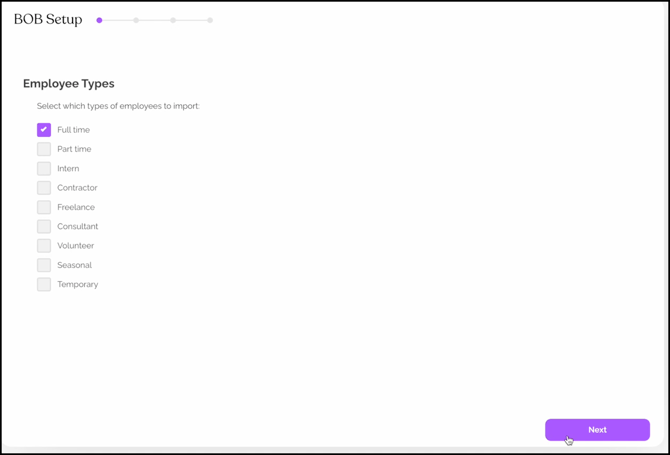
Step 3: Select Employee Types
Using the check boxes, select all employee types you’d like to import into EasyLlama. When satisfied with the selections, click Next.
Step 3: Review Employee Details
Review the employee details. If needed, use HiBob to make any updates and click Refresh.
To proceed with the next step, click Next.
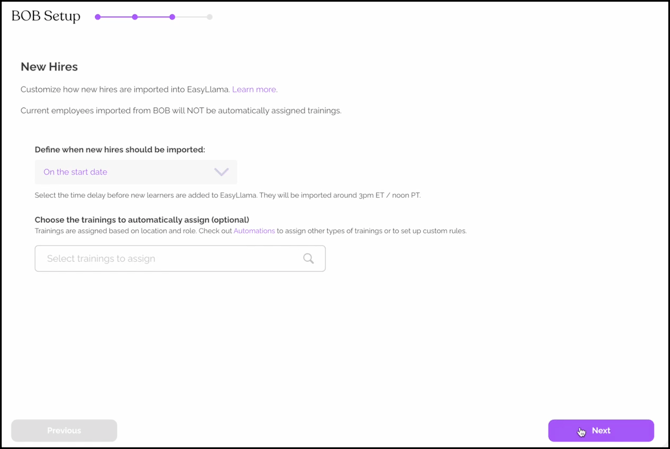
Step 4: Manage New Hires Imports
Next, select the schedule for importing new hires from HiBob into EasyLlama.
Optionally, choose which trainings should be assigned automatically. NOTE: Assignments can be managed via Automations if you prefer.
When finished, click Next.

NOTE: Importing learners may take a few minutes.
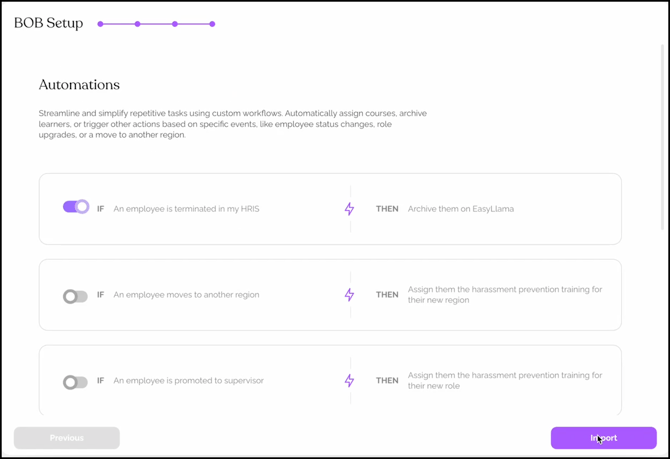
Step 5: Run Automations and Import Learners
If Automations are enabled, they can be run as a part of the import process. When you’re ready to import learners, click Import.
Step 6: Verify Integration Sync
The Integrations screen alerts you to the successful integration setup. Scroll to the HiBob card to verify that it has connected and is synced.
Step 7: Configure sync settings
Click the three dots (⋮) on the HiBob tile to access Settings. Configure:
- Auto-assignment preferences (enable after verifying initial sync)
- Notification settings
- Field mapping options
Post-Setup Information
Daily synchronization
Employee data syncs automatically every day. Changes in HiBob are reflected in EasyLlama within 24 hours, including the archiving of terminated employees.
Terminated employee handling
With proper permission configuration, terminated employees automatically archive in EasyLlama, maintaining compliance records while cleaning active user lists.
Quick Questions
How are managers identified for supervisor training?
The isManager field from HiBob maps to the Supervisor role in EasyLlama, enabling automatic assignment of supervisor-specific training.
Can terminated employees sync for compliance records?
Yes. Include "Terminated" in the permission group's lifecycle statuses to maintain training records for compliance purposes.
Llama Fact: Llamas have excellent memory for herd members—similar to how this integration remembers and syncs your entire employee roster daily!