![logolimanobkg-1.png]](https://help.easyllama.com/hs-fs/hubfs/logolimanobkg-1.png?height=40&name=logolimanobkg-1.png)
Helpful Tip! Admin accounts cannot be assigned training. If admins need to complete training, they must be added as Learners as well. Please see How do I add Learners to my Dashboard?
To Begin
What’s Needed
- All Access administrative privileges to the Dashboard
- Email address of the person being added as an admin
- Clear understanding of permission levels
- Access to ⚙️Settings > Users
Add Admin Users
Helpful Tip! Review the Dashboard Admin Permissions Guide to learn about role-based access controls, or access the Dashboard Admin Role Chart to see what admins will have access to based on the role(s) given.
1. Access User Management
- Log in to the Dashboard.
- From the left navigation menu, click ⚙️Settings > Users.
- From the top right corner, click Add User.
2. Configure User Details
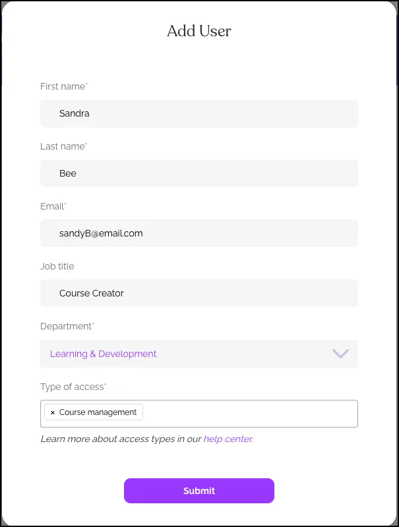
Fill in the Add User form as required and desired. Select the appropriate access level from these options:
Full Access Roles
- All access: Complete dashboard access to all features (Ideal for: Primary company admins, HR directors, Compliance officers)
- Learners access: Access to the portions of the dashboard used to assign courses, monitor progress, and send notifications to Learners (Ideal for: HR administrators, Onboarding specialists)
- Course management: Access to portions of the dashboard needed to create/edit courses and learning journeys and Preview content. This access level also allows downloading SCORM files for SCORM-only accounts. (Ideal for: Training coordinators, Instructional designers)
- Billing access: Access to billing, able to add/remove subscriptions, and payment methods. (Ideal for Finance teams, Accounting departments)
Specialized Roles
- IT access: Access to manage SSO, HRIS, APIs, and the Phishing simulator (Ideal for IT administrators, Security teams)
- Phishing Simulator access: Can manage ONLY phishing simulator campaigns (Ideal for: Security awareness teams)
- Leader access: Managers can view direct reports and any departments/locations they manage. To learn more, check out the Locations and Departments features. (Ideal for: Team leads, Department managers, Supervisors)
- If no Locations or Departments, Leaders only have access to their direct reports.
- If the Leader is a Department or Location manager, they have access to their direct reports and Learners in the Departments and Locations they manage.
- All access excluding Anonymous Reporting: All access, minus anonymous reporting. (Ideal for: HR administrators, Onboarding specialists)
- Anonymous Reporting access: Highly restricted access to anonymous reporting features only. Learn more about the Anonymous Reporting Tool. (Ideal for: Ethics/compliance officers, helpline managers)
3. Complete setup and designate primary contacts
- To create the user, click Submit.
- An invitation is sent only to new users. If the person was added as a Learner or previously held an admin role, they can simply log in using their credentials.
- After submitting, the new user will appear either in the All Access, Other, or Leaders list. Click the heading drop-down to expand.
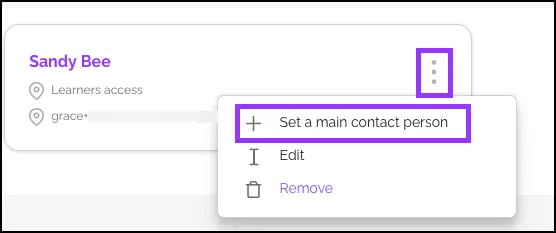
If the person added should be designated as the HR Primary Contact, click the three dots (⋮) on their user tile and select "Set a main contact person."
Remove Admin Users
NOTE: Admin users cannot remove their own accounts - another administrator must perform this action.
1. Navigate to Admin Users
- Log in to the Dashboard.
- From the left navigation menu, click ⚙️Settings > Users.
2. Remove the User
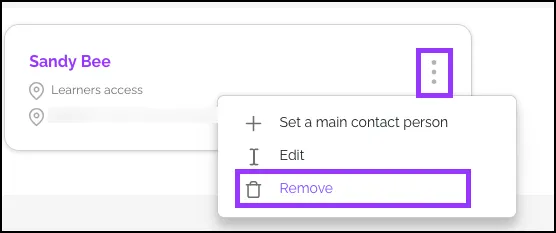
- Find the user, click the three dots (⋮) on the user's tile.
- Click Remove.
- Verify the action by clicking OK.
3. Archive Training Records (if applicable)
If the user has left the organization and has training records as a Learner, ensure the records are properly archived in the Learners section.
Recommendations
Avoid granting excessive permissions
To avoid security risks, it’s good practice to start with more restricted access and expand as needed.
Be sure to set a main HR contact
We recommend that you set a main contact for internal inquiries to ensure Learners are directed to the right place when they have questions.
Add users as Learners before granting admin access
Add users are Learners first if they need to complete training, as Admin accounts CANNOT be assigned courses.
Why isn’t my new admin receiving an invitation email?
If the admin previously held an admin role, or is linked to another account with the same email address
Quick Questions
Can a user remove their own account?
No. Users cannot remove themselves. Another admin with All Access must remove them from Settings > Users.
What if an admin needs to take a training course?
Admins need to be added as a Learner, and courses will need to be assigned via the learner profile.
Why isn’t my new admin receiving the invitation email?
If the user is linked to another account (i.e., as a Learner) or they previously held an admin role, they will NOT receive an invitation email. They can log in to the Dashboard using their existing email address and password. If the user encounters issues, try clearing the browser’s cache and cookies or resetting their password.
🐪 Llama Fact: Llamas establish clear herd hierarchies with designated leaders—similar to setting specific access levels to ensure your admin team works together efficiently!