![logolimanobkg-1.png]](https://help.easyllama.com/hs-fs/hubfs/logolimanobkg-1.png?height=40&name=logolimanobkg-1.png)
Before You Start
What You'll Need
- Administrative access to the EasyLlama dashboard
- Learners with assigned courses (Recommended)
- For location-limited links: Learners must have Locations assigned in their profiles
- For employee ID login: Learners must have Employee IDs in their profiles
Quick Reference
- Purpose: One link for learners to access courses without email notifications
- Ideal for: Learners without work emails, shared devices, walk-up training kiosks
- Access: Settings > Kiosk Links > Create Kiosk Link
- Limitations: Kiosk Links will NOT work for customers using a 3rd Party LMS, or for SCORM-Only users.
- URL shortening: Optional—use TinyUrl, Bit.ly, or similar for easier sharing
Create and Use a Kiosk Link
Step 1: Access Kiosk Links
- Go to Settings > Kiosk Links in your EasyLlama dashboard
- Click the purple Create Kiosk Link button
Step 2: Configure Link Settings
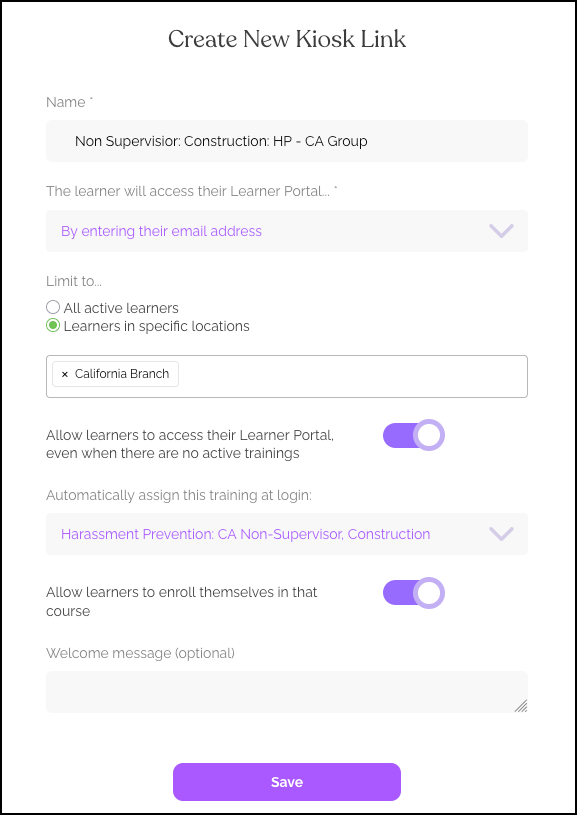
Name
- Enter a descriptive name to help you identify the link (learners don't see this)
- Example: "Warehouse Training Kiosk" or "Retail Seasonal Workers"
Limit To (choose one):
- All Active Learners – Everyone can use the link
- Learners in a specific location – Requires Locations assigned to learner profiles (not the same as State/Region)
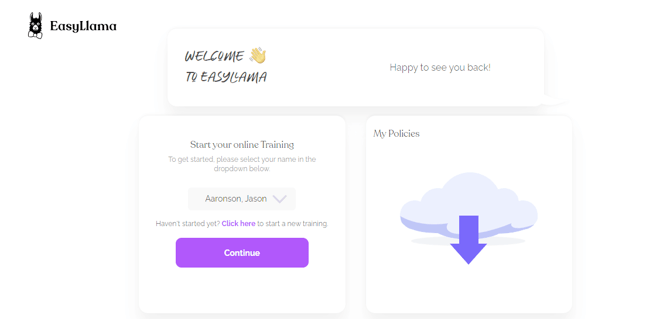
Step 3: Choose Login Method
Select how learners will identify themselves:
| Option | Best For | Notes |
|---|---|---|
| Select their name from a list | Shared devices with trusted users | Risk of selecting wrong name—someone could complete another's course |
| Enter their email | Most secure for individual access | Reduces wrong-course risk |
| Enter their employee ID | Organizations with unique IDs | Requires Employee IDs in learner profiles |
Step 4: Self-Enrollment Option (Use with Caution)
"Allow Learners to Enroll themselves if they are not on the list"
When enabled:
- Learners not in your dashboard can add themselves
- They fill out a form with their information
- They are assigned the course immediately
- No validation—they can enter any name/email
- No matching with existing records—creates new records
- Not recommended for Unlimited subscribers
If you enable this and no course is selected, Harassment Prevention becomes the default course, assigned based on the Region and Role the learner selects during self-enrollment.
Step 5: Assign a Course
Select the specific course that will be assigned when learners use this kiosk link. Only one course per link may be chosen.
Step 6: Generate and Share the Link
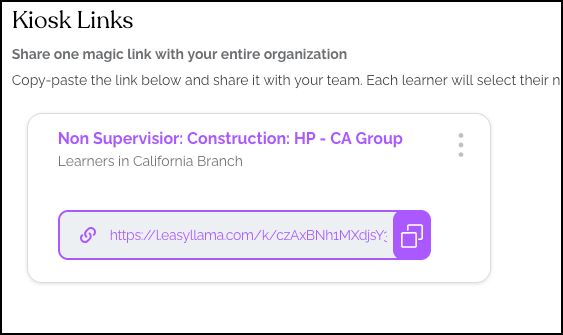
- After configuring all options, click Save to generate the link
- Click the copy button (two overlapping squares) to copy the link to your clipboard
- Paste the link where learners can access it:
- Shared computer bookmark
- Printed QR code
- URL bar on a kiosk device
Step 7: (Optional) Shorten the URL
For easier sharing, use a URL-shortening service like TinyUrl or Bit.ly to create a shorter, more memorable link.
Important Considerations
Wrong Name on Certificate
If a learner selects the wrong name from the drop down and completes someone else's course:
- The certificate will show the wrong person's name
- Contact support@easyllama.com with full details for assistance
- More info: Why is the wrong name on the certificate?
Self-Enrollment Risks
- Creates new learner records that won't match existing profiles
- No validation—anyone can enter any information
- Can quickly inflate your learner count
- Unlimited subscribers should generally avoid this option
Location Limiting
If you limit access to "Learners in a specific location":
- Learners must have Locations assigned in their profiles
- This is a separate field from State or Region
- Verify Locations are correctly assigned before creating the link
Helpful Tips
Enable Kiosk Mode with caution
Only enable if you truly need walk-up enrollment. Otherwise, keep disabled to prevent duplicate/unverified records.
Test the link
Before sharing widely, test the link yourself to ensure the chosen login method works for your learners.
Remember to assign a course
If no course is selected and self-enrollment is enabled, Harassment Prevention becomes the default—which may not be what you intended.
Use the location feature only if Locations are assigned
Verify learners have Locations in their profiles before creating location-limited links, or they won't be able to access.
What's Next?
- Assign Locations to learners
- Add Employee IDs to learner profiles
- Learn about self-enrollment implications
Quick Questions
Can I create multiple kiosk links?
Yes. Create different links for different courses, locations, or learner groups. Use descriptive Link Names to keep them organized.
What happens if a learner selects the wrong name from the dropdown?
They will complete someone else's course, and that person's certificate will show the wrong name. Contact support for assistance if this happens.
Do learners need email addresses to use a kiosk link?
Not if you use the "Select from list" or "Enter employee ID" options. Email is only required if you choose email login.
Can I use kiosk links on mobile devices?
Yes. The kiosk link works on any device with a browser, including smartphones and tablets.
Llama Fact: Llamas are social animals that gather in groups at shared locations—similar to how kiosk links allow learners to gather at a shared device to access their training!