![logolimanobkg-1.png]](https://help.easyllama.com/hs-fs/hubfs/logolimanobkg-1.png?height=40&name=logolimanobkg-1.png)
Accessing Advanced Insights
Go to the Insights and Reports tab in your EasyLlama dashboard, then select Advanced Insights from the dropdown menu at the top left of the Insights tab.
Understanding Dashboard Widgets
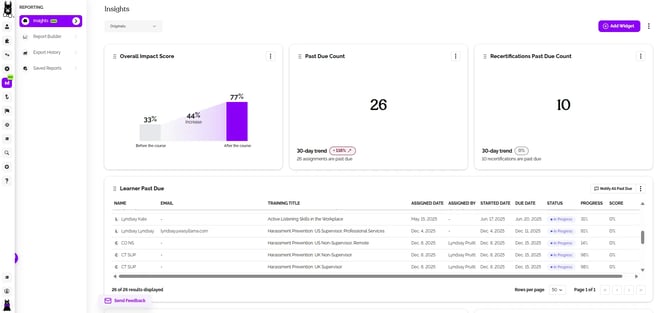
Widgets are the building blocks of your Advanced Insights dashboard. Each widget displays a specific type of training data—such as completion rates, past due courses, or learner progress—and can be customized with filters to show exactly what you need.
Widgets come in different formats depending on the data they display:
List widgets show detailed tables with learner names, course assignments, and status information. Some list widgets include action buttons like Notify All to send reminders directly from the dashboard.
Chart widgets visualize your data with charts or graphs, making it easy to spot trends and compare metrics at a glance.
Count widgets display single numeric metrics with month-over-month comparisons, giving you a quick snapshot of key performance indicators.
Each widget type supports different customization options. You can filter data, adjust row counts for list views, and add multiple instances of the same widget with different filters to track various groups side by side.
Customizing Your Dashboard
Rearranging widgets
- Look for the drag handle icon (⋮⋮) at the top right on each widget
- Click and drag the widget to a new position
- A purple line will appear showing where the widget will land
- Release to place the widget
Hiding widgets
- Click the ellipsis menu (⋮) on the widget
- Select Hide
Adding Widgets
- Click Add Widget at the top left of the dashboard
- Click Add beneath the widget you’d like to add.
Renaming Widgets
- Click the ellipsis menu (⋮) on the widget
- Select Edit
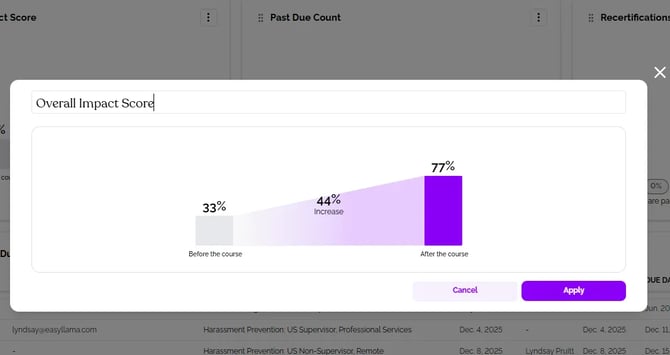
- Click on the Widget Title and you’ll see a text cursor at the insertion point (pictured below).
- Add or Remove text to customize the name of the widget.
Editing and filtering widgets
- Click the ellipsis menu (⋮) on the widget
- Select Edit
- Click Add Filter to narrow the data displayed
- Choose your filter type and set the criteria
- Click Apply
💡You can add multiple filters to a single widget for more targeted insights. Some widgets support more filter options than others.
Creating Custom Dashboards
To create a new dashboard:
- Click the dashboard dropdown at the top left of the page
- Select Create new dashboard
- Click Add Widget and select widgets from the list
- Arrange and configure your widgets as desired
- Click Save
To rename a dashboard:
- Click the dashboard dropdown
- Click the ellipsis menu (⋮) at the top right of the dashboard
- Select Rename dashboard
- Enter a new name and click Save
To set a default dashboard:
- Open the dashboard you want to use as your default
- Click Save as default dashboard
- This dashboard will display each time you navigate to Advanced Insights
🎨Personalization Tip: Create multiple dashboards for different use cases—one for overall completion tracking, another for past due follow-ups, and a third for recertification monitoring. You can then rename the dashboard and widgets to reflect the use case.
Taking Action from Widgets
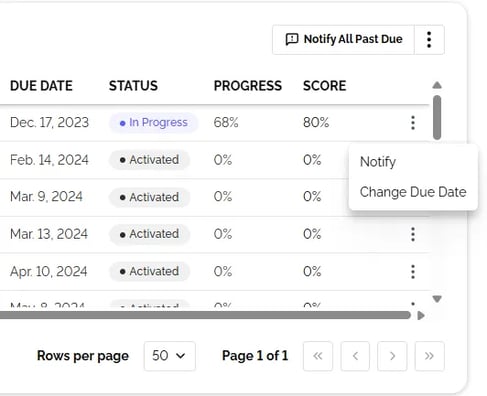
Some widgets allow you to take direct action. Look for the ellipsis menu (⋮) or action buttons to see what you can do from each widget. For example, the Learner Past Due widget has the option to Notify All Past Due or you can click the ellipsis menu (⋮) to the far right of each Learner’s row to notify specific learners or change their Due Date.
Adjusting Table Views
For widgets with table displays:
- Click Edit on the widget
- Use the Number of rows dropdown to control how many items display at once
- Higher row counts reduce the need to paginate through results
Switching Between Dashboard Views
Use the view toggle at the top of the page to switch between:
- Advanced Insights (new customizable dashboard)
- Basic Insights (original view with drill-down capabilities)
Both views remain available so you can choose the experience that works best for your reporting needs.
FAQ
Can I add the same widget type more than once?
Yes! You can add multiple instances of the same widget, apply different filters to each one, and rename them using their edit menus. This is useful if you want to track different departments or course categories side by side.
Why can't I see certain filters in some widgets?
Different widgets support different filter types based on the data they display.
Can I export or share my dashboard?
Direct export is not currently available in the beta version. You can use your browser's print function to create a PDF, though formatting may vary.
What's the difference between Learner Past Due and Recertifications Past Due?
Learner Past Due shows any assigned course that hasn't been completed by its due date. Recertifications Past Due specifically tracks learners who need to recertify for courses they've already completed.
🦙 Llama Fact: Llamas have excellent peripheral vision with a 360-degree range—perfect for keeping track of their herd. Speaking of comprehensive views, the Advanced Insights dashboard helps you monitor your entire training program from every angle! 