![logolimanobkg-1.png]](https://help.easyllama.com/hs-fs/hubfs/logolimanobkg-1.png?height=40&name=logolimanobkg-1.png)
Build customized training paths for your team members using Learning Journeys, EasyLlama's enhanced learning management system. Choose from pre-built templates or create from scratch with courses, videos, documents, and other elements.
Before You Start
What You'll Need
- Administrative access to your EasyLlama dashboard
- List of courses, documents, or other content to include
- Access to Learning Journeys tab
Quick Reference
- Video tutorials: Learning Journey Video Tutorial Library
- Two creation methods: Use templates or start from scratch
- Enrollment options: Via Journey page or bulk actions from Learners tab
- Key features: Drag-and-drop reordering, assign rules, due dates, prerequisites
Create a Learning Journey Using a Template
Templates provide a great starting point with pre-built outlines you can customize.
Step 1: Access Templates
- Click Trainings > Learning Journeys > Templates
- Browse available pre-built Learning Journey templates
Step 2: Open a Template
Click on any recommended template. It opens in edit mode with the title automatically changed to Copy of [Journey Title].
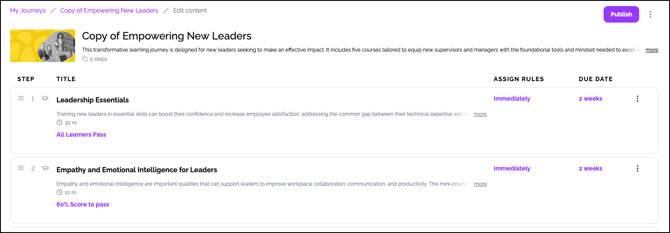
Step 3: Customize Your Journey
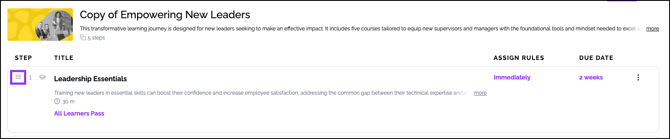
Reorder Courses
- Click and drag the three lines symbol next to any item to reorder
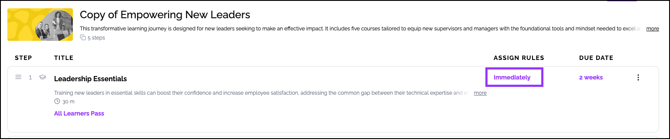
Set Assign Rules
- Click the value in the "Assign rules" column
- Configure:
- Delays between courses
- Prerequisites (must complete previous items)
Configure Due Dates
- Click the value in the "Due Date" column
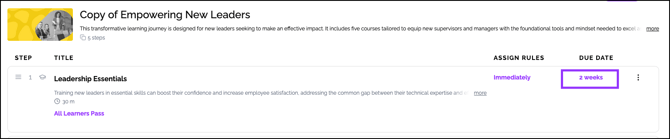
- Set when each course is due based on assignment date
Add Content
Click buttons at the bottom of the Journey to add:
- Courses from your library
- Documents (policies, handbooks)
- Videos (external or custom)
- Links to external resources
- Knowledge checks
- Custom courses (if using LMS package)

Edit Journey Details
- Click the three dots menu (⋮) at the top
- Select Edit details
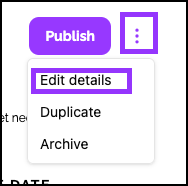
- Update:
- Title
- Description (optional)
- Thumbnail (optional, upload custom image)
- Click Save
Step 4: Publish
Once customization is complete, click "Publish" to make the Journey ready for assignment.

Create a Custom Journey from Scratch
Step 1: Initiate Creation
- Go to the Learning Journeys tab
- Click Create Learning Journey

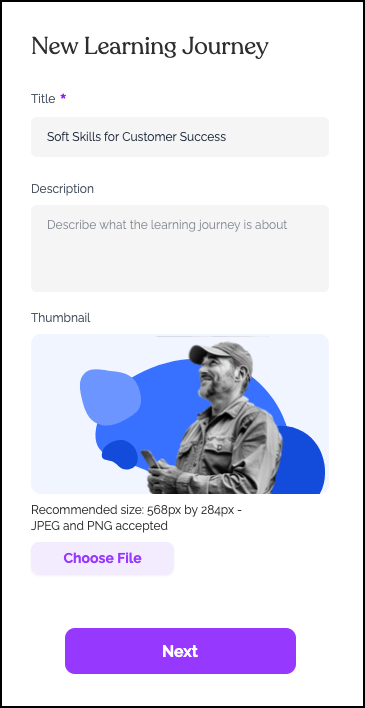
Step 2: Basic Information
- Enter a Title for the Journey
- Add a Description (optional)
- Upload a Thumbnail image (optional)
- Click Next
Step 3: Choose Starting Point
Select Start from scratch to build the Journey with no pre-populated content.
Step 4: Add Content
Use the buttons at the bottom to add:
- Courses from your library
- Documents requiring signature
- Videos (external links or custom uploads)
- Website links
- Knowledge checks
- Custom courses (LMS package required)

Step 5: Configure and Publish
Follow the same customization steps as in Method 1 (reorder, set assign rules, configure due dates), then click Publish.
Enrolling Learners in Learning Journeys
Method A: Enroll via Journey Page
- Go to My Journeys and click on the published Journey
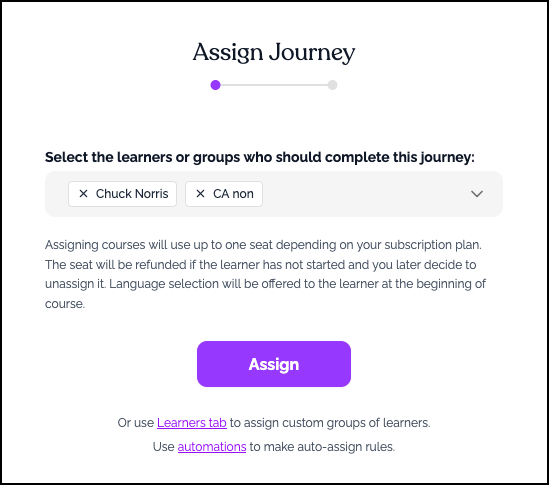
- Click the purple Assign button at the top-right

- Select Learners:
-
- Scroll through the list or use the Search function
- Click the filter button to narrow results
- Check boxes next to desired learners
- Click Assign to complete
Method B: Enroll via Bulk Actions
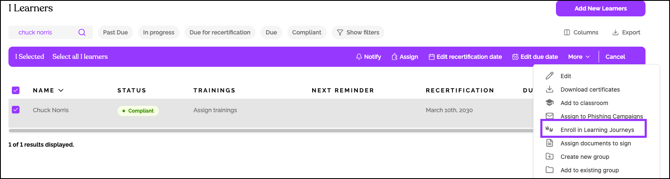
- Go to the Learners tab
- Check boxes next to learners to enroll
- Purple Bulk Actions bar appears
- Click the More dropdown and select Enroll in Learning Journeys
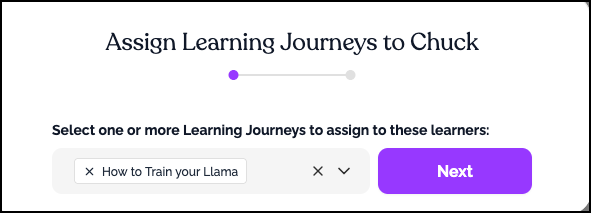
- Choose the Learning Journey to assign, and click Next
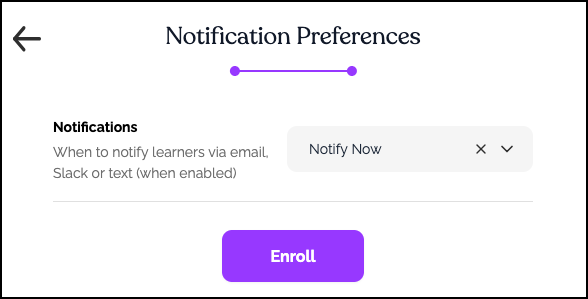
- Select the desired notification preferences, and click Enroll.
Managing Published Journeys
Editing a Published Journey
- Click Learning Journeys > My Journeys
- Click on the Journey you want to edit
- Make desired changes (reorder, add/remove content, adjust rules)
- Click Publish to update (changes apply to newly enrolled learners)
Viewing Progress
- Track learner progress through the Journey in the Learners tab
- Completion status updates as learners finish each component
- Reports available in Insights and Reports
Archiving Journeys
- Click the three dots menu (⋮) on the Journey tile
- Select Archive
- Confirm to remove from active list (assignments remain for enrolled learners)
Helpful Tips
Publish before assigning
Learners can only be enrolled in published Journeys. Always click "Publish" after creation.
Set Prerequisites if needed
If courses should be taken in order, configure prerequisites in the Assign rules column.
What's Next?
- Add documents with signature requirements to your Journey
- Upload custom SCORM courses (LMS package)
- Track Journey completion in Insights
Quick Questions
Can I edit a Journey after publishing?
Yes. Edit any published Journey and republish. Changes apply to newly enrolled learners. Already-enrolled learners see the original version.
What's the difference between My Journeys and Templates?
My Journeys are your published and draft custom Journeys. Templates are pre-built Journeys you can copy and customize.
Can learners see their progress through a Journey?
Yes. Learners can track their progress in the Learner Portal, see which steps are complete, and what's next.
How do I remove a learner from a Journey?
Use the Learners tab to locate the learner, open their profile, and unassign the Journey from their current assignments.
Can Learning Journeys be reassigned year after year?
Yes, Learning Journeys can be manually reassigned year after year, but for courses, we recommend using course recertification instead. This is because the completion status of courses carries over into the Learning Journey, and the courses must have been completed at least 1 year ago to be reassigned.
This prevents users from being required to complete courses they’ve already taken. If needed, the Learner’s Recertification Date can be updated in bulk prior to reassigning the Learning Journey [see: Changing a Learner’s Recertification Date], or you can automate course recertification through Settings > Recertifications [see: Training Recertification Frequency - How do I change how often a course is assigned?]
Llama Fact: Llamas are natural pathfinders who remember routes across challenging terrain—similar to how Learning Journeys guide learners through structured training paths!