![logolimanobkg-1.png]](https://help.easyllama.com/hs-fs/hubfs/logolimanobkg-1.png?height=40&name=logolimanobkg-1.png)
Free Previews sent are for demo purposes only. Completed preview courses cannot be moved to your dashboard, nor can the name on the certificate be changed. All persons needing to complete a course for compliance purposes will need to be added as Learners to your organization's dashboard and assigned the course there.
Before You Start
What You'll Need
- Administrative access to your EasyLlama dashboard
- Access to the Training Library
- Email address(es) to send previews to
- Understanding that previews are for demo purposes only and cannot be moved to the dashboard as completed training, or used for compliance purposes.
Send a Course Preview
Step 1: Access the Training Library
- Log in to your EasyLlama dashboard
- From the left navigation menu, click on the Training Library tab
Step 2: Find Your Course
- Use filters on the left to narrow your search
- Or click "View All courses" to scroll through the entire library
Step 3: Open the Course
Click on the course you'd like to preview.
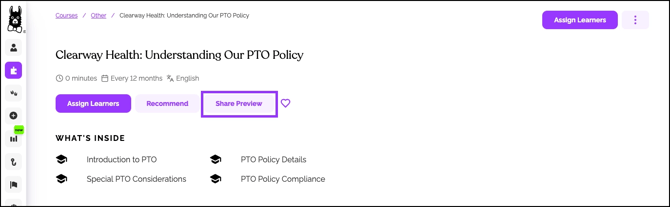
Step 4: Share Preview
- Click the Share Preview button
- A pop-up box appears where you can enter email addresses. If multiple people need to review the demo, separate their email addresses with commas, as shown below:
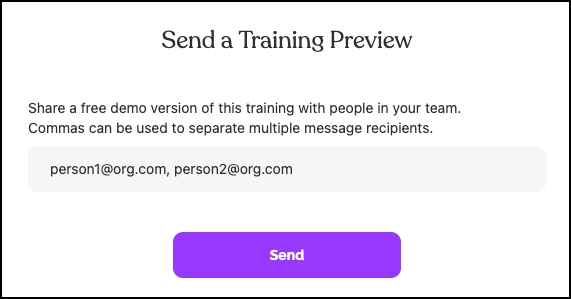
- Click Send
Email Preview
Once sent, the recipient(s) receive an email with a link to the course preview. They simply click on the link to get started!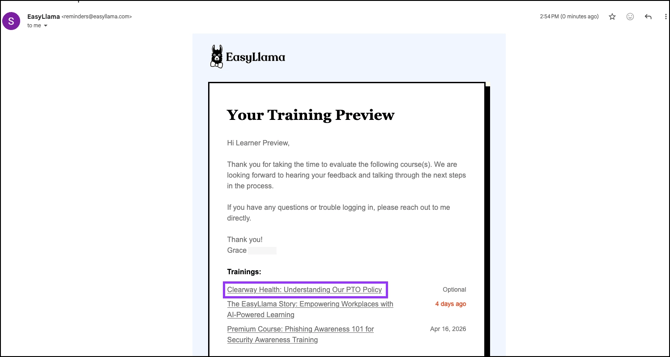
Note on Previously Sent Previews
If the training preview has previously been sent to a user, a new course will not be assigned. You and the recipient will not receive a notification that the course wasn't sent.
Troubleshooting: Search your email mailbox for reminders@easyllama.com if you think a preview was previously sent to you. For additional help, contact Support with all relevant details by clicking Help > Contact Us in the EasyLlama Dashboard.
How to Navigate a Skippable Course
Preview courses are skippable, allowing you to quickly evaluate content without taking the full course.
Slide-by-Slide Navigation
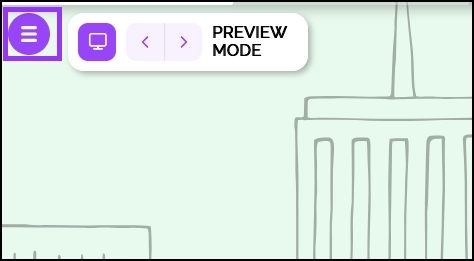
Use the slide-by-slide buttons (< >) located at the top of the course to move back or forward one slide at a time.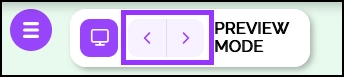
Chapter Navigation (Skip to Specific Sections)
- Click the Hamburger menu button (≡) at the top-left of the course to expand the chapter list
- You may see locks on chapters and sections – don't worry, you can still access them!
- First, click on the numbered chapter title
- Then, click on the section you'd like to review
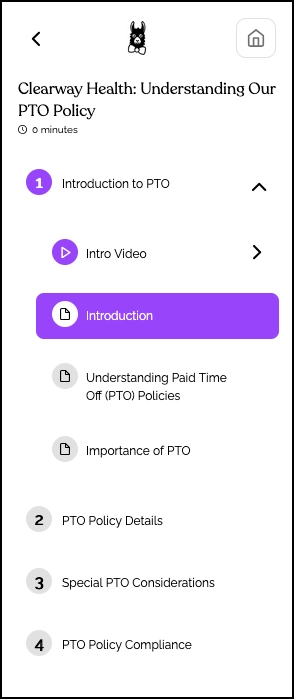
Note: Clicking on the numbered chapter title alone will not open the chapter until you select a specific section.
Helpful Tips
Completing a preview does not count as completed training
Previews are for evaluation or demo purposes only. Anyone needing compliance credit must complete the full course in your dashboard.
Certificates cannot be renamed
Preview certificates display the recipient's name as entered. This cannot be changed.
A course preview cannot be resent
If someone was already sent a preview of the same course, they won't receive another. Search for past emails before resending.
Quick Questions
Can I send a preview to someone outside my organization?
Yes! You can enter any email address when sending a preview.
Do previews expire?
No. As long as the user has their course preview email, they can access the course!
What if the preview email doesn't arrive?
Be sure to check spam/junk folders or do a search for reminders@easyllama.com. If still not received, contact Support for assistance by clicking Help > Contact Us in the EasyLlama Dashboard. Please keep in mind that if a person was already sent a preview for the same course, they will not receive another one.
Llama Fact: Llamas are curious animals that like to explore new terrain before committing—similar to how course previews let you explore training content before assigning it to your team!