![logolimanobkg-1.png]](https://help.easyllama.com/hs-fs/hubfs/logolimanobkg-1.png?height=40&name=logolimanobkg-1.png)
Before You Start
What You'll Need
- "All Access" administrator privileges (only All Access admins can designate leaders)
- Access to Settings > Users in the EasyLlama dashboard
- A list of users to designate as leaders, and the locations or departments they should manage
Important to Know
Leaders are automatically given access to:
- Their direct reports (based on manager assignments)
- All learners in any assigned Locations
- All learners in any assigned Departments
When a leader is designated to a specific Location or Department (e.g., "Mike Smith as leader of the Vancouver, Canada Location"), they will have access to:
- Any learners who are under them as a direct report PLUS
- Visibility of all learners in that assigned Location or Department
Quick Reference
- Who can designate: All Access admins only
- Where: Settings > Users > Leaders section
- Methods: Add new user, convert existing admin, bulk add, or automate
- Leader capabilities: Leader Dashboard: Features & Functionality
Method 1: Add a New User as a Leader
Step 1: Access User Settings
- Go to Settings > Users in your admin dashboard
- Scroll down to the Leaders section
Step 2: Add New User
From the upper right corner of the screen, click the Add User button.

Step 3: Fill in User Details
Complete the user information form:
- Name
- Any other required fields
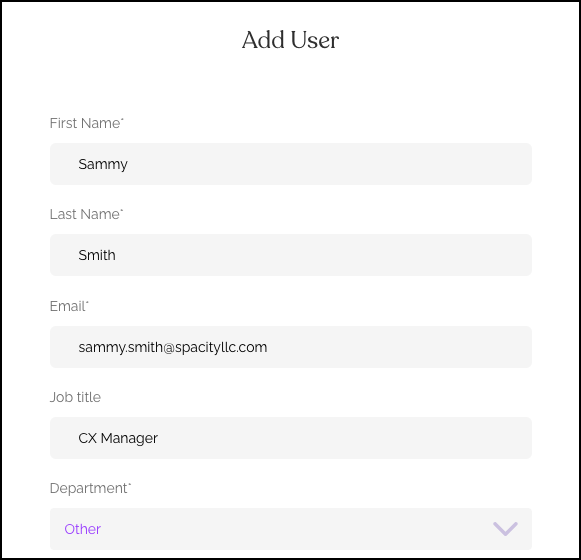
Step 4: Set Access Level
- Remove the "All Access" role if it's selected by default
- Add the Leader Access role
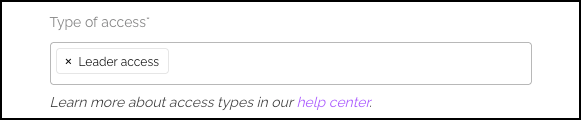
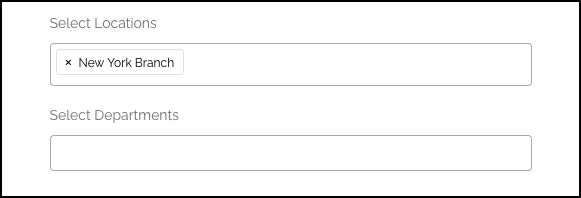
Step 5: Assign Locations or Departments (Optional)
If this leader should oversee specific locations or departments:
- Select the appropriate Locations from the list
- Select the appropriate Departments from the list
- They will gain visibility of all learners in these assigned groups
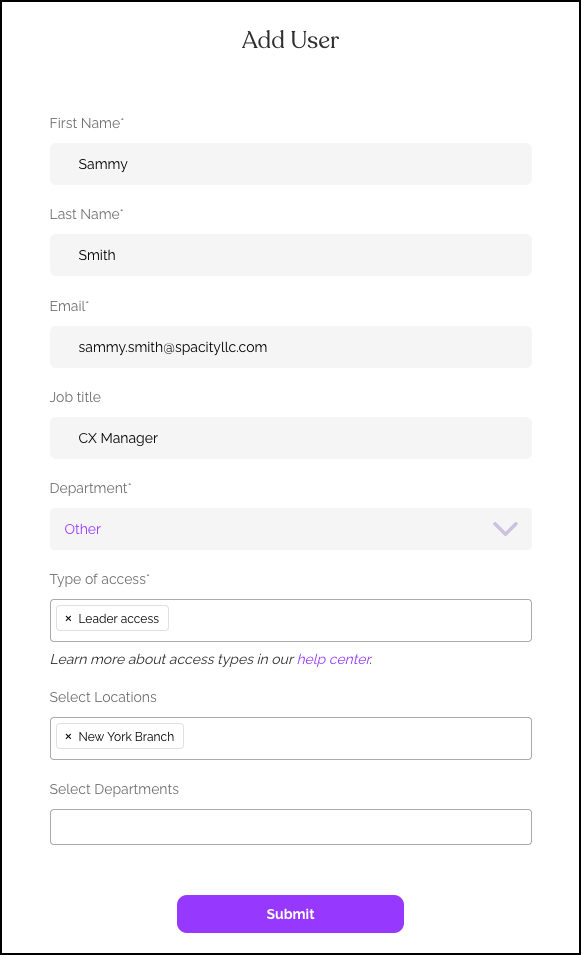
Step 6: Save
Click Submit to create the new leader user.
Method 2: Convert an Existing Admin to a Leader
Step 1: Find the User
- Go to Settings > Users
- Locate the user in the list (you can scroll or search)
Step 2: Open Edit Options
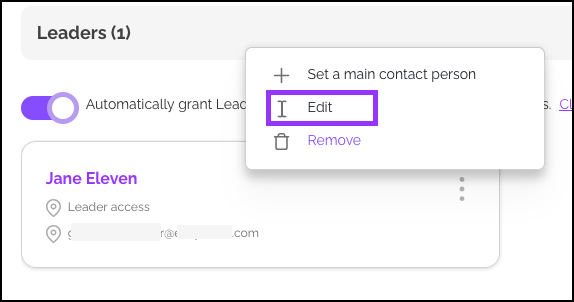
Click the three dots (⋮) next to the user's name and select Edit.
Step 3: Change Access Level
Update the user's access level, removing the current access level if needed, and then adding Leader access.
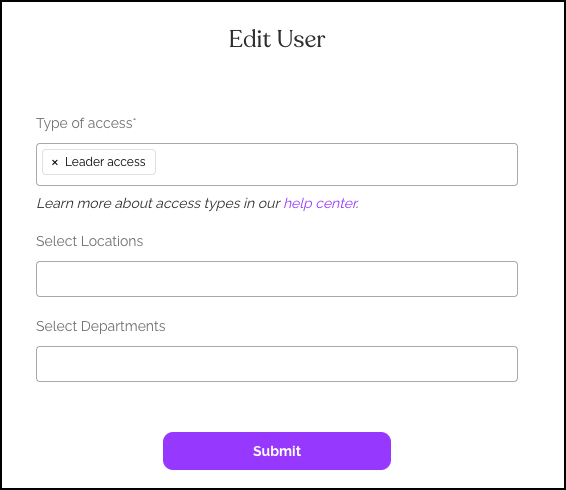
Step 4: Assign Locations or Departments (Optional)
If this leader should oversee specific locations or departments:
- Select the appropriate Locations from the list
- Select the appropriate Departments from the list
- They will gain visibility of all learners in these assigned groups
Step 5: Save Changes
Click Submit to update the user's role and permissions.
Method 3: Automate Leader Management
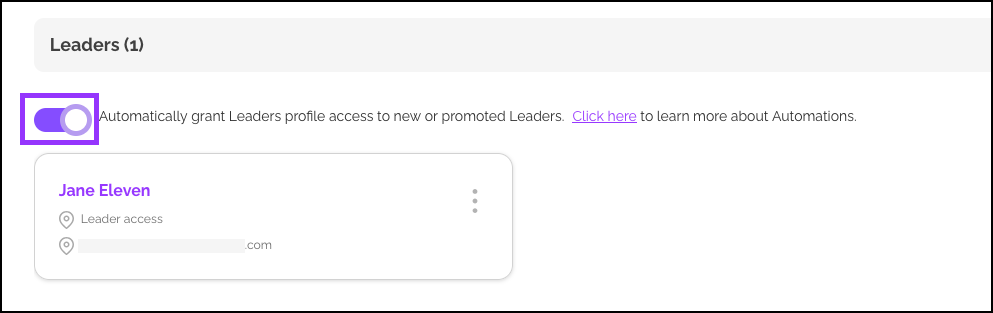
To simplify ongoing leader management, you can automatically grant leaders access to new and promoted learners.
Find the Automation Setting
The setting is located in the Leaders section under Settings > Users.
Enable this option to:
- Automatically give leaders access to new learners who become their direct reports
- Automatically give leaders access to promoted learners who join their team
Leader Capabilities
Once designated, leaders have access to:
- A specialized dashboard with permissions tailored to their role
- Learner management limited to their direct reports and assigned locations/departments
- Reports and analytics filtered to their learners only
- Training resources including the Compliance Training Library, Learning Journeys, and Course Authoring
For a detailed overview, including a video tour, see: Leader Dashboard: Features & Functionality
Helpful Tips
Only All Access admins can designate leaders
If you don't see the options described, verify you are logged in with an All Access account.
Remember to remove All Access when converting
When converting an existing admin, ensure "All Access" is removed—they should only have Leader Access.
Assign locations/departments when needed
If a leader needs visibility beyond their direct reports, remember to assign them to the appropriate locations or departments during setup.
Use automation when possible
Enable the automation setting to reduce manual work as your organization grows and changes.
What's Next?
- Explore the Leader Dashboard features
- Set up Locations for leader assignments
- Create Departments for leader assignments
Quick Questions
What access do leaders get automatically?
Leaders automatically have access to their direct reports. If assigned to locations or departments, they also see all learners in those groups.
Can a leader manage multiple locations?
Yes. When creating or editing a leader, you can select multiple locations and/or departments.
How do I remove someone as a leader?
Go to Settings > Users, find the user, click the three dots, select Edit, and change their access level from Leader to something else, or remove them entirely.
Do leaders see all learner data or just training progress?
Leaders see learner information relevant to training management, but have more limited access than All Access admins. See the Leader Dashboard article for details.
Llama Fact: Llamas naturally organize into social groups with clear leaders—similar to how EasyLlama's Leader Access role helps you organize management oversight in your organization!