![logolimanobkg-1.png]](https://help.easyllama.com/hs-fs/hubfs/logolimanobkg-1.png?height=40&name=logolimanobkg-1.png)
Uploading a CSV file is a quick way to add or update Learners to the Dashboard and assign courses and Learning Journeys. This method is ideal for bulk operations (>10 users) and requires careful file preparation to avoid common errors.
Before You Start
File uploads are used to create new learners or update existing users to modify data (such as role, location, etc.) or to assign Learning Journeys or Courses. If you are updating users, please follow the same rules. Email and Employee ID are used to match records. To avoid duplicate users, please ensure that the Email and Employee ID match what appears on the Dashboard.
What You Need
- Learner data organized with required fields
- Administrative access to the Dashboard
- A spreadsheet program (Excel, Google Sheets, Numbers, etc.)
- Access to the Learners tab > Add Learners
Quick Reference
- Primary Method: Prepare a CSV file using the downloadable template
- Alternative: Watch a video tutorial, or reach out to support by clicking Help > Contact Us in the EasyLlama Dashboard for a file review. Be sure to send the .CSV file as an attachment!
Method
Download and Prepare the Template
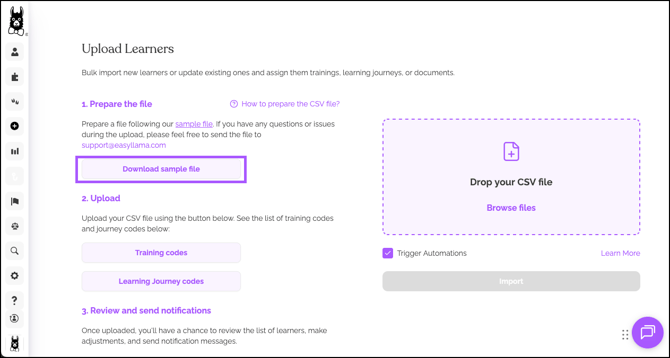
- Log in to the Dashboard.
- From the left navigation menu, go to Learners > Add New Learners > File Upload.
- Click Download sample file > Download our Template.
- Open the downloaded file to begin preparing the template.
Enter Learner Data
NOTE: When preparing the file, please take the following into consideration:
- Remove any unnecessary columns, as extra columns can interfere with the upload
- Column names must match exactly. Columns noted below with an asterisk (*) are required, and either an Email or Employee ID must be used.
- First and Last Names CANNOT be combined
- Avoid special formatting
- Fill in the template with these exact column headers:
| Column Name | Usage |
|---|---|
| First Name* | Required for creating new learners only. |
| Middle Name | |
| Last Name* | Required for creating new learners only. |
| Required for matching, and to send notifications - must be unique to avoid duplicates. If a user with that email already exists in the system, their profile is updated. | |
| Journey | For Learning Journey assignments, the code can be found and copied on the Upload Learners screen by clicking Learning Journey Codes. |
| Training Type | Used for course assignments, and can be found and copied on the *Upload Learners *****screen by clicking Training Codes. |
| Location | Used to recommend courses based on locality. Location indicates the business address where the learner works. Learn more about locations here: Locations Feature |
| State | Input the full state name, or two letter abbreviation. Used to recommend courses based on locality, when Location does not exist within the learner profile. Not to be used for countries outside of the US - Use the country field instead. NOTE: Canadian provinces can use a 2 letter abbreviation, but they will not be added to the Dashboard. |
| Country | Input the country’s full name, or two-letter abbreviation. Not required if all employees are based in the United States. |
| Role | |
| ID | The employee ID, used as an alternative matching field, if no email |
| Title | The Learner’s Title |
| Department | Used to match employees to their managers/supervisors. Learn more about departments here: Department’s Feature |
| Manager | The name of the Learner’s supervisor. In order to populate, the manager must be in the dashboard as a supervisor, with the name spelled exactly the same. |
| Phone Number | |
| Employment Type | |
| Group | The name of the Group that the Learner should be added to |
Copy Training and Journey Codes
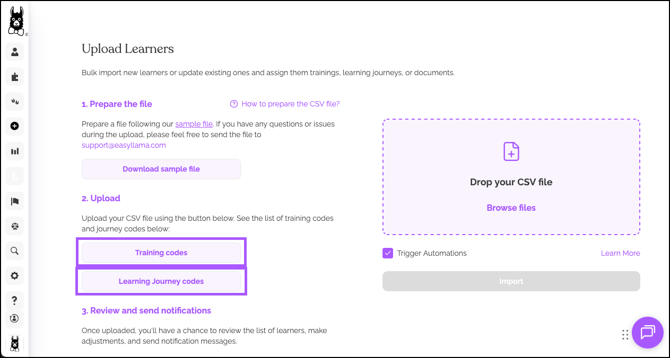
- On the Upload Learners page, click Training Codes or Journey Codes.
- Search for the course or journey name.
- Helpful Tip: For optimal search results when finding Training Codes, type in the code using the following formula:
- HP for harassment prevention courses
- HIPAA for HIPAA courses
- Title for Title IX courses
- AI- for courses about AI security, misuse, and data privacy
- Alternatively, type in one keyword that appears in the title of the course, for example, type in Diversity to find courses related to Diversity and Inclusion
- Helpful Tip: For optimal search results when finding Training Codes, type in the code using the following formula:
- To the right of the code needed, click the Copy icon.
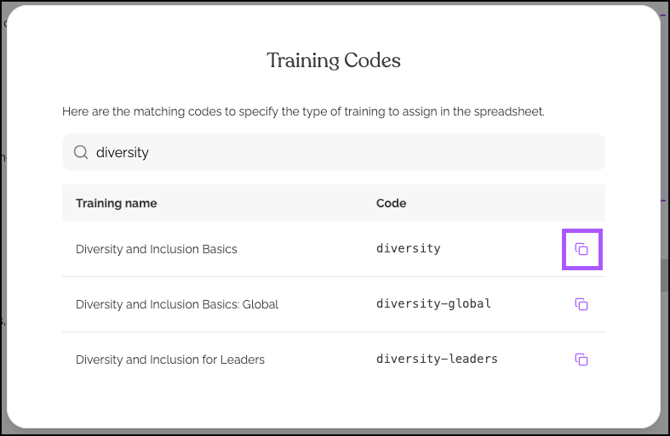
- Navigate to the template, find the learner, and paste the code into either the Training Type (for Training Codes) or Journey (Learning Journey) fields.
- Assign multiple trainings by separating codes with commas in a single cell. For example, “harassment-us-supervisor,diversity”.
Review, Clean the Data, and Save
Before saving the file and uploading, check for these common issues:
- No leading/trailing spaces in any cells. That means that there aren’t any spaces in front of or behind any value which typically happens when copying and pasting from another source, especially if the cell is formatted using center justification.
- No blank rows between data, as blank rows typically lead to a “Learner Blank” error. If you see this error, verify if the data uploaded or not.
- Use unique email addresses, as only one person per email will upload. Others are discarded as duplicates. If members share an email, or if a learner does not have an email address, leave the email field blank. After upload, either manually add the email address or send the course link to their manager’s email address.
- No hidden rows or columns, because the data from the hidden cells is uploaded.
- Remove special formatting to avoid upload errors. Formatting may cause a “Learner Blank” error.
- Use a single worksheet. Do not use multiple tabs, as they will not upload. Use a new spreadsheet for each tab if needed.
Upload and Configure
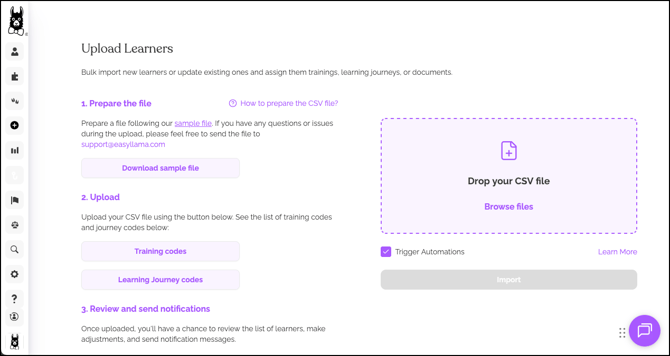
- Navigate to the Upload Learners screen (Learners > Add New Learners > File Upload).
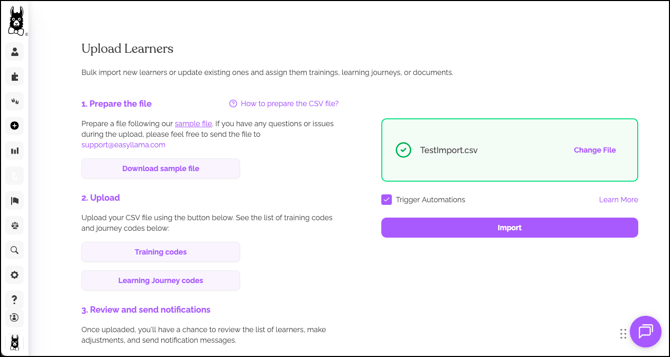
- Click Browse File, locate and open the .CSV file OR drag and drop the .CSV file into the purple box.
- Wait for the green check mark confirmation.
- If you’d like to use Automation, check the Trigger Automations check box.
- Click Import.
- If assigning courses/journeys, set due dates and notification preferences.
- Click Assign to complete.
Verify the Data Uploaded as Desired
Navigate back to the Learners tab, and click into the uploaded learners to verify the import was successful.
If there are a few discrepancies, it’s best to make manual corrections within the EasyLlama Dashboard following these instructions: Edit a Learner's Profile information: Individual and Bulk Updating Learner Detail
If there are many discrepancies, please reach out to support by clicking Help > Contact Us in the EasyLlama Dashboard. Please include the file, the expected outcome, and the actual outcome.
Helpful Tips
Ensure a .CSV is being uploaded
Only .CSV files will import; be sure that when saving, the file format is .CSV.
Do Not Use Duplicate Email Addresses
Each email must be unique. If multiple learners share an email address, leave the email field blank for additional learners and add them manually later.
Do not change column headers
Use the exact headers from the template. “Training Code” not “Training Type” or “Training Category”
Troubleshooting Upload Errors
“Learner Blank” errors
Usually caused by blank rows, hidden cells, or spaces in empty cells. Check the file for hidden data!
“504 Timeout” errors
Large files may time out. Try splitting into smaller files, or reach out to support by clicking Help > Contact Us in the EasyLlama Dashboard for assistance.
Duplicate record errors
Email or Employee ID matches an existing learner. Update existing records instead of creating duplicates.
File format errors
Ensure you’re uploading a .CSV formatted file, not .XLSX.
If you receive an error message other than the ones above:
- Copy & paste the error, or take a screenshot.
- Go to the Learner tab to see if the upload worked.
- If not, please send the code and upload the file to support for investigation from Help > Contact Us in the EasyLlama Dashboard.
What’s Next?
Quick Questions
Can I update existing learners with file upload?
Yes. Use the same file format with matching Email or Employee ID fields to update records instead of creating duplicates.
What if learners don’t have email addresses?
Leave the Email field blank, and use Employee ID for matching. You can manually add emails later or send course links to their manager.
Llama Fact: Llamas are methodical and follow clear paths—just like a properly formatted CSV file ensures smooth data import without errors!