![logolimanobkg-1.png]](https://help.easyllama.com/hs-fs/hubfs/logolimanobkg-1.png?height=40&name=logolimanobkg-1.png)
Before You Begin
What You'll Need
- Admin access
- Training assigned to at least one learner
- A recertification frequency configured for the training
At a Glance
- A learner completes their assigned training
- EasyLlama uses the learner's completion date and the training's configured recertification frequency to determine the next recertification cycle
- The learner's recurring training is assigned on their recertification date, which is 30 days before the existing training certification expires
- With Auto-Assign enabled, EasyLlama automatically delivers the recurring assignment
- When the learner completes the recurring training, the recertification cycle restarts
What to Know
- Recertifications are based on the learner's completion date, not the original assignment date
- The recertification date is the date the learner's recurring training is assigned, not the date they are expected to complete it
- Recurring training is assigned 30 days before the learner's existing certification expires
- Auto-Assign determines whether EasyLlama automatically automates delivers of the recurring assignment due for recertification or an Admin must assign it manually
- Recertification frequency and Auto-Assign are configured for each training under Settings > Recertification.
Turn Auto-Assign Off/On
Step 1: Open Recertification Settings
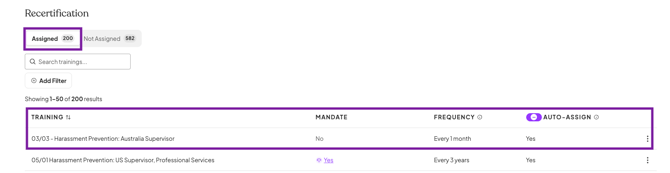
Go to Settings > Recertification to view and manage your organization's recurring training.
From the Assigned view, you can see each training's configured recertification frequency and whether Auto-Assign is currently enabled.
Step 2: Update Auto-Assign for an individual training
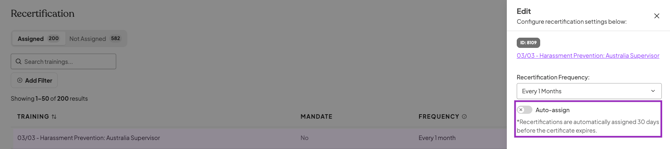
Find the training you want to manage, click the three-dot menu, and select Edit.
From the training's Recertification Settings, toggle Auto-Assign off/on and save your changes.
Turning off Auto-Assign does not remove the recertification. EasyLlama will continue tracking when learners are due, but an Admin will need to manually assign the recurring training.

Step 3: Update Auto-Assign for multiple trainings
If you want to manage Auto-Assign across multiple trainings at once, use the Auto-Assign header toggle instead of updating each training individually.
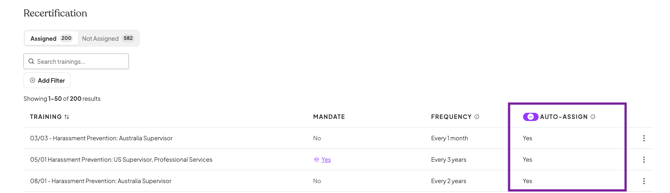
When you turn Auto-Assign on or off in bulk, EasyLlama will ask you to confirm the change before it is applied.
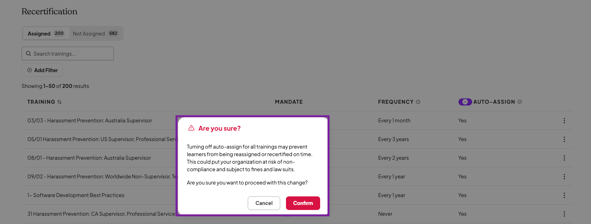
When Auto-Assign is turned off, Admins are responsible for manually assigning recurring training when learners are due for recertification.
Turn Auto-Assign Back On
To resume automatic assignment, return to Settings > Recertification and turn Auto-Assign back on for the applicable training.
Auto-Assign can also be turned on for multiple trainings at once using the header toggle.
Admins with recertification notifications enabled receive a weekly email when learners are approaching manual recertification so they know when action is required.
Quick Questions
Does turning off Auto-Assign cancel the recertification?
No. Turning off Auto-Assign only changes how the recurring training is assigned. EasyLlama will continue tracking the learner's recertification, but an Admin will need to assign the training manually when it's due.
How will I know when a learner needs to be manually recertified?
You'll receive email reminders to manually recertify learners when they're due. Make sure recertification reminders are enabled under Settings > Notifications.
Can I turn Auto-Assign back on later?
Yes. You can turn Auto-Assign back on at any time for an individual training or in bulk.
What happens to recertifications that are already scheduled if I turn off Auto-Assign?
The recertification continues to be tracked, but EasyLlama will not automatically generate the recurring assignment. An Admin will need to assign the training manually.
Will learners be notified when I turn off Auto-Assign?
No. Turning off Auto-Assign changes how the recurring training is assigned. Learners receive their standard training notification once a new assignment is actually generated.
What’s Next?
- Setting a Training's Recertification Frequency
- Manually Recertifying Learners
- Managing a Learner's Training Assignments
Llama Fact: Llamas are known for their independence. Sometimes they prefer to do things on their own schedule, just like Admins who prefer manual recertification! 🦙