![logolimanobkg-1.png]](https://help.easyllama.com/hs-fs/hubfs/logolimanobkg-1.png?height=40&name=logolimanobkg-1.png)
Go to the Learning Journeys tab to duplicate prebuilt Journeys or create new ones, then add courses, set timing between assignments, and enroll learners.
What You'll Need
- An EasyLlama admin account with Learning Journeys access
- Account Admin permissions
- Courses available in your Training Library to add to Journeys
Customize a Prebuilt Learning Journey
- Go to Trainings > Learning Journeys and click Templates.
- Click on a prebuilt Journey to open it.
- Click Start Here to create your own copy.
- Click Edit at the top-right to modify the title, description, or thumbnail.
- Click Save to create a draft.
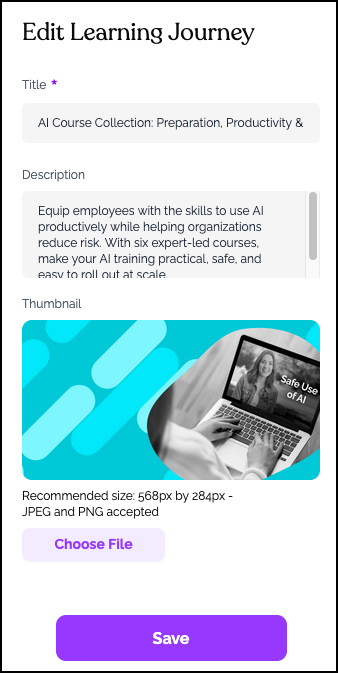
- Proceed to Customization Options below.
Note: Prebuilt Journey settings cannot be changed directly, but duplicating creates a fully customizable version.
Option 2: Create a New Learning Journey from Scratch
- Go to the Trainings > Learning Journeys tab.
- Click Create Learning Journey.
- Enter a title, description, and optional thumbnail.
- Click Save to create a draft.
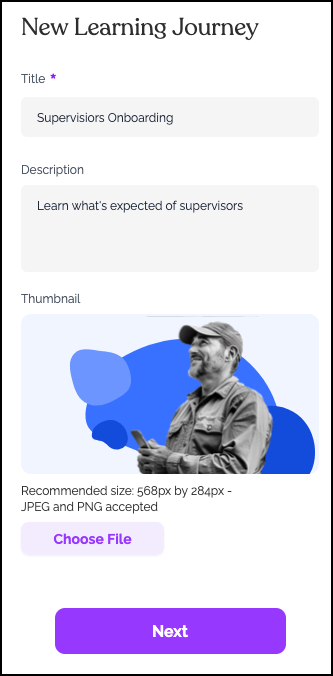
- Proceed to Customization Options below.
Customization Options
Add New Step

Scroll down to the bottom of the screen, and click one of the items to adda new step. Options are:
- Course - Select a Course from the Course Library
- Document - Select a Document from the Document Manager, or upload a new one
- Video Link - Add a link to a video. Choose whether you want the learner to confirm they watched it.
- Meeting Link - Add a link to a meeting. Choose whether you want the learner to confirm they attended it.
- Link - Add any link. Choose whether you want the learner to confirm they accessed it.
- Video -Upload or select a video, and click Add to Learning Journey.
- Knowledge Check - Create a knowledge check, and click Add to Learning Journey.
- Custom Course - Create a new course, and add it to the Learning Journey.
Course Assignment Timing
Assign Rules
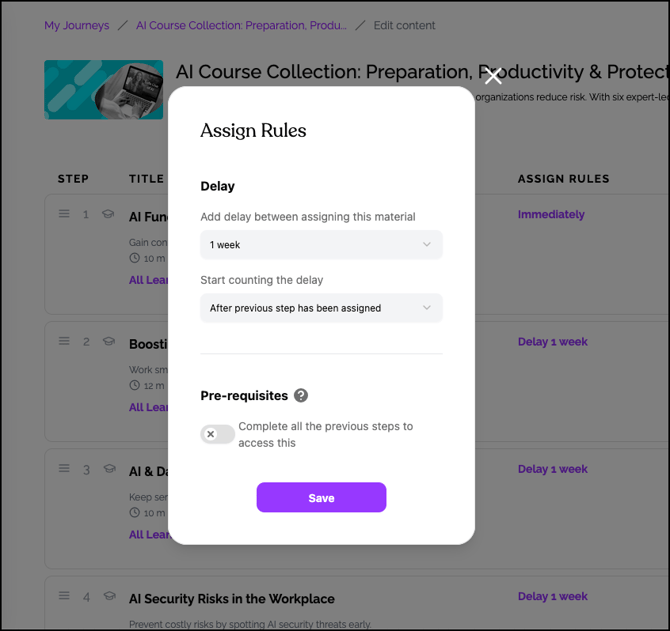
First Timing Setting (at the top of the Journey): The first step can be delayed, but we recommend keeping the Assign Rules as "No Pause" / "Immediately" so that the Learner can start their path as soon as it's assigned.
Delay Between Courses:
Click the time frame under Assign Rules to select the length of time between courses:
- No Pause - Couse is assigned and can be completed immediately
- 1 Day through 6 Days
- 1 Week through 4 Weeks
- 1 Month through 6 Months
- Custom Date
Start Counting the Delay:
- After previous step has been assigned: This will assign the course after the timeframe chosen.
- After previous step has been completed: This assigns the course after completion, in the timeframe chosen.
Pre-requisites:
When enabled, the learner must complete all previous steps before being able to access this step.
Examples:
- After assignment + No Pause: The course is assigned immediately
- After assignment + 2 Weeks: Next course assigned 2 weeks after enrollment date
- After completion + No Pause: Next course assigned immediately upon completion
- After completion + 1 Week: Next course assigned 1 week after completion
Note: For learners already enrolled, changing to a shorter delay will assign the next course within 24 hours if the elapsed time exceeds the new delay. Longer delays will also apply to existing enrollments.
Due Date
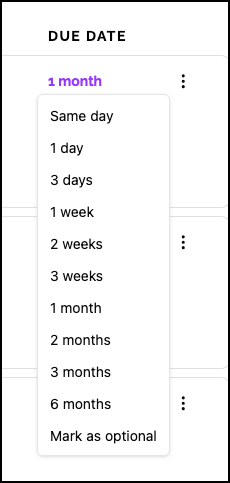
Click the time frame under the Due Date column to choose how long you would like to give a learner to complete this step. Options are:
- Same Day
- 1, 2, 3 days
- 1, 2, 3 weeks
- 1, 2, 3, 6 months
- Mark as optional
Passing Scores
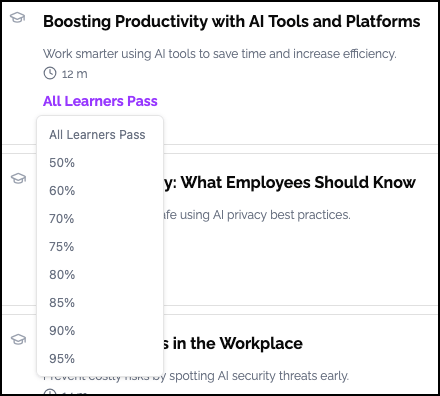
This setting allows you to determine the step's passing score. The default is All Learners Pass. To change it, click on All Learners Pass or the current percentage, and choose a new score.
Publishing Your Journey
- Review all courses and timing settings.
- Click Edit at the top if you need to modify title, description, or thumbnail.
- Click Publish to make the Journey available for enrollment.

Assigning Learners
Method 1: From the Learning Journey Page
- Go to the Learning Journeys tab and click on your Journey.
- Click the purple Assign button at the top-right.

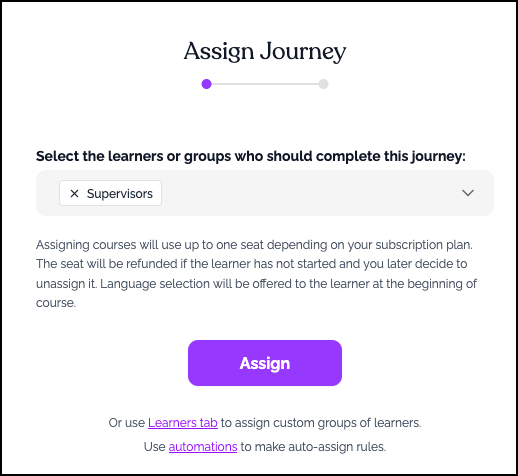
- Select learners (scroll or use the search bar with filters).
- Click Assign.
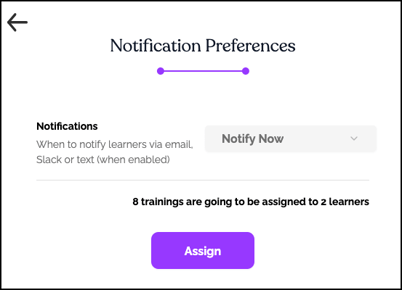
- Choose when to notify learners, then click Assign.
Method 2: Using Bulk Actions
- Go to the Learners tab.
- Check the boxes next to learners you want to enroll.
- In the purple Bulk Actions bar, click More > "Enroll in Learning Journeys".
- Choose when to notify learners, then click "Enroll".
Frequently Asked Questions
Can I change the delay between courses after learners are enrolled?
Yes. The new delay applies to existing enrollments. If the new delay is shorter than elapsed time since the last course, the next course assigns within 24 hours. If longer, it assigns per the new schedule.
Can I add or remove courses after publishing?
Yes. You can edit a published Journey—changes will apply to newly enrolled learners and may affect existing enrollments based on timing settings.
What happens if a learner completes courses faster than the delay?
The next course will not assign until the delay period has passed, regardless of completion speed.
Can learners see the full Journey ahead of time?
Learners see only their current assigned course. Future courses are revealed as they progress.
How do I remove a learner from a Journey?
Go to the learner's profile, expand the Learning Journeys section, and use the options to remove them.
Can I have multiple active Journeys for the same learner?
Yes. Learners can be enrolled in multiple Journeys simultaneously.
Llama Fact: Llamas communicate with a unique humming sound. This gentle humming can express various emotions, such as contentment, curiosity, or concern—much like how Learning Journeys help you tune into your team's training needs!