![logolimanobkg-1.png]](https://help.easyllama.com/hs-fs/hubfs/logolimanobkg-1.png?height=40&name=logolimanobkg-1.png)
Note: Unlimited subscribers cannot edit Learner names in the dashboard. Please contact Support with the name change details and the reason for the change by going to Help > Contact Us in the EasyLlama Dashboard.
Before You Start
What You'll Need
- Administrative access to your EasyLlama dashboard
- Access to the Learners tab
- Updated information for the learner(s) you need to modify
Important Note for Unlimited Subscribers
Unlimited subscribers cannot edit learner names in the dashboard. If you need to change a learner's name, please contact Support with:
- The name change details
- The reason for the change
Edit a Single Learner from Their Profile
Step 1: Access the learner's profile
- Go to the Learners tab
- Click directly on the learner's name (not the checkbox) to open their profile
Step 2: Enter edit mode
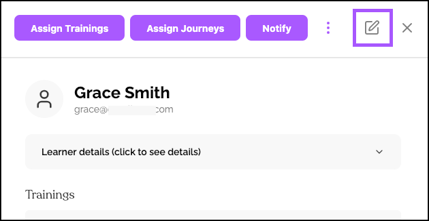
From the top-right of the learner’s profile, click the edit icon (pencil).
Step 3: Make changes and save
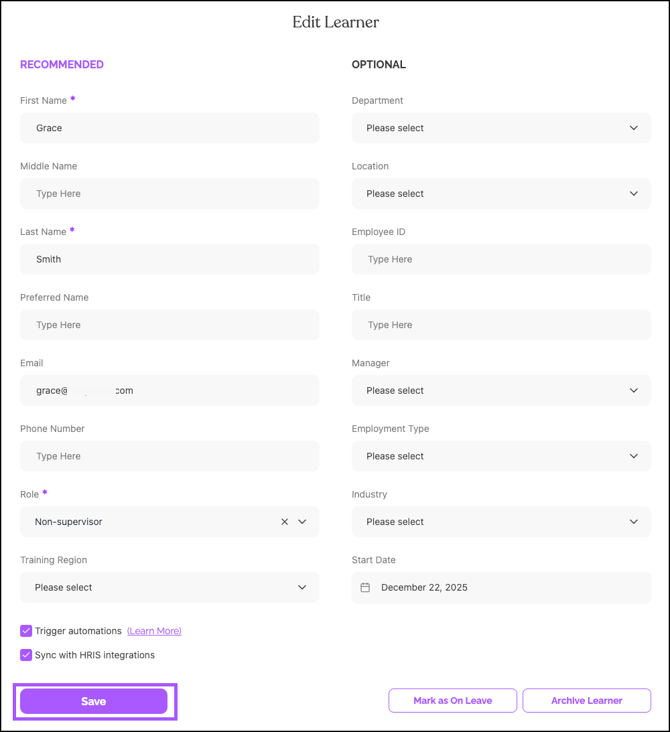
- Update the desired fields in the profile.
- Scroll to the bottom and click Save.
Edit One or Multiple Learners Using Bulk Actions
Step 1: Select learners
- Go to the Learners tab
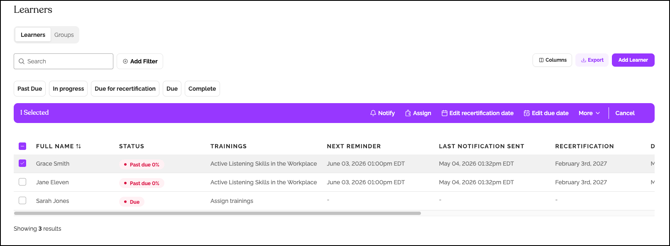
- Click the checkbox to the left of each learner you want to update
- You can select one or multiple learners
- The purple action bar appears after selection
Step 2: Access bulk edit
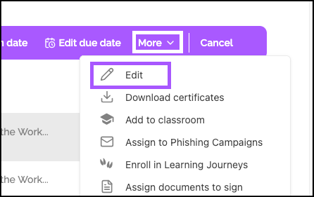
In the purple action bar, click More > Edit.
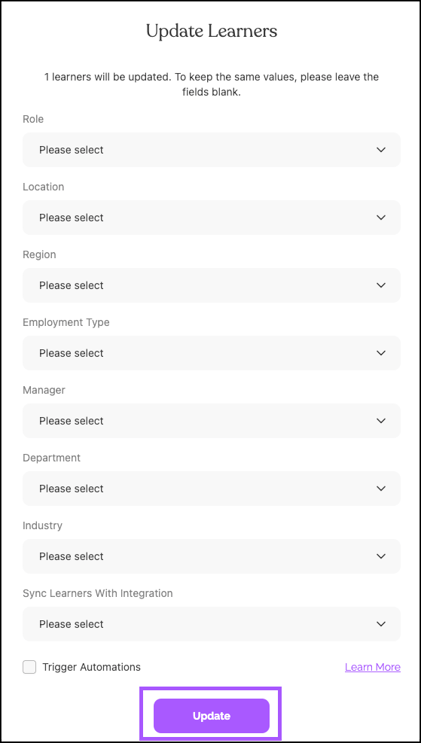
Step 3: Make bulk changes
- Use the edit menu to make changes to all selected learners.
- Available fields for bulk editing include:
- Role (Supervisor/Non-Supervisor)
- Location
- Region
- Employment Type
- Manager
- Department
- Industry
- Sync Learners with Integration
Step 4: Apply updates
Click Update to save your changes. The updates apply immediately to all selected learners.
Common Edits You Can Make
Individual Profile Edits
- First Name
- Middle Name
- Last Name
- Preferred Name
- Role
- Location
- Training Region
- Employment Type
- Department
- Manager
- Title
- Phone
- Industry
- Employee ID
- Start Date
- Mark on Leave
- Archive Learner
Bulk Edits
- Role
- Location
- Region
- Employment Type
- Manager
- Department
- Sync Learners with Integration
Helpful Tips
Confirm selections before bulk updates
Always confirm the number of selected learners before applying bulk changes to avoid unintended updates.
Quick Questions
Can I edit multiple learners with different changes at once?
No. Bulk edits apply the same change to all selected learners. For individual changes, edit learners from their profiles.
How do I know which learners are selected for bulk edit?
The purple action bar shows the number of selected learners. Always verify this count before applying changes.
Llama Fact: Llamas are known for their adaptability to different environments—similar to how you can adapt and update learner information to keep your training records accurate and up-to-date!