![logolimanobkg-1.png]](https://help.easyllama.com/hs-fs/hubfs/logolimanobkg-1.png?height=40&name=logolimanobkg-1.png)
Update: Your logo and color settings moved from Settings > Organization to their own page, Settings > Branding.
Fun Fact: If you have previously added your own logo and brand colors, then they have been carried over automatically.
To add your company logo and brand colors, go to Settings > Branding, upload your logo, choose a primary and secondary color, and click Save. This feature is called One-Click Company Branding. One save brands EasyLlama for your whole organization, including the Learner Portal, the course player, branding-friendly slides in your training courses, and the Dashboard.
One-Click Company Branding is conveniently available to all admins.
Set up your branding
You set your branding once for your organization, and it applies everywhere branding is supported.
Steps
- In the left navigation, click Settings, then click Branding. It sits directly below the Organization.
- Upload your logo as a PNG or JPG file, up to 8 MB.
- Set your Primary color and Secondary color.
- Tip: Use the Use colors from the logo feature to have your primary and secondary color chosen for you, based on your logo graphic.
- Check the preview panel on the right to see how your branding looks.
- Click Save.
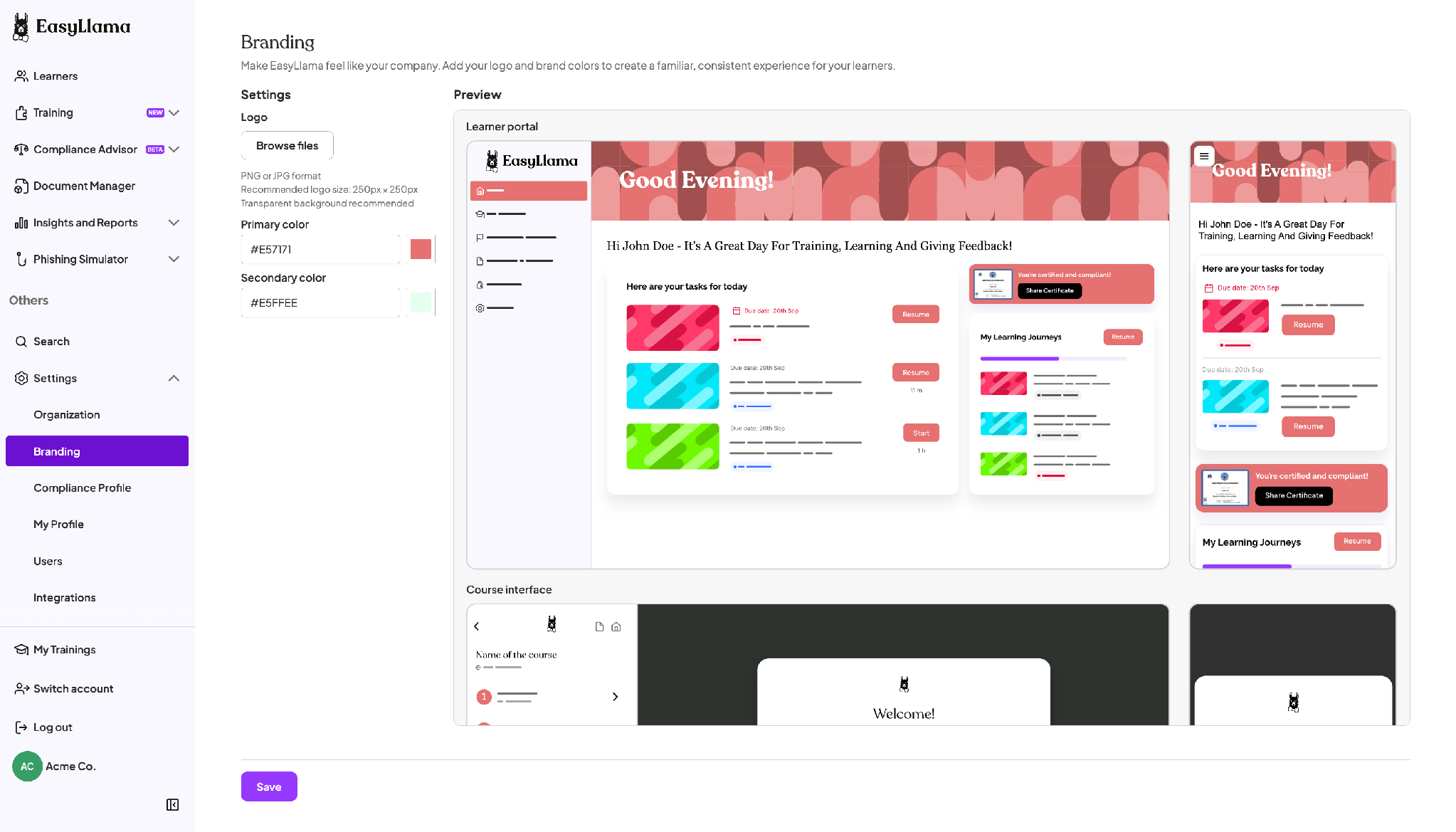
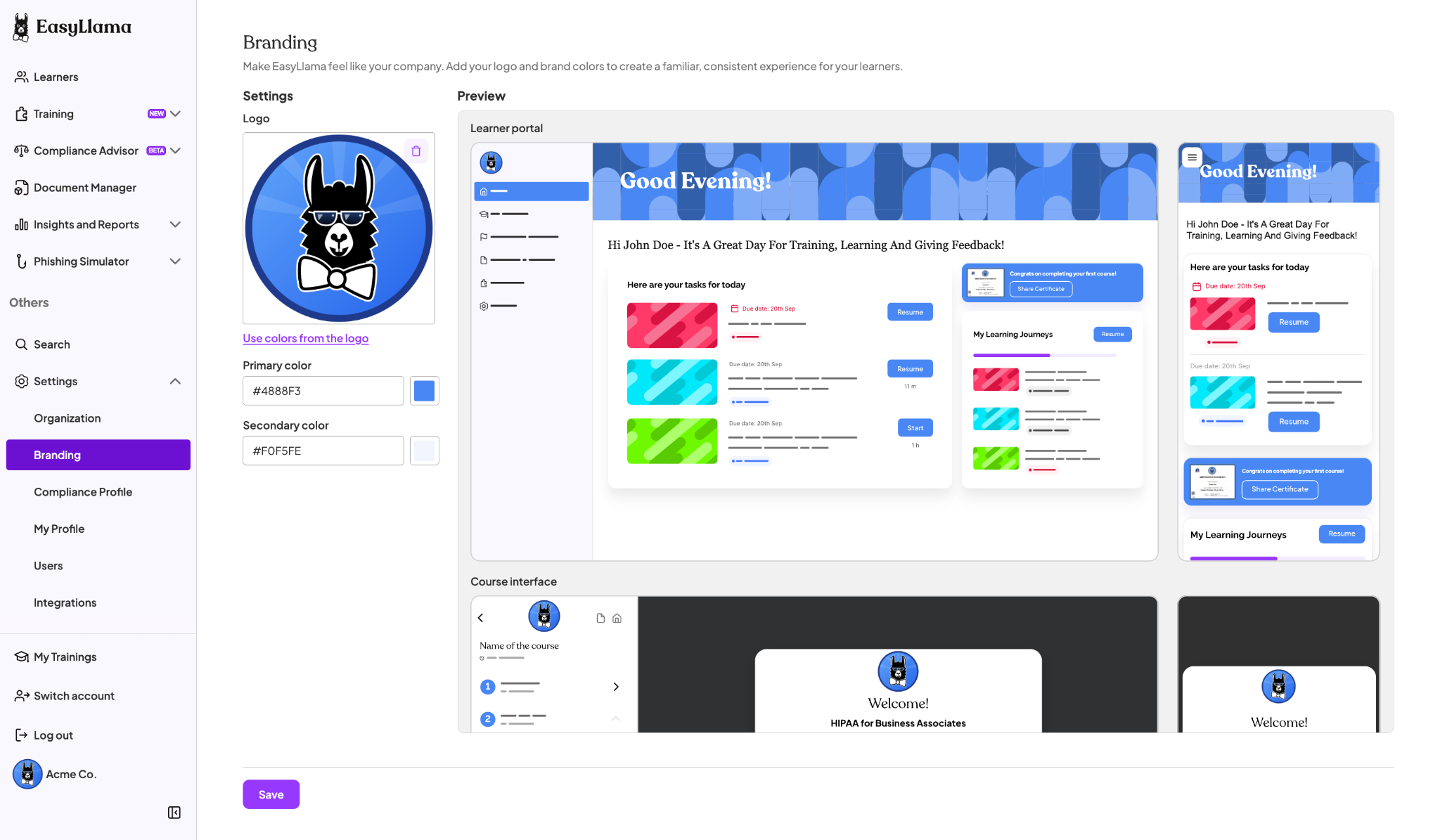
Your branding goes live across your organization as soon as you click Save. Nothing changes until you save.
Note: If you already set a logo or colors, they load into the Branding page automatically, so you'll see your current branding when you open it.
How do I add my logo?
To add your logo, upload a PNG or JPG file, up to 8 MB, on the Branding page. Your logo replaces the EasyLlama logo everywhere branding is supported.
- If you upload an unsupported file type, it's rejected and your current logo stays in place
- You can replace or remove your logo at any time
- If you don't set a logo, EasyLlama's logo shows by default
Tip: A logo with a transparent background looks best. EasyLlama can't crop, resize, or remove the background from your logo, so upload a clean version.
How do I choose my brand colors?
To set your brand colors, enter a hex code or use the color picker for both your Primary color and Secondary color.
- Primary color is used for buttons, highlights, and branded banners
- Secondary color is used for accents across branded areas
Hex codes must use the #RGB or #RRGGBB format. You can't save an invalid code.
Don't know your brand's hex codes?
Upload your logo first, then click Use colors from the logo. Your primary and secondary colors fill in from the colors in your logo. You can still adjust either color afterward.
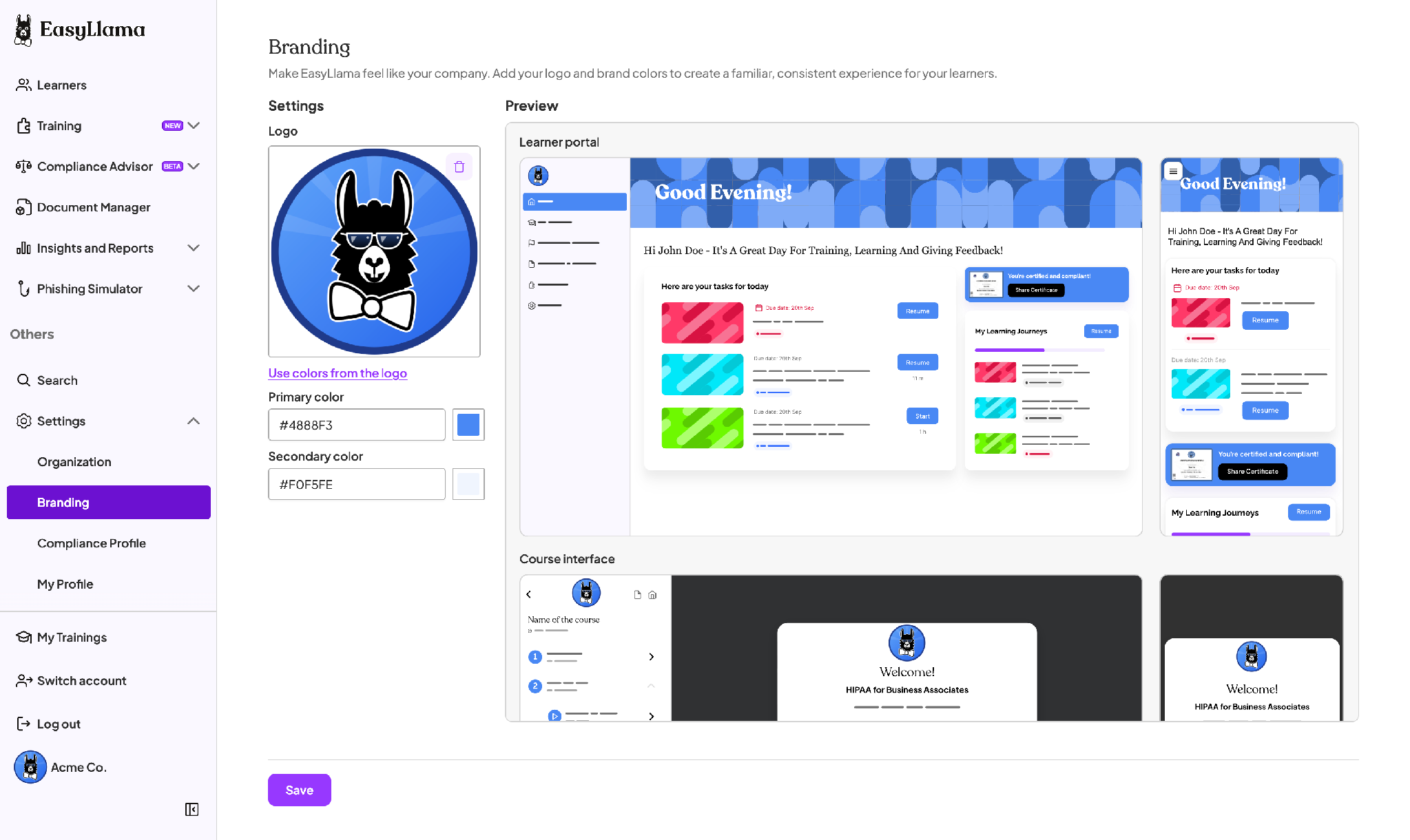
Note: Text on your primary color adjusts automatically so it stays readable. Dark colors get light text, and light colors get dark text.
How do I preview my branding before I save?
The preview panel on the right of the Branding page shows your own logo and colors on four EasyLlama screens:
- Learner's portal
- Course interface
- Admin dashboard
- Welcome modal
Each preview updates the moment you change your logo or a color, in both desktop and mobile layouts. If you haven't set a logo or colors yet, the preview shows the default EasyLlama look.
Where does my branding appear?
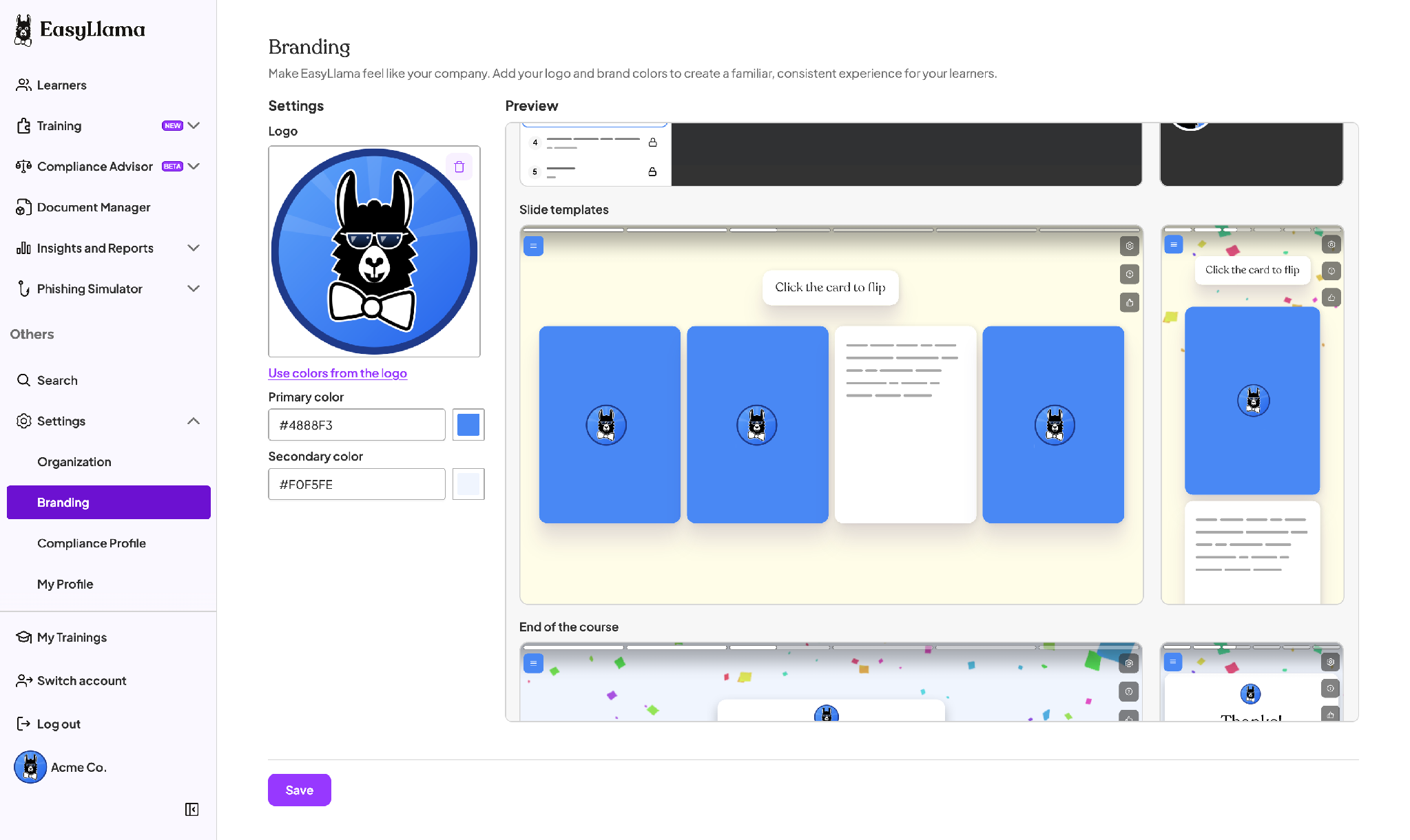
After you click Save, your logo and colors appear in these places for your whole organization:
- Learner Portal, including Learner buttons and the greeting banner
- Course player, including buttons, navigation, and the course logo
- Branding-friendly slides in your training courses, with no slide-by-slide editing
- Course completion and certificates
- Dashboard, where your logo shows in the sidebar
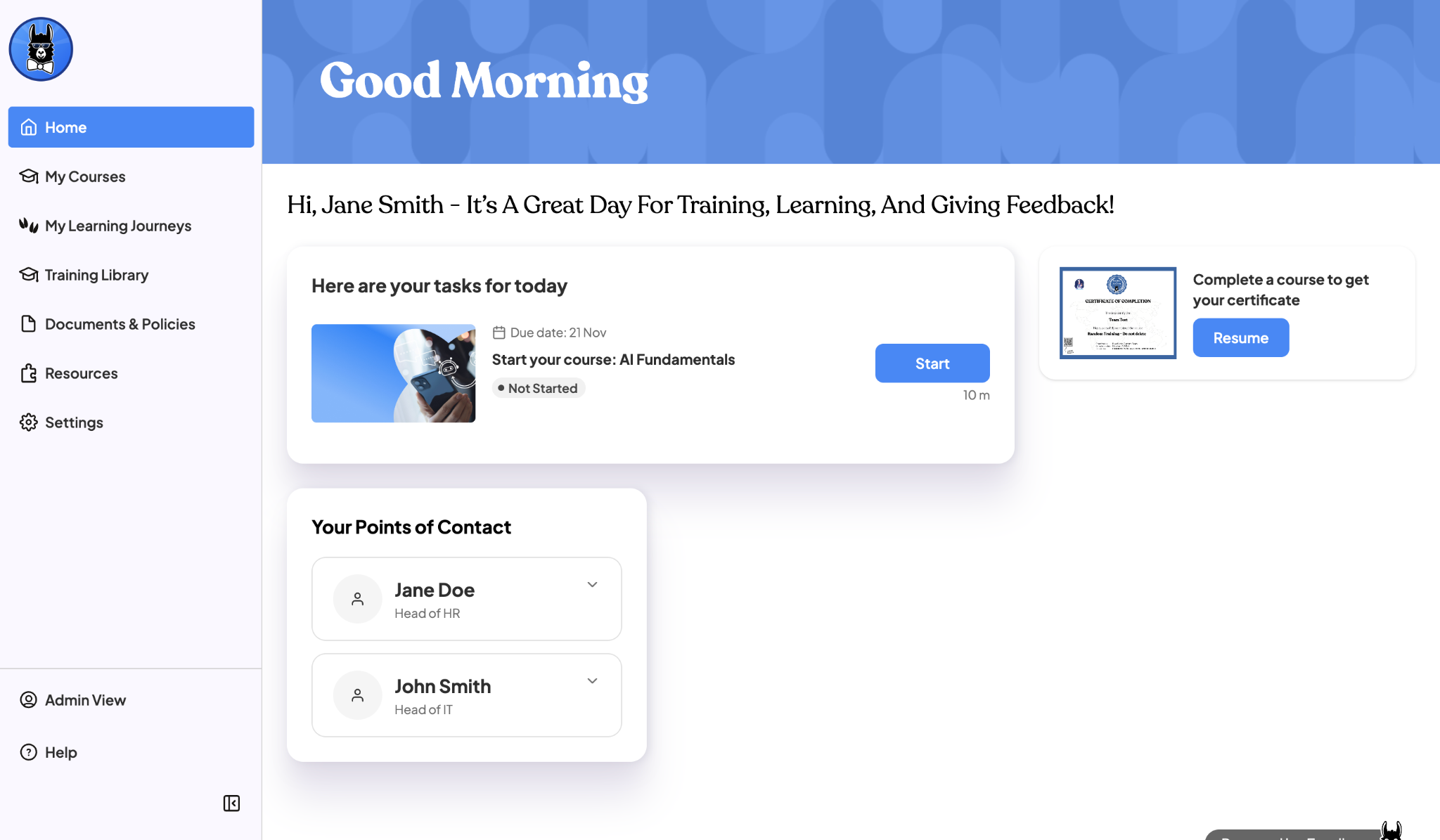
Here is an example of a branded Learner Portal.l
What isn't branded yet?
A few areas don't use your branding yet:
- Individual courses: Branding applies to your whole organization. You can't set different branding for individual courses.
- Automated emails: Platform emails don't use your logo or colors.
- Image-based slide backgrounds: Slides with an image background keep their original colors.
- Fonts: Branding covers your logo and two colors only.
- Sub-account locks: Partners and resellers can't lock branding to stop sub-accounts from changing it.
Can I set up branding during onboarding?
Yes. If you're a new customer, branding is the last step of EasyLlama onboarding, right after Invite other admins. This step is optional and works the same way as Settings > Branding.
- Your company logo may already be filled in for you
- Click Example to see where your logo and colors will appear
- Logo files can be up to 8 MB
- Click Save to apply your branding, or click Skip for now to do it later
Saving or skipping finishes onboarding. You'll land on Home, and the product tour starts.
Note: The branding step only appears for new customers. If you're an existing customer, set up branding in Settings > Branding. Either way, you can change your branding there at any time.
FAQ
I used to change my logo on the Organization page. Where did it go?
Your logo and color settings moved to Settings > Branding. Your existing logo and colors carried over automatically. All other organization settings stay on Settings > Organization.
Do my branding changes go live right away?
Yes. Your branding applies across EasyLlama as soon as you click Save. Nothing changes until you save.
Can I go back to the default EasyLlama look?
Yes. To go back to the default look, remove your logo and reset your colors on the Branding page, then click Save.
What if my brand color is very light, like yellow?
If your brand color is very light, text on it switches to a dark color automatically so it stays readable.
Can I brand individual courses differently?
Not yet. Branding applies to your whole organization.
Do automated emails use my branding?
Not yet. Your branding applies to the EasyLlama platform, not to automated emails.
Is branding available on my plan?
Yes. One-Click Company Branding is available to all admins.