![logolimanobkg-1.png]](https://help.easyllama.com/hs-fs/hubfs/logolimanobkg-1.png?height=40&name=logolimanobkg-1.png)
Before You Start
What You'll Need
- Administrative access to the Dashboard
- Learners already added
- Course not individually assigned to planned attendees (must be unassigned first)
- Access to Classrooms tab
Quick Reference
- Primary method: Create and launch classrooms from the Classrooms dashboard
- Alternative: Add learners to classrooms in bulk from the Learners tab
Create and Run a Classroom Session
Step 1: Create a new classroom
- Go to Classrooms tab > Create Classroom.

- Name the session, and select the course. Click Create & Add Learners.
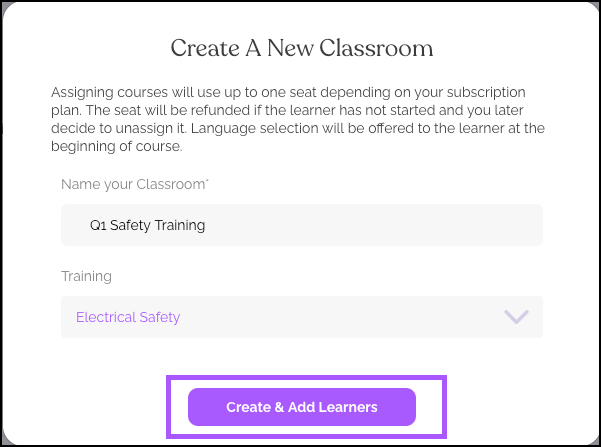
Step 2: Build your roster
Helpful Tip: Verify no learners already have the course assigned individually. If they do, un-assign it first from their profile before adding to the classroom.
- From the upper, right hand corner click Assign Learners.

- Search for learners, and select them to add to the course.
- Click Assign to complete creation.
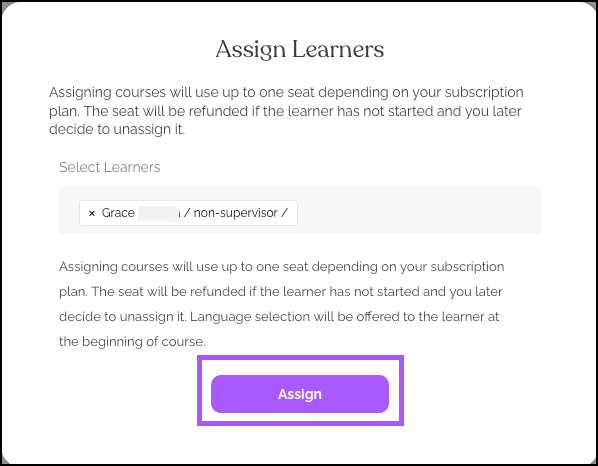
Step 3: Finalize attendance before starting
Important: Roster accuracy determines who receives completion credit
Before starting, review and update the roster:
- Add last-minute attendees
- Remove no-shows by clicking Remove next to their name
Step 4: Start and facilitate the class
Click Start Classroom > Open Now.
Facilitation best practices:
- Pause at quiz questions for group discussion
- Use activities as interactive exercises
- Plan Q&A breaks between sections
- Control the pace for the entire group
Step 5: Complete and certify
When the facilitator finishes the course, it automatically marks as Complete for all rostered learners and generates individual certificates.
Helpful Tips
Do NOT share the facilitator link with learners
The Share link gives full control of the classroom. If a learner completes it, the course marks complete for everyone. Only share with trusted co-facilitators.
Do NOT use classrooms for recertification
Classroom-completed courses don't generate automatic recertification dates. For annual training, create new classrooms each year or assign courses individually.
Be sure to update rosters before starting
Verify attendance before clicking Start Classroom. Late adds after completion give automatic credit without viewing content.
Quick Questions
Can I use Classroom Mode for recertification?
No. Courses completed via Classroom Mode don't support automatic recertification. Create new classrooms annually or assign courses individually for recertification.
What if someone arrives late to the training?
You can add latecomers after clicking Start Classroom. If added after completion, they automatically receive credit without viewing content—only add if they'll see remaining material.
Who should control the course navigation?
A designated facilitator (trainer, HR manager, team lead) should log into the dashboard and control navigation. Don't let learners control the shared screen.
Llama Fact: Llamas are social herd animals that learn and graze together—perfect for Classroom Mode where groups learn simultaneously with a facilitator guiding the way!