![logolimanobkg-1.png]](https://help.easyllama.com/hs-fs/hubfs/logolimanobkg-1.png?height=40&name=logolimanobkg-1.png)
Before You Start
What You'll Need
- Administrative access to the dashboard
- Clear understanding of the HR events that should trigger training
- Knowledge of which courses, journeys, or documents to assign
- Access to Settings > Automations
Quick Reference
- Primary method: Create automations through Automations tab
- Triggers: New hires, promotions, region/location changes
- Conditions: Filter by department, location, role, etc.
- Actions: Assign courses, learning journeys, or documents
Create a Custom Automation
Step 1: Access automations and create a new one
- Log in to the Dashboard.
- From the left navigation menu, click Settings > Automations.
- In the top-right corner, click Create automation.
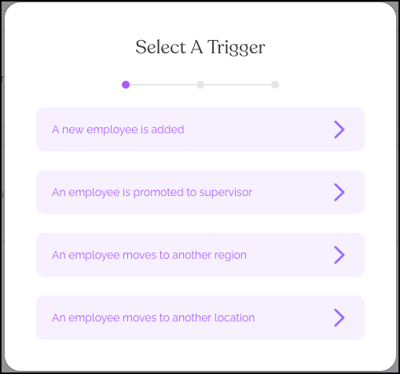
Step 2: Select a trigger
NOTE: When adding learners manually or by file upload, a checkbox is checked by default to trigger applicable automations.
Choose the event that starts the automation:
Available triggers:
- A new employee is added (via integration, manual add, or file upload)
- An employee is promoted to supervisor
- An employee moves to another region
- An employee moves to another location
Step 3: Add conditions (optional)
Narrow which learners receive the automation by adding conditions. Learners must meet ALL specified conditions. The filters use a logical And. For example, if you select both a location and a department, learners must be in that location AND that department to trigger the automation.
Available conditions: Department, Location, Region, Group, Job title, Role, Employment Type
Helpful Tip: Leave all condition fields blank if the automation should apply to all learners meeting the trigger.
In the example below, full time HR supervisors working at the New York branch will be assigned once they meet ALL of the conditions.
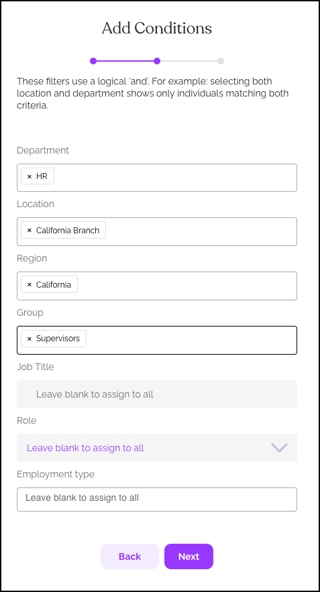
After making selections, click Next to proceed.
Step 4: Select assignments
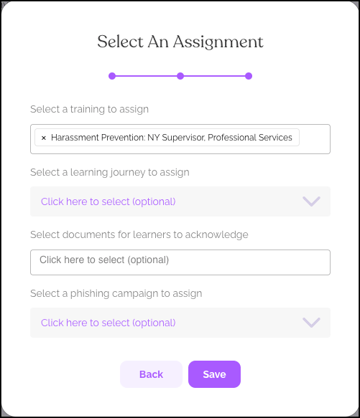
Choose what to automatically assign when the trigger occurs:
- Courses from the training library
- Learning Journeys (structured learning paths)
- Documents requiring signature/acknowledgment
In the below example, those who meet ALL of the conditions in step 3 are assigned Harassment Prevention for Supervisors in NY.
Practical Automation Examples
Example 1: New Hire Onboarding
In this example, a new employee in the Sales Department will be assigned the Sales Compliance Course, as well as the Company Handbook Document, and the New Hire Learning Journey.
- Trigger: A new employee is added
- Conditions: Department = "Sales"
- Assignments: Sales Compliance Course, Company Handbook Document, New Hire Learning Journey
Example 2: Supervisor Promotion
In this example, when any employee is promoted to Supervisor, they are assigned Harassment Prevention for Supervisors, and the Leadership Training Course.
- Trigger: An employee is promoted to supervisor
- Conditions: (none - applies to all promotions)
- Assignments: Harassment Prevention for Supervisors, Leadership Training Course
Example 3: Geographic Compliance
In this example, if an employee moves to California, they are assigned CA-Specific Harassment Prevention, and CA Privacy Law Training.
- Trigger: An employee moves to another region
- Conditions: Region = "California"
- Assignments: CA-Specific Harassment Prevention, CA Privacy Law Training
Helpful Tips
Start with broad conditions, and refine
Using too many conditions may exclude learners who should receive training. Start with broader conditions and refine as needed.
Test first with small user groups if possible
Create automations and test with a small user group before applying to entire organization to ensure correct behavior.
Remember to trigger automations when manually adding users
When adding learners manually or by file upload, ensure the "trigger automations" checkbox is checked if you want the automation to apply.
Quick Questions
Can one trigger have multiple assignments?
Yes. You can assign multiple courses, journeys, and documents in a single automation.
What happens if a learner meets multiple automation conditions?
If a learner meets multiple conditions, they'll receive assignments from all applicable automations.
How do integrations trigger automations?
HRIS integrations that sync employee data (promotions, location changes) automatically trigger relevant automations without manual intervention.
Llama Fact: Llamas instinctively know when to move with their herd—similar to how automations instinctively assign training when your team members move roles or locations!