![logolimanobkg-1.png]](https://help.easyllama.com/hs-fs/hubfs/logolimanobkg-1.png?height=40&name=logolimanobkg-1.png)
Before You Start
What You’ll Need:
Your organization’s current, written California Injury and Illness Prevention Program (IIPP)
The name and/or job title of the person designated with authority and responsibility for implementing the IIPP (required under 8 CCR §3203(a)(1))
Where the written IIPP is kept and how employees can access it
If you don’t have a current, written IIPP yet, you’ll need to complete that step with your safety team before this course can be customized and assigned.
Why Customization Is Required
Most EasyLlama courses are ready to assign out of the box, but the IIPP course requires customization for one key reason:
Cal/OSHA requires every California employer to identify, by name or job title, the person with authority and responsibility for the IIPP, and to make that information available to employees. Generic content can’t tell staff whom to contact or where to find your organization’s actual program.
Quick Reference
- Course location: Trainings > Library > California Injury and Illness Prevention Program (IIPP)
- Customization required: Yes—to meet Cal/OSHA (Title 8 CCR §3203) requirements
- Key section to customize: Chapter 1, Slide 4: "[MUST CUSTOMIZE] Our Organization’s IIPP Information" (1 customizable slide)
- Review: Update whenever your designated IIPP administrator or program details change
Customize the IIPP Course
Step 1: Open the Course
- Log in to your EasyLlama admin dashboard
- Go to Trainings > Library
- Search for California Injury and Illness Prevention Program (IIPP)
Step 2: Create Custom Version
On the course card, either:
- Click Customize on the Make It Yours tag, OR
- Click the three-dot menu (⋮) and select Customize
Step 3: Proceed with Customization
- Read the pop-up for tips on how to customize, publish, and activate the course
- Click Proceed
- Once the course is created, click Review & Edit to begin customization
Step 4: Navigate to Chapter 1, Slide 4
Go to Chapter 1, Slide 4, labeled [MUST CUSTOMIZE] Our Organization's IIPP Information. This is the only customizable slide in the course.
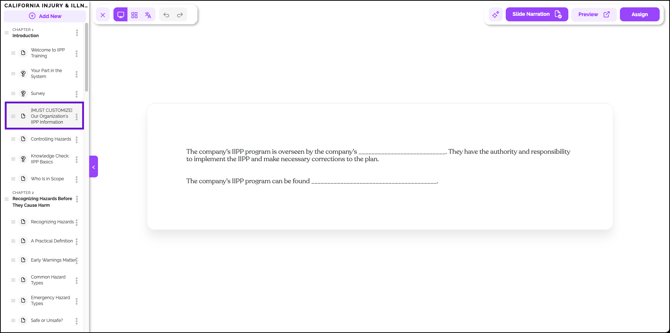
Step 5: Enter Your Organization’s Details
Update the slide with:
| Field | What to Add |
|---|---|
|
Who oversees the IIPP |
Name and/or job title of the designated person with authority and responsibility |
|
Where to find the written IIPP |
Location (e.g., intranet link, HR office, safety bulletin board) |
Optional updates:
- Add Slide Narration by clicking the button and inputting text
- Upload or select a new background image using the Edit background button
To update:
- Click into the slide via the Chapter/Slide navigation
- Edit the information by clicking into the text boxes within the slide
- For narration: Click Slide Narration > input text > generate speech
- For background: Click Edit background > upload or select a new image
Step 6: Upload Supporting Documents (Optional)
You can attach your full written IIPP and any related policy documents. These appear as downloadable resources within the course.
- Add a new slide
- Select the Embedded PDF Viewer template
- Upload the document
Step 7: Preview the Course
Run through the learner experience end-to-end to confirm:
- The IIPP administrator’s name/title and location information are correct
- Any uploaded documents can be viewed and downloaded
Step 8: Publish
Once preview confirms everything is correct:
- Click Publish
- The course is now ready to be assigned to staff
Step 9: Select the Custom Version
Helpful Tip: This action affects new assignments only. New learners are assigned the customized version, while learners currently assigned to, or in progress with, the original version will continue with the original version.
To select and assign the custom version going forward:
- Click Custom Version at the top of the screen
- Click Proceed to confirm
Step 10: Assign Learners
Assign learners using any of these methods:
- Directly from the course via the Assign Learners button
- Using the Learners tab with bulk actions
- Auto-assignment through automation settings
Keeping the Course Current
When Your IIPP Administrator or Program Details Change
- Return to Courses > California Injury and Illness Prevention Program (IIPP)
- Click into the course
- Select Custom Version > Edit
- Update Slide 4 with the new information
- Click Publish Changes (this saves and republishes the update)
For Learners Who Already Completed the Course
- Learners assigned after republishing will see the updated content
- If the change is material (e.g., a new designated IIPP administrator), reassign the course to staff who have already completed it so they can review the update
Who Should Be Involved with Customizing this Course?
| Role | Responsibility |
|---|---|
|
Designated IIPP Administrator (e.g., EHS Manager, Safety Officer) |
Owns the IIPP content and confirms who to list on the slide |
|
Organization Leadership |
Approves final training content |
|
EasyLlama Admin |
Completes data entry (content should be approved by the IIPP administrator before publishing) |
Tip: EasyLlama admins can complete the entry, but the content should be approved by the IIPP administrator before publishing.
Helpful Tips
| Tip | Why It Matters |
|---|---|
|
Don't skip customization |
The course won't tell staff who oversees the IIPP or where to find it, so it won't meet Cal/OSHA's requirement |
|
Get administrator approval |
Content may be inaccurate or unapproved without review |
|
Update when the administrator changes |
Staff won't know who to contact if you don't update |
|
Reassign after material changes |
Staff aren't trained on updated contact/location info if you don't reassign |
Frequently Asked Questions
What if our designated IIPP administrator changes?
Update Slide 4 as soon as the new administrator is confirmed and republish. Reassign to learners since this is a material change.
Where can I get help with EasyLlama?
Contact EasyLlama support from the help menu in your dashboard, or reach out to your Customer Success Manager.
Where can I get help with IIPP requirements themselves?
For questions about IIPP requirements, contact your organization's legal counsel or refer to Cal/OSHA (Title 8 CCR §3203).
Additional Information
- Review California IIPP requirements: Title 8 CCR §3203