![logolimanobkg-1.png]](https://help.easyllama.com/hs-fs/hubfs/logolimanobkg-1.png?height=40&name=logolimanobkg-1.png)
Before You Start
What You'll Need
- Administrative access to the dashboard
- Existing automations created in the system
- Clear understanding of what changes are needed
- Understanding you can only edit or archive custom triggers.
- Access to Settings > Automations
Quick Reference
- Pause/Resume: Use toggle switch next to each automation
- Edit: Modify triggers, conditions, or assignments
- Archive: Permanently delete automation (irreversible)
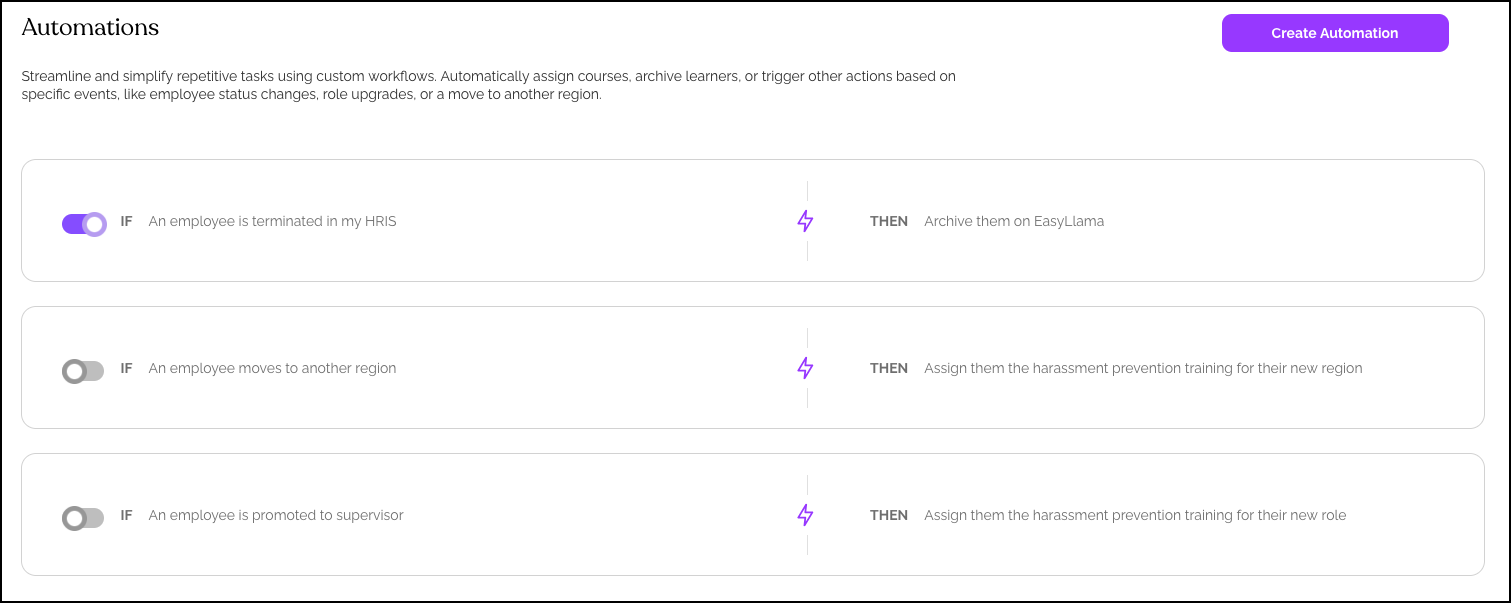
- Status Indicators: Purple = Active, Gray = Paused
Pause or Resume an Automation
NOTE: This action is immediate—no confirmation required. Use this to temporarily disable automations during testing or policy changes.
Step 1: Access the automations list
- Log in to the Dashboard.
- From the left navigation menu, click Settings > Automations to view all your existing automation workflows.
Step 2: Toggle automation status
Locate the automation you want to modify. Use the toggle button next to it:
- Click to turn Purple = Automation is "On" and active
- Click to turn Gray = Automation is "Off" and paused
Edit an Automation
Step 1: Open automation menu
- Log in to the Dashboard.
- From the left navigation menu, click Settings > Automations.
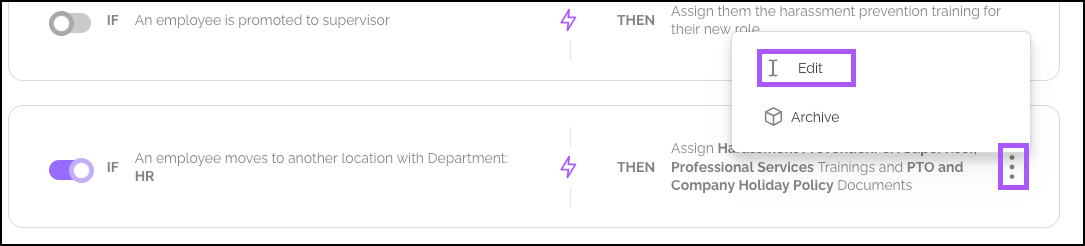
- Next to the automation you want to edit, click the three dots (⋮).
Step 2: Enter edit mode
Select Edit from the menu to open the automation configuration.
Step 3: Modify settings
Update any part of the automation:
- Change the trigger (what starts the automation) - Click the current option if you’d like to keep it the same
- Adjust conditions (who receives assignments) - Click Next to proceed
- Update assignments (what training is assigned)
Step 4: Save changes
Click Save to update the automation with your modifications. The updated automation will apply to future trigger events.
Permanently Archive an Automation
Step 1: Access automation menu
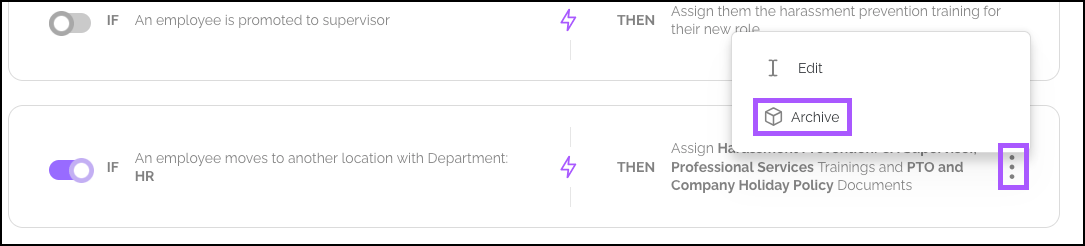
In Settings > Automations, click the three dots (⋮) next to the automation to remove.
Step 2: Initiate archive
Select Archive from the menu.
Step 3: Confirm removal
A confirmation dialog will appear. Confirm that you want to permanently remove the automation.
⚠️ Critical Warning: Archived automations cannot be recovered. If you might need this automation again, consider pausing it instead of archiving.
Post-Management Information
Status monitoring
- Active (Purple): Automation runs for all matching trigger events
- Paused (Gray): Automation does not run, but configuration is preserved
- Archived: Automation completely removed from system
Impact on learners
- Pausing: No new assignments from this automation, existing assignments unaffected
- Editing: Only future trigger events use new configuration
- Archiving: No future assignments, existing assignments remain with learners
Testing changes
- Monitor assignment logs after making changes
- Verify conditions still match intended audience
Helpful Tips
Pause instead of archiving
If you might need an automation again, pause it (toggle to Gray) rather than archiving. Archived automations are permanently deleted.
Verify automations after editing
After editing an automation, verify it works correctly with a test case before relying on it for critical compliance training.
Changes only affect future trigger events
Automation changes only affect future trigger events. Existing assignments to learners remain unchanged.
Quick Questions
Can I recover an archived automation?
No. Archiving is permanent and irreversible. If you need the automation again, you must recreate it from scratch.
Do paused automations still show in the list?
Yes. Paused automations remain visible with a Gray toggle indicator. You can resume them anytime.
What happens to learners who already received assignments from an archived automation?
Their existing assignments remain intact. Archiving only prevents new assignments from being created.
Can I edit multiple automations at once?
No. Each automation must be edited individually through its three-dots menu.
Llama Fact: Llamas can quickly adapt their behavior to changing conditions—similar to how you can quickly adapt your training automations to changing business needs!