![logolimanobkg-1.png]](https://help.easyllama.com/hs-fs/hubfs/logolimanobkg-1.png?height=40&name=logolimanobkg-1.png)
Before You Start
What You'll Need
- Administrative access to the EasyLlama dashboard
- A Dashboard created by you
- Access to the Insights section
- Understanding of which dashboards should be shared organization-wide
Quick Reference
- Default visibility: Private (only visible to creator)
- Shared visibility: Organization (view-only for other admins)
- Owner permissions: Full edit control regardless of share status
- Non-owner permissions: View-only when shared (no edits, no widget changes)
Share a Dashboard with Your Organization
Step 1: Access your dashboard
- Log in to EasyLlama.
- From the left navigation menu, click Insights & Reports > Insights.
- Using the drop-down, select a Dashboard you’ve created and would like to share.
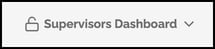
- Your private dashboards are shown with a closed lock icon.
Step 2: Open share options
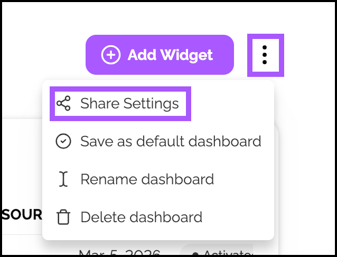
- To the right of the Add Widget button, click the three dot icon (⋮).
- Click Share settings.
Step 3: Configure access settings
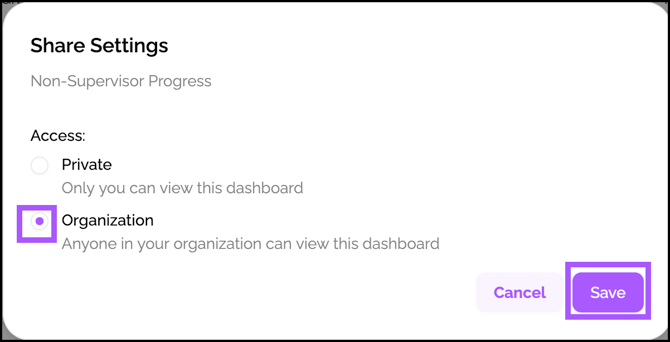
The Shared Settings modal appears with:
- Dashboard name displayed directly under the title
- Access section with two mutually exclusive options:
Select one:
- Private – To revoke previous access. Only you can view and edit this dashboard (default setting).
- Organization – All admins in your organization can view this dashboard
Step 4: Save your selection
Apply the new access setting by clicking Save.
A confirmation appears:
- If set to Organization: "Dashboard share access has been changed to: Organization."
- If set to Private: "Dashboard share access has been changed to: Private."
Understanding Dashboard Access States
Owner Experience (You)
When the dashboard is Private:
- 🔒 Private indicator (a lock closed icon) appears to the left of the dashboard name in the drop-down.
- You maintain full edit permissions: add, remove, edit widgets; change positions; save as default
- The dashboard is only visible to you

When the dashboard is Shared to Organization:
- 🔓 Organization indicator (a lock open icon) appears to the left of the dashboard name in the drop-down.
- Full edit permissions remain (owner privileges)
- Dashboard is view-only for all other admins
Non-Owner Experience (Shared Admins)
When the dashboard is Shared to the Organization:
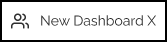
- 👥 Organization indicator (persons icon) appears to the left of the dashboard name.
- View-only access only – cannot modify anything
- Restricted actions:
- ❌ Cannot add, remove, or edit widgets
- ❌ Cannot change widget positions
- ❌ Cannot save as default
- ✅ Can view all data
- ✅ Use the Actions menu
- Notify All
When the dashboard is Private:
- The dashboard does not appear in the non-owner’s dashboard list
- Non-owners do not have access of any kind
Dashboard Drop-down Indicators
| Access State | Owner View | Non-Owner View |
|---|---|---|
| Private | 🔒 Lock Closed icon | Dashboard not visible |
| Organization | 🔓 Lock Open icon | 👥 Persons icon |
Icons appear to the left of the dashboard name in the dashboard drop-down menu.
Important Notes
Helpful Tips
You can only share dashboards created by you
Only the original creator can share a dashboard. If you need to share a dashboard created by someone else, ask them to share it.
Dashboards shared with you are view-only
Organization access provides view-only permissions for non-owners. This ensures data consistency across the team.
Quick Questions
Can I share a dashboard with specific individuals rather than the entire organization?
Currently, dashboards can only be Private or shared Organization-wide. Individual sharing is not available.
What happens to shared dashboards if I leave the organization?
Dashboards remain accessible to the organization. Consider designating another admin as a co-creator for continuity.
Can I transfer ownership of a shared dashboard to someone else?
Not currently. Dashboard ownership is tied to the creator. If you need ownership transferred, contact EasyLlama support.
How do I know which dashboards are shared?
Look for the 🔓 (Lock Open) icon next to dashboard names you own, or 👥 (Persons) icon for dashboards shared by others.
If I have Leader access, what do I see?
Those with Leader access can view shared reports. They will see data related to what they have access to, dependent on their Dashboard Admin Role and who/what they are mapped to. To learn more, please see the Dashboard Admin Privileges Chart.
Llama Fact: Llamas thrive in herds where information travels quickly—similar to how shared dashboards help compliance information flow efficiently across your admin team!