Skip to content
  • There are no suggestions because the search field is empty.

How to Manage AI Translations for Custom Courses

Enable, edit, and maintain AI-generated translations for courses created in the AI Course Authoring Tool, making training accessible in 30+ languages for your global workforce.

Before You Start

What You'll Need

  • Administrative access to the dashboard
  • A published course created in the Course Authoring Tool
  • Target languages selected from the supported list
  • Understanding of translation workflow
  • Access to the LMS & built-in AI Course Authoring Tool and published courses

Quick Reference

  • Supported content: Courses created in the Course Authoring Tool only
  • Languages: 30+ supported languages (see full list below)
  • Workflow: Enable → Generate → Review → Update
  • Key feature: Auto-update helps keep translations in sync when English content changes, without overwriting manual edits

Enable Translations for a Course

Step 1: Publish the course

Translations cannot be added to draft courses. You must publish the course before generating translations. 

To check if a course is published:

  1. Log into the Dashboard.
  2. From the left navigation menu, click Course Authoring.
  3. Find the course you’d like to translate.
  4. On the course card, check to make sure it is not in Draft. If it is, click the 3-dot icon > Publish.

Step 2: Access translation options

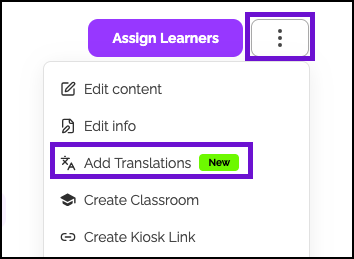
Click on the course to access the published course page. Using the three dot icon, click Add Translations.

Enable, edit, and maintain AI-generated translations for courses created in the Course Authoring Tool, making training accessible in 30+ languages for your global workforce.

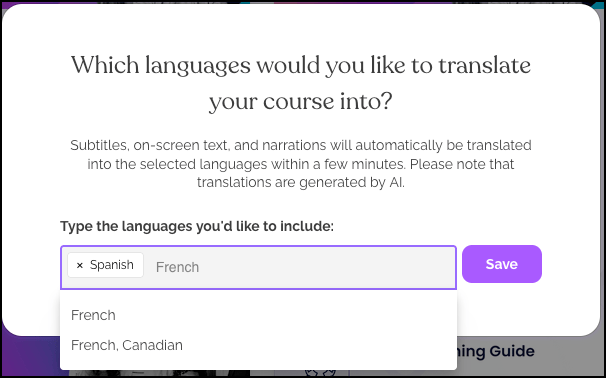
Step 3: Select target languages

Choose one or more languages from the 30+ supported options:

Complete Supported Language List:

  1. Spanish (Spain)
  2. Spanish
  3. Chinese (Simplified)
  4. Chinese (Traditional)
  5. French
  6. French (Canada)
  7. Vietnamese
  8. Japanese
  9. Korean
  10. German
  11. Portuguese (Brazil)
  12. Portuguese
  13. Polish
  14. Russian
  15. Hindi
  16. Arabic
  17. Danish
  18. Italian
  19. Slovak
  20. Swedish
  21. Ukrainian
  22. Dutch
  23. Afrikaans
  24. Greek
  25. Punjabi
  26. Indonesian
  27. Latvian
  28. Turkish
  29. Welsh
  30. Urdu
  31. Thai
  32. Swahili
  33. Nepali
  34. Icelandic

Need another language? Contact your Customer Success Manager.

Once the language is selected, click Save.
Step 4: Generate translations

The translations are generated in the background. Processing for 1-2 languages typically takes several minutes but varies by course length and language count.

Monitor progress:

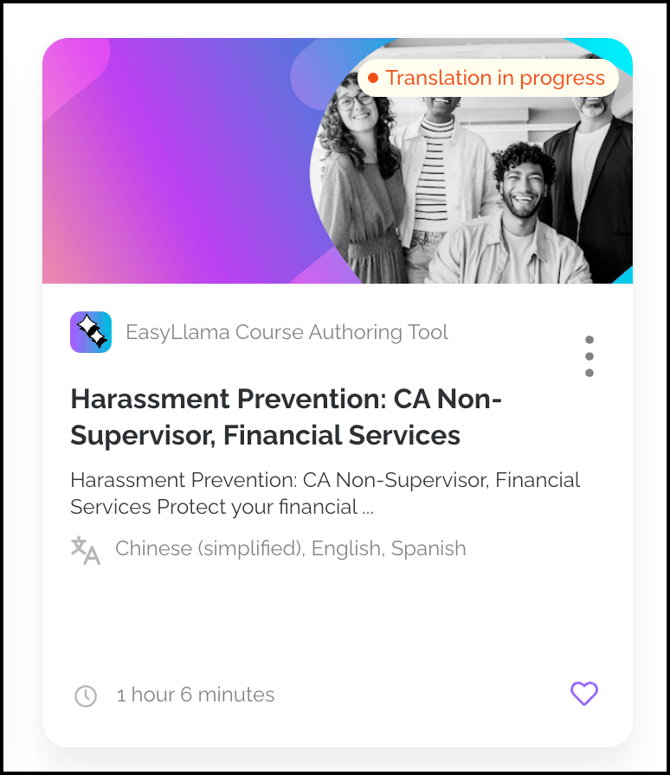
  • "Translation in progress" appears on course card during generation
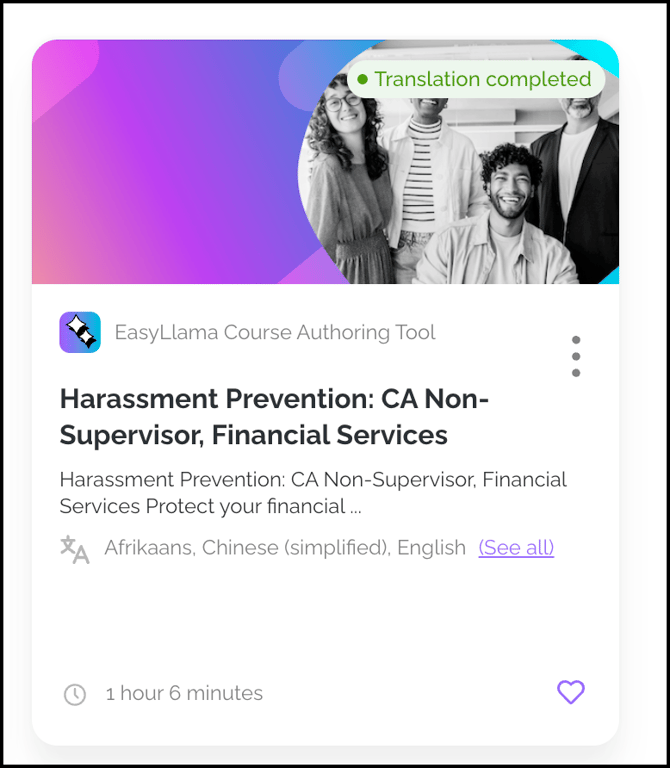
  • Email notification sent upon completion to the Admin
  • Status disappears after page refresh when complete

Helpful Tip: Wait for initial translations to complete before submitting another translation. Translations run one language at a time for each course, so if you add more languages before the first set finishes, it can slow processing down.

Review and Edit Translations

To update translations after launching a course, either to customize wording, or to spot check AI translation, take the following steps. Prefer a video? Click here.

Step 1: Access Translations Console

Open the course and click the Translations button to enter the Translations Console.

Step 2: Select language to review

Use the drop down to select which language to examine. Each language must be reviewed separately.


Step 3: Use side-by-side view

The console shows:

  • Left panel: Source English content
  • Right panel: AI-generated translation
  • Navigation: Browse slides individually or use View all Content

Step 4: Make manual edits

Edit directly in the translation panel to:

  • Correct AI translation errors
  • Apply organization-specific terminology
  • Improve clarity or cultural appropriateness
  • Ensure compliance language accuracy

Step 5: Save changes

Click Save and Close to preserve manual edits. These translations are marked as "Manually Translated."

Update Translations After Source Changes

Changes made to the course’s English version will temporarily cause translations to be out of sync.

If you update the English content, you’ll need to regenerate translations to see them in Preview Mode. Otherwise, Preview will continue to show the English version.

To review updated translations in Preview Mode while still editing and making changes, you must manually generate translations.

Step 1: Make content changes

Use the course builder to make changes to the content.


Step 2: Go to the Translations view

From the course editor, click Translations to view the translation status for each language.

Step 3: Filter Content

Use the Filters to find outdated or missing content.

  • Helpful Tip: Click View all content to view all missing or outdated content across slides.

Step 4: Generate new content

For each outdated or missing section, click Generate Translation. This step must be completed for each language you want to preview. Use the language drop down to move between languages.

Step 5: Preview Content

Once the content is generated, the updated content is available immediately. Click Preview and toggle to the desired language.

Step 6: Save and Close

When the translation process is complete, return to the Course Builder and click Save and Close.

Step 7: Assign the Course

Once all editing is completed, and you're ready to deploy the courses to learners, click Assign.

The following message appears to handle any missing or outdated translations:

  • Auto Update - Enables automatic AI translations for missing or outdated translations. Previously made manual translation changes are not overwritten.
  • Update Later - Any content detected missing or outdated will not be upgraded by AI, which may cause English or outdated content from previously generated translations to appear instead.

Translation Management Features

Filter System

Available filters in Translations Console:

  • Missing: New content needing translation
  • Outdated: Edited content needing re-translation
  • Manually Translated: Admin-edited translations
  • Auto Translated: AI-only translations
  • Images: Image alt text for accessibility

Use "View all Content" to filter across entire course.

Non-Editable Translation Types

Cannot be manually edited:

  • Audio clips (card audio, narrations)
  • Video subtitles

To update these:

  1. Edit English source media
  2. Use "Auto-Update" option
  3. AI regenerates audio/video subtitle translations
  4. Updated versions apply on next assignment

Learner Experience

Language selection

Once translations are complete and enabled in course settings:

  • Language toggle appears in course interface
  • Learners select preferred language
  • All translated elements display in chosen language

Immediate access

  • No admin action required after translation completion
  • All enabled languages are available simultaneously
  • Learners can switch languages during the course

Helpful Tips

Avoid adding languages before initial translations are complete

Wait for the first batch to finish processing before adding more languages to avoid system conflicts.

Use Auto-Update after content changes

Select "Auto-Update" when prompted after editing English content to ensure translations stay synchronized.

Understand that not all content types are editable

Audio and video translations cannot be manually edited. Use Auto-Update to regenerate these after changes.