![logolimanobkg-1.png]](https://help.easyllama.com/hs-fs/hubfs/logolimanobkg-1.png?height=40&name=logolimanobkg-1.png)
Before You Start
What You'll Need
- Administrative access to the dashboard
- A published course created in the Course Authoring Tool OR a published Customized Course
Quick Reference
- Supported content: Published Customized Courses, or Published Courses created in the Course Authoring Tool
- Languages: 30+ supported languages (see full list below)
- Workflow: Enable → Generate → Review → Update
- Key feature: Auto-update helps keep translations in sync when English content changes, without overwriting manual edits
Enable Translations for a Course
Step 1: Publish the course
Translations cannot be added to draft courses. You must publish the course before generating translations.
To check if a course is published:
- Log into the Dashboard.
- From the left navigation menu, click Training > Library
- Using the search or filters, find the course you’d like to translate
- Select the course, and click the 3-dot icon > Publish.
- For customized courses, select the custom version to the right of View Details before publishing.
Step 2: Access translation options
Once the course is published, click the three-dot icon and select Add Translations.
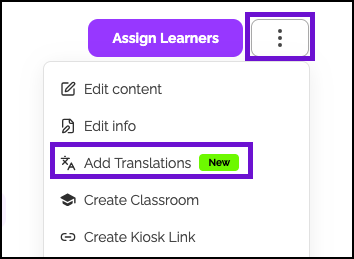
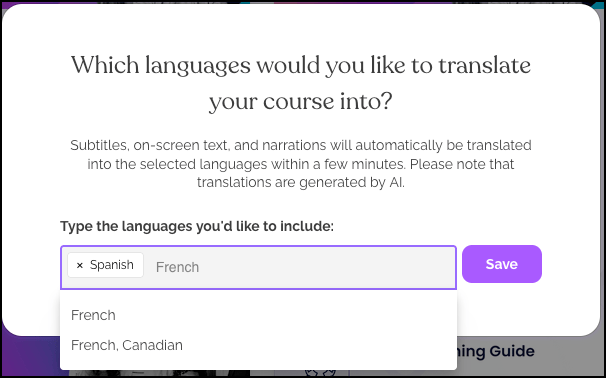
Step 3: Select target languages
Choose one or more languages from the 30+ supported options:
Complete Supported Language List:
- Spanish (Spain)
- Spanish
- Chinese (Simplified)
- Chinese (Traditional)
- French
- French (Canada)
- Vietnamese
- Japanese
- Korean
- German
- Portuguese (Brazil)
- Portuguese
- Polish
- Russian
- Hindi
- Arabic
- Danish
- Italian
- Slovak
- Swedish
- Ukrainian
- Dutch
- Afrikaans
- Greek
- Punjabi
- Indonesian
- Latvian
- Turkish
- Welsh
- Urdu
- Thai
- Swahili
- Nepali
- Icelandic
Need another language? Contact your Customer Success Manager.
Step 4: Save Targeted Languages
Once the language is selected, click Save.
Step 5: Generate translations
The translations are generated in the background. Processing for 1-2 languages typically takes several minutes, but the time varies with course length and the number of languages.
Monitor progress:
- "Translation in progress" appears on the course card during generation
- Email notification sent upon completion to the Admin
- Status disappears after page refresh when complete
Helpful Tip: Translations run one language at a time for each course, so adding more languages before the first set finishes can slow processing.