![logolimanobkg-1.png]](https://help.easyllama.com/hs-fs/hubfs/logolimanobkg-1.png?height=40&name=logolimanobkg-1.png)
Before You Start
What You'll Need
- Administrative access to the EasyLlama dashboard
- A Core, or Ultimate plan, or a Legacy Security Awareness Training subscription
Quick Reference
- Supported languages: English, German, Spanish, French, Italian, Japanese, Korean, Portuguese (Brazil), Portuguese (Portugal), Russian, Vietnamese, Chinese (Simplified), Chinese (Traditional)
- Translated elements: Phishing email, landing page, coaching tips, training course
- Configuration level: Per campaign (also available for Auto-Managed Programs)
Quick Answer
- Go to Phishing Simulator > Campaigns.
- Create or edit a campaign.
- Under Campaign Settings, select a Language.
- Assign learners and click Publish.
Create a Multilingual Phishing Campaign
Step 1: Access Phishing Simulator templates
- Log in to the Dashboard
- From the left navigation menu, click Phishing Simulator > Campaigns
Step 2: Select or create a Campaign for translation
Select an Existing Campaign, or click Create Auto-Managed Program.
Step 3: Select Language
In the template editor, under Campaign Settings, select the Language for the campaign.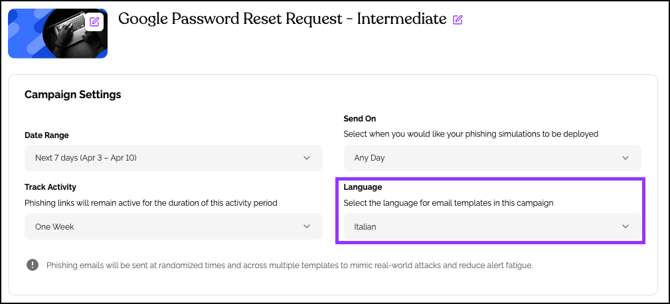
Step 4: Assign Learners
To the right of Assign Learners, click Assign. Select the Learners to add to this campaign, and verify by clicking Assign.
Step 5: Review translated templates
The selected language applies to the full simulation experience:
- The phishing simulation email
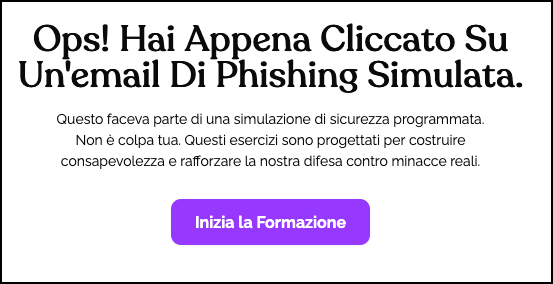
- The training landing page, which is presented after a Learner clicks a link in the email
- The coaching tips and training guidance
- The training course (learners can also select their preferred language)
To review the AI-Translated Simulations:
Review the Phishing Email
NOTE: For Recurring Campaigns, under Emails and Trainings, select Manual Selection to review the Templates and Training previews. After reviewing, select Auto Selection to have EasyLlama choose the best phishing templates for you.
- Under Email and Training, click Preview Template
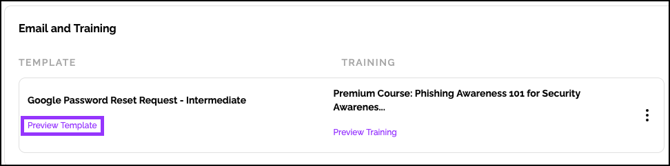
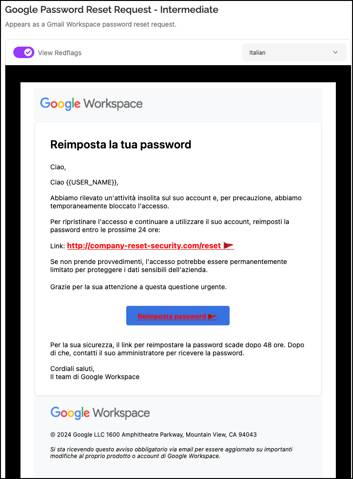
- Review the AI-generated translation in the selected language
- Use the slider to view red flags
- Use the Language drop-down to review different languages
Review the Training Course
NOTE: For Recurring Campaigns, under Emails and Trainings, select Manual Selection to review the Templates and Training previews. After reviewing, select Auto Selection to have EasyLlama choose the best phishing templates for you.
- Under Email and Training, click Preview Training
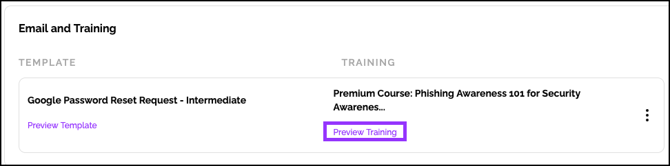
- Click Share Preview to send a training preview via email. For more info, check out Sending Yourself or Others a Course Preview
- Verify the training content appears correctly in the selected language
Review the Landing Page
- Under Training Landing Page, click Preview Landing Page

- Confirm that the content learners see after clicking a phishing link appears correctly
Step 6: Publish the Campaign
After reviewing all translated elements and confirming learners are assigned, click the Publish button to begin the phishing campaign for the assigned learners.
Quick Questions
Which elements are translated in a phishing campaign?
The phishing simulation email, training landing page, coaching tips shown after a click, and the training course itself.
Do I need to request approval for translations?
No. Translations are self-service—no request or approval process is required.
Can learners choose their language for the training course?
Yes. If a Learner fails the Phishing simulation and is assigned training, they can select their preferred language when taking the course.
Are translations available for Auto-Managed Programs?
Yes. Language selection is also available when setting up the full Auto-Managed Program.
AI Translations allows you to run phishing simulations in the language your learners use every day. This makes simulations more realistic and ensures learners fully understand the training and coaching they receive after a simulation.