![logolimanobkg-1.png]](https://help.easyllama.com/hs-fs/hubfs/logolimanobkg-1.png?height=40&name=logolimanobkg-1.png)
The Admin Activity Report in Report Builder provides a detailed audit log of all actions performed by administrators in your EasyLlama platform. With clear Entity and Entity Type columns, you can easily see exactly what was changed and who it affected.
What You'll Need
- An EasyLlama admin account with Report Builder access
- Account Admin permissions to view admin activity
Step-by-Step Instructions
To use the Admin Activity Report:
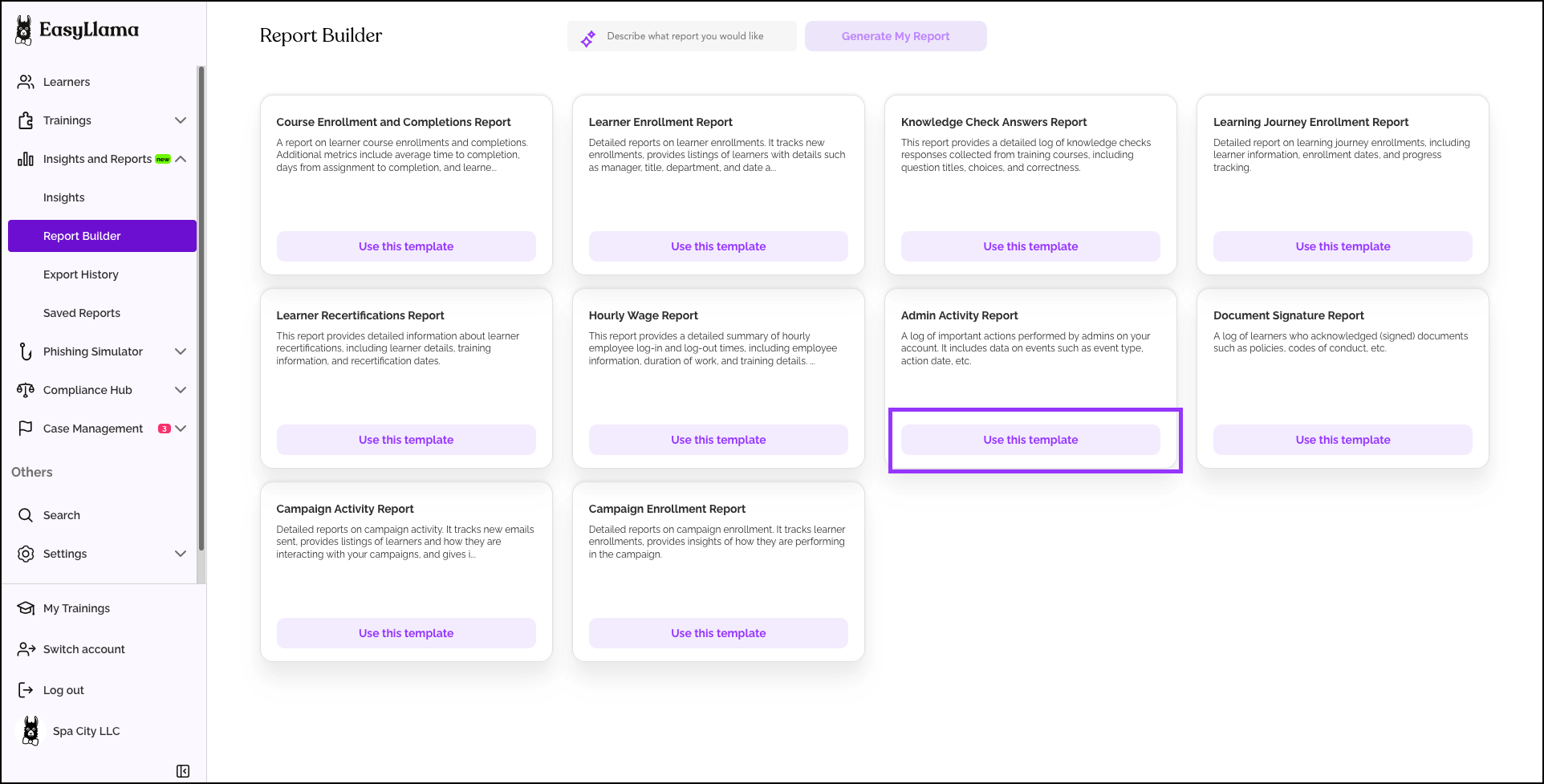
- From the left navigation menu, click Insights & Reports.
- Click Report Builder.
- Find the Admin Activity Report, and click Use this template.
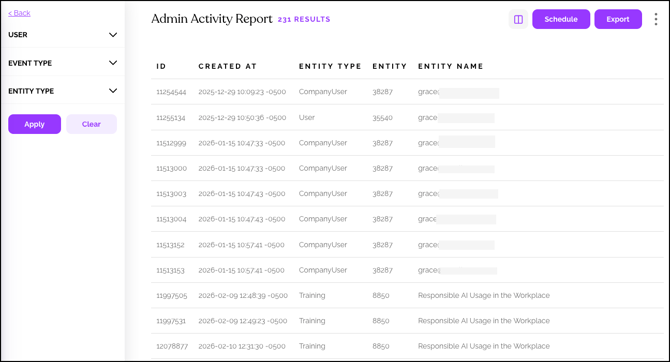
- Review the key columns:
- Created At – When the action occurred
- Entity Type – The category of item changed (e.g., "Integration," "Training," “User”)
- Entity – The specific item number that was changed
- Entity Name – Who or what was changed, specifically. (e.g., a user’s name, an integration, a training, or learning journey.
- Event Type – What action was taken (e.g., "Update”)
- User – The admin who performed the action
From here, perform the following actions:
- Schedule - Enable scheduling, how often you’d like the report, and the email addresses of those who should receive it.
- Export - Create a CSV that can be emailed to specific users, or generated for download.
Frequently Asked Questions
What does the "Entity" column show?
The Entity column shows the specific recipient of an action. For example, if an admin updated a user's information, the Entity would be that user's name. If a training was updated, the Entity would be the training title.
What does the "Entity Type" column show?
The Entity Type column categorizes what kind of item was affected—such as User, Training, Assignment, or other object types in the platform.
Who can see this report?
Only users with Account Admin permissions can access the Admin Activity Report.