![logolimanobkg-1.png]](https://help.easyllama.com/hs-fs/hubfs/logolimanobkg-1.png?height=40&name=logolimanobkg-1.png)
Before You Start
What You'll Need
- Access to courses containing AI Scenarios (Cybersecurity, Security Awareness Training bundle)
- OR Access to Course Authoring Tool with AI Scenario Assessment template
- Administrative access to your EasyLlama dashboard
- Clear learning objectives for the scenario
Quick Reference
- Where to find: Select EasyLlama courses OR Course Authoring Tool template
- Learner experience: Chat interface with typed or voice responses
- Creation steps: Topic → Questions → Difficulty → AI Guidance → Generate
- Data safety: EasyLlama does not share client data with third-party AI tools
How to Create AI Scenarios Using the Course Authoring Tool
Step 1: Select the Template
- From the left navigation menu, click Trainings > Course Authoring.
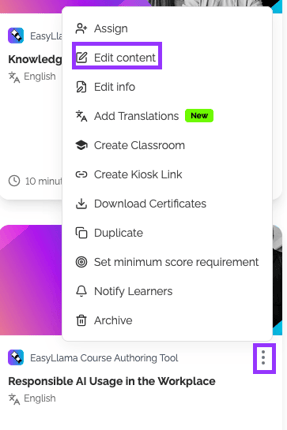
- Select the training you’d like to add the AI template to and click the three dot icon > Edit Course, or create a new course using a template.
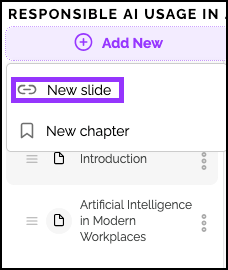
- Select where in the course you’d like to add the new slide.
- Click Add New > New Slide.
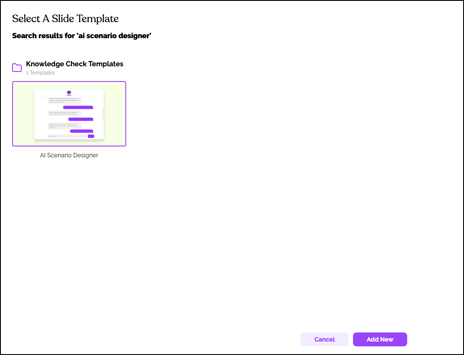
- Search for the “AI Scenario Designer”, click on it to select, and click Add New.
Step 2: Configure Basic Settings

Provide the following information:
| Field | Description | Example |
|---|---|---|
| Topic and title | What skill or situation will learners practice? | Practicing soft skills like adaptability and teamwork |
| Number of questions | How many conversational exchanges? | 3 prompts |
| Difficulty level | Beginner, Intermediate, or Advanced | Beginner |
Step 3: Provide Guidance to AI
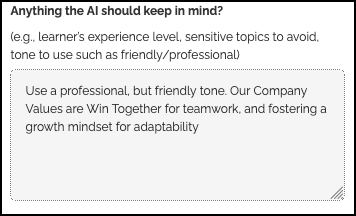
From the Anything the AI should keep in mind? textbox, define the AI's role and parameters.
-
AI's role: What persona should the AI play?
Example: "AI should play the role of a frustrated customer"
-
Tone: Professional, empathetic, firm, etc.
Example: "Use a professional but concerned tone"
-
Constraints: What can't the AI do or say?
Example: "Do not offer refunds over 30 days"
-
Company policies: What rules must be followed?
Example: "Company policy is no refunds after 7 days"
-
Learner context: What is the learner's role or situation?
Example: "Learner is a customer service representative"
Step 4: Generate and Test
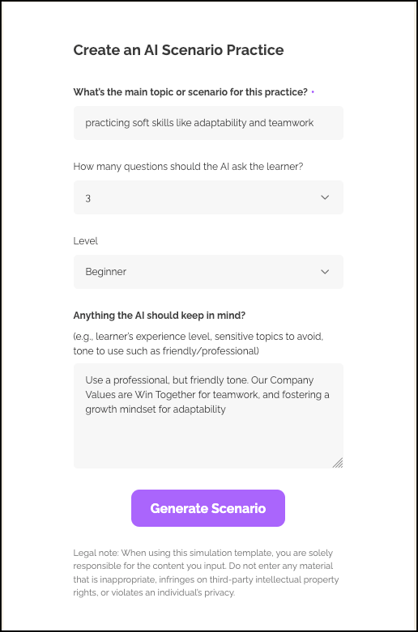
- Click Generate Scenario to create. While the scenario is generating, the “Generate Scenario” button changes to “Creating”. Please wait for the scenario to finish creating.
- Update the title, and the description by clicking into each textbox.
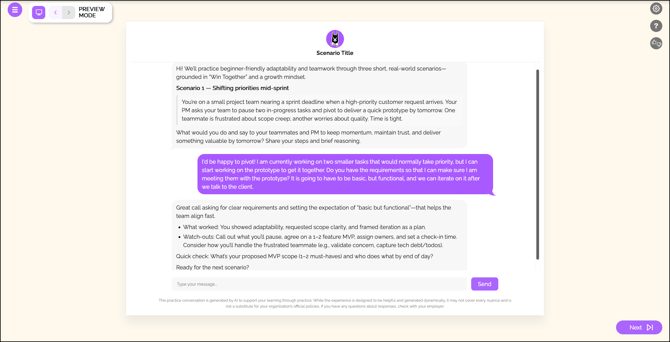
- From the upper, right hand corner of the screen, click the Preview button to review the generated scenario.
- Test the flow by going through the conversation as a learner would.
Step 5: Edit as Needed
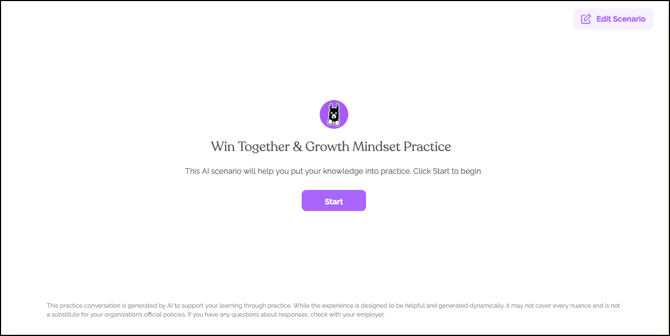
If you want to make changes to the scenario, click Edit Scenario.
- Adjust the learner instructions or any other parameters
- Regenerate if major changes are needed
- Continue refining until the scenario meets your objectives
Step 6: Publish & Assign
When the course is completed, publish and assign the course to learners as you normally would.
Learner Experience Overview
Once published, learners will:
- View the scenario – Chat interface with introduction and first prompt
- Respond – Type a few sentences per prompt (or use voice input where available)
- Continue the conversation – AI replies and advances to next prompt
- Review assessment – Session ends with summary of strengths, opportunities, and tips
Best Practices for Creating Effective Scenarios
Be Specific in AI Guidance
- The more detail you provide about the AI's role, tone, and constraints, the more realistic the scenario
- Include specific company policies or real-world constraints learners should navigate
Test Thoroughly
- Always preview and test scenarios before assigning to learners
- Go through the full conversation flow to identify any issues
Iterate Based on Feedback
- Adjust and regenerate based on learner experiences
- Refine scenarios over time to improve their effectiveness
Match Difficulty to Audience
- Choose appropriate difficulty level based on learner experience
- Consider starting with easier scenarios and progressing to more challenging ones
Helpful Tips
Provide the AI guidance to generate specific scenarios
Vague instructions lead to generic scenarios. Be specific about the AI's role, tone, and constraints.
Remember to preview the scenario
Always test generated scenarios yourself before assigning to learners.
Start small, and expand as needed
Start with a manageable number of questions (3-5) and expand as needed.
Remember to include company policies
Include relevant policies in your guidance to make scenarios more authentic.
Quick Questions
Can I edit a scenario after generating it?
Yes. Adjust the instructions in the Course Authoring Tool and regenerate as needed. You can iterate until the scenario meets your requirements.
How long does it take to generate a scenario?
Generation is typically quick—usually under a minute. You can then test and refine as needed.
Can I save scenarios as templates?
Currently, scenarios are generated per use. You can document your successful configurations for reuse.
Do AI Scenarios count toward course completion?
Yes, they function as any other course component. Completion requires finishing the scenario.
Llama Fact: Llamas are excellent communicators! They use a variety of sounds including humming, clucking, and alarm calls to convey different messages to their herd—not unlike how AI Scenarios help learners practice a variety of effective communication skills.