![logolimanobkg-1.png]](https://help.easyllama.com/hs-fs/hubfs/logolimanobkg-1.png?height=40&name=logolimanobkg-1.png)
Before You Start
What You'll Need
- Access to the EasyLlama dashboard
- Access to Settings > My Profile and Settings > My Notifications
Important Note
You can only update your own profile and notification settings. You cannot modify these settings for other users.
Update Your Profile Information
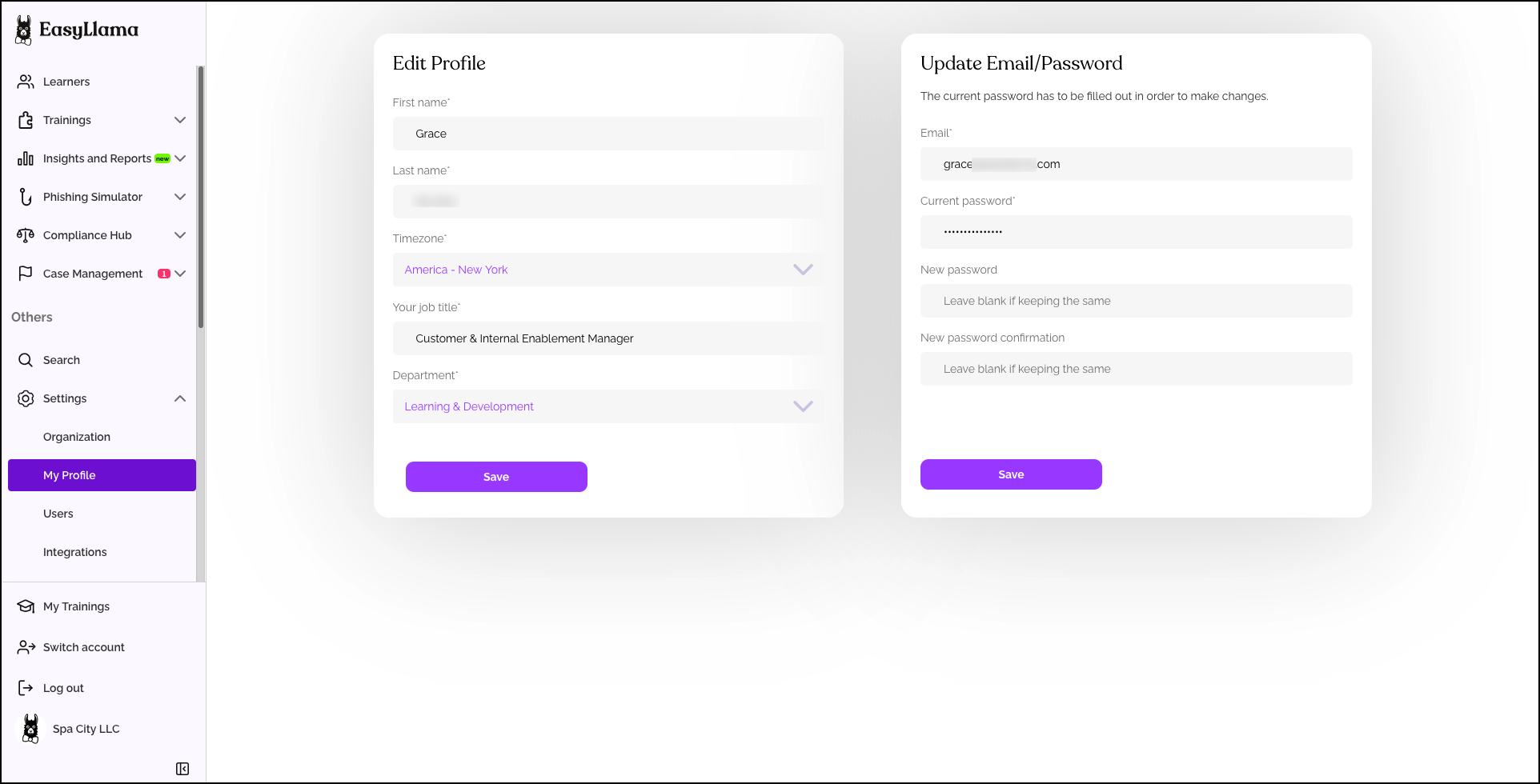
Step 1: Access profile settings
- Log in to the Dashboard.
- From the left navigation menu, click Settings > My Profile.
Step 2: Edit your information
From this page, you can update:
- Name (first and last)
- Time Zone (for accurate notification timing)
- Email address (your login email)
- Password (for security)
Step 3: Save changes
Click Save to apply changes.
Helpful Tip! Choose a strong password and keep your time zone set correctly to receive notifications at the right times.
Customize Your Notification Preferences
Note: If you accidentally clicked "Unsubscribe" at the bottom of an email notification, you can re-enable notifications here by toggling the appropriate setting back ON.
Step 1: Access notification settings
- Log in to the Dashboard.
- From the left navigation menu, click Settings > Notifications.
Step 2: Adjust notification toggles
For each notification type, use the toggle switch to turn ON (purple) or OFF (gray).
Notification Options:
- Company-wide notification emails
- Send an email to learner managers when one of their direct report completes a training
- Send an email to learner managers when one of their direct reports has a past due training
- Send a weekly email to learner managers summarizing all overdue training and recently completed training for their direct reports
- Personal Preferences notification emails - Be notified when:
- Learners have completed their training
- Trainings assigned to the learner have become past due
- Weekly Activity Report
- Some of the emails are invalid
- Learners are up for recertification
- The integration has synchronization issues
- New learners have been synced
- Anonymous reporting: A new case has been submitted
- Anonymous reporting: a reply message has been received
Step 3: Save your preferences
Scroll down and click Save after making changes. Your notification settings update immediately.

Log Out of Your Dashboard
Step 1: Locate the logout button
From the bottom left corner, locate the logout button.
- Purple button with an arrow pointing to the right
- Located next to your account name/identifier
Step 2: Click to log out
Click the button to securely end your dashboard session. You'll be redirected to the login page.
Helpful Tips
You can only change your own settings
Profile and notification settings are personal. You can only modify your own—not those of other users in your organization.
Remember to save changes
After adjusting toggles or editing profile fields, always click "Save" before navigating away.
Quick Questions
Can I reset my password if I forget it?
Use the "Forgot Password" link on the login page. This sends a reset link to your email.
How do I know if notification changes are saved?
A confirmation message typically appears. You can also revisit the page to verify toggle positions.
What if I don't see the logout button?
It's always at the bottom-left corner of the navigation menu. If you're on mobile, you may need to scroll down to find it.
Can I turn off all notifications?
Yes, you can toggle each notification type OFF. However, you may miss important updates about assignments and due dates.
Llama Fact: Llamas are independent but stay connected to their herd—similar to how your profile keeps your identity while notifications keep you connected to important updates!