![logolimanobkg-1.png]](https://help.easyllama.com/hs-fs/hubfs/logolimanobkg-1.png?height=40&name=logolimanobkg-1.png)
Before You Begin
What You'll Need
- Admin access
- Learners who are due for recertification
At a Glance
- Recertify an individual learner directly from their Learner profile
- Use Upcoming recertifications to see training scheduled for that learner
- Assign an upcoming recertification immediately when needed
- Use Due for Recertification from Learners to recertify multiple learners at once
- Once assigned, monitor the training and its Activity Log from the Learner profile
What to Know
- A recertification is only scheduled after a learner completes their previous training assignment
- With Auto-Assign off, EasyLlama continues tracking the recertification, but an Admin must manually assign the recurring training
- Upcoming recertifications that require manual assignment are called out in the Learner profile
- An upcoming recertification is not yet a training assignment, so it does not have an Activity Log
- Once the recurring training is assigned, it becomes a Current assignment and its activity can be tracked through the Activity Log
Manually Recertify Learners
Step 1: Find learners due for recertification
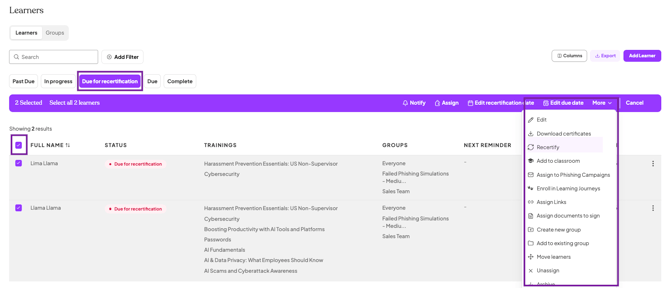
From Learners, select Due for Recertification to view learners whose recurring training requires action.
From here, you can recertify an individual learner or select multiple learners to recertify at once.
Recertify an Individual Learner
Find the learner you want to recertify. Click the learner's name, or open the three-dot menu and select View Profile, to open their learner profile.
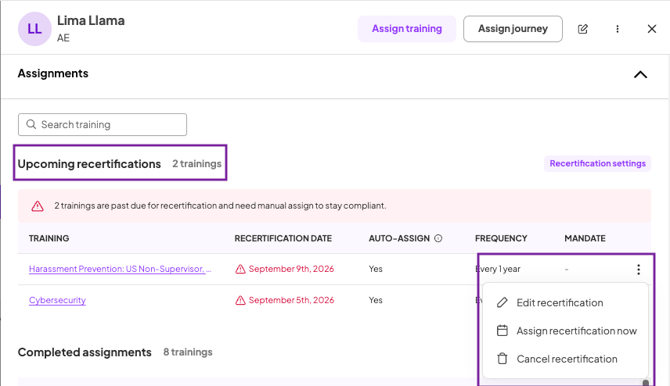
In the learner profile, scroll to Upcoming recertifications to see the learner's scheduled recurring training.
Find the training you want to recertify, click the three-dot menu, and select Assign recertification now.
From this menu, you can also:
- Edit recertification to make changes to the learner's upcoming recertification
- Cancel recertification if the learner no longer needs the scheduled recurring training
Recertify Multiple Learners at Once
If you need to manually recertify more than one learner, you can complete the same action in bulk from Due for Recertification without opening each learner's profile individually.
Use the checkboxes to select the learners you want to recertify. To select everyone in the view, use Select all learners.
Once learners are selected, the bulk action bar will appear at the top of the list. From the bulk action bar, select More > Recertify.
Review the confirmation message, then confirm the action to assign the applicable recurring training to the selected learners.
What Happens Next?
Once the recertification is successfully generated, the training becomes a Current assignment for each learner.
The learner receives the standard training invitation through their enabled notification channels, including the assigned training and applicable due date. Any subsequent automated reminders follow your organization's existing reminder settings.
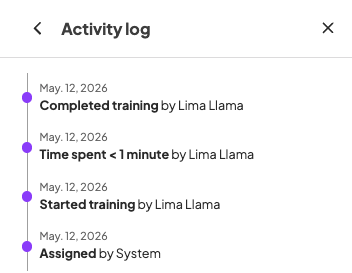
From the learner profile, Admins can monitor the assignment's status, due date, progress, and activity. Select View for an individual assignment to open its Activity Log and see a chronological history of assignment activity.
Quick Questions
Why isn't a learner appearing as due for recertification?
A recertification is only scheduled after the learner completes their training assignment. If the original assignment is still incomplete, it remains active and a future recertification is not scheduled.
What happens if a learner's recertification is configured for manual assignment?
When Auto-Assign is off, EasyLlama continues tracking the learner's upcoming recertification, but an Admin must generate the recurring assignment. The learner profile identifies upcoming recertifications that require manual action.
Will learners be notified when I recertify them?
Yes. Once the recurring training assignment is successfully generated, the learner receives the standard training invitation through their enabled notification channels. Subsequent reminders follow your organization's existing reminder settings.
What happens if there aren't enough seats to assign the training?
If an upcoming recertification cannot be assigned because of insufficient seat availability, the learner profile indicates that Admin action is required. The learner will not receive a training invitation until an assignment is successfully generated.
Can I see what happened after the recurring training was assigned?
Yes. Once the recurring training becomes an assignment, open the learner profile and select View for that assignment to access its Activity Log. The log provides a chronological history that can include when and by whom the training was assigned, learner activity, completion details, and applicable recertification activity.
What's Next?
- Managing a Learner's Training Assignments
- Turning Off Automatic Recertification
- Understanding Automatic Recertifications
- Setting a Training's Recertification Frequency
Llama Fact: Llamas are social animals that thrive on routine. Turns out keeping the whole herd on track is kind of their thing! 🦙