![logolimanobkg-1.png]](https://help.easyllama.com/hs-fs/hubfs/logolimanobkg-1.png?height=40&name=logolimanobkg-1.png)
Before You Start
What You'll Need
- Administrative access to the dashboard
- At least one document has already been uploaded to the Document Manager
- Access to Compliance Hub > Document Manager
Quick Reference
- Primary method: Monitor and manage documents via the Document Management tab
- Alternative: View signature status through individual learner profiles
Method 1: Monitor Document Compliance
Step 1: Check signature status
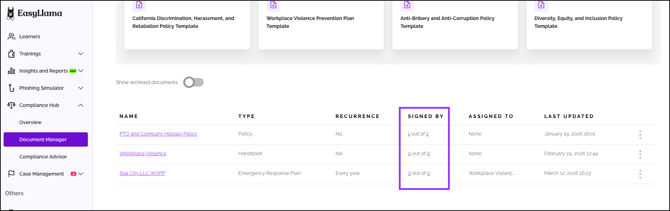
Navigate to Compliance Hub > Document Manager. In the "Signed By" column, you'll see two numbers for each document:
- First number: Learners who have completed signing
- Second number: Total learners assigned the document
- Example: "1/2" means 1 Learner signed, 2 are assigned
Step 2: View detailed assignment lists
Click either number in the "Signed By" column to open a detailed list showing:
- Which specific learners are assigned
- Their current signature status (Signed/Pending)
- Assignment dates and completion timestamps
Method 2: Perform Document Actions
Access the actions menu
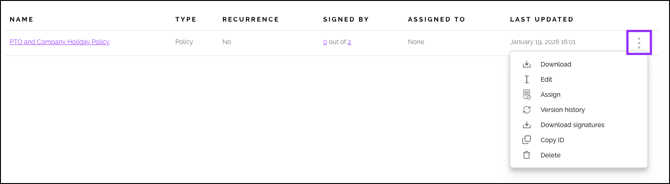
Click the three dots (⋮) to the right of any document to access these options:
Available actions:
- Download: Download a copy of the original PDF document.
- Edit: Upload a new version or modify document settings. Previous versions are automatically archived.
- Version History: View complete revision history, including when new versions were uploaded and by whom.
- Download Signatures: Export all collected signatures for this document for audit or compliance reporting.
- Delete: Permanently delete the document from the Document Manager. Note: Previously collected signatures remain on learner certificates and in historical records.
Tip: Use "Version History" to maintain audit trails when updating policies. Use "Download Signatures" quarterly for compliance reporting.
Method 3: Track Signatures via Learner Profiles
View individual compliance
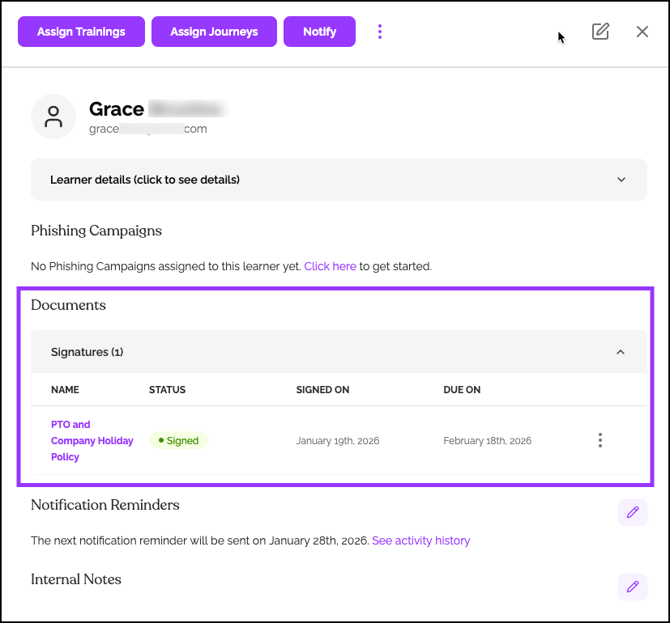
- Navigate to the Learners tab and select any learner
- Scroll to the Document Signatures section of their profile
- View all documents assigned to this learner and their signature status
Download signed certificates
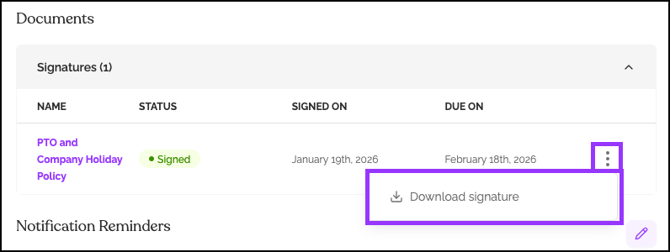
Click the three dots (⋮) next to any signed document in a learner's profile to download their completion certificate with the embedded signature.
Actions to Avoid
Deleting documents with active signatures
While you can delete documents from Document Manager, consider keeping them accessible for audit purposes. Deleted documents no longer appear in learner portals, but signatures remain on certificates.
Missing recurrence tracking
For documents with recurring signatures, regularly check the "Signed By" column to identify learners approaching their renewal dates.
Quick Questions
Can I see when a specific learner signed a document?
Yes. Click the signed number in the "Signed By" column, or check the individual learner's profile for exact timestamps.
What happens to signatures if I delete a document?
Signatures remain on learner certificates and in historical records. The document simply becomes inaccessible for future assignments.
How do learners access and sign documents?
Through their Learner Portal: pending documents appear on the home page; all documents are accessible via the Documents & Policies tab.