![logolimanobkg-1.png]](https://help.easyllama.com/hs-fs/hubfs/logolimanobkg-1.png?height=40&name=logolimanobkg-1.png)
Before You Start
What You'll Need
- Admin access
- An existing learner with training assignments
At a Glance
- Open Learners
- Select an individual learner to open their learner profile
- Review and manage Current assignments
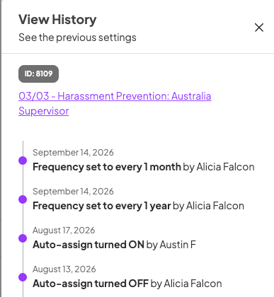
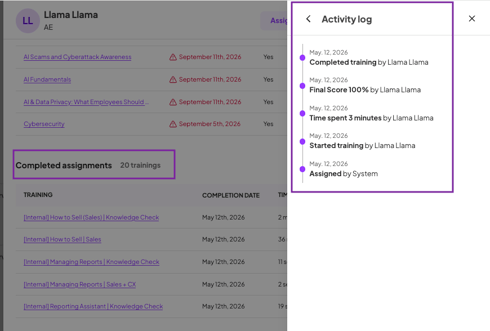
- View individual assignment history using the Activity Log
- Review and manage Upcoming recertifications
- Review Completed assignments
What to Know
- Training assignments are managed from the individual learner profile
- Current assignments show active training and provide options for managing individual assignments
- Upcoming recertifications show recurring training before the next assignment is generated
- Current assignments and Completed assignments include an Activity Log that provides a chronological history for each individual assignment
- Upcoming recertifications do not have an Activity Log until the recurring training becomes an assignment
- Admins can take action on individual assignments, including marking training complete on behalf of a learner when needed
View and Manage a Learner's Training Assignments
Step 1: Open the learner's profile
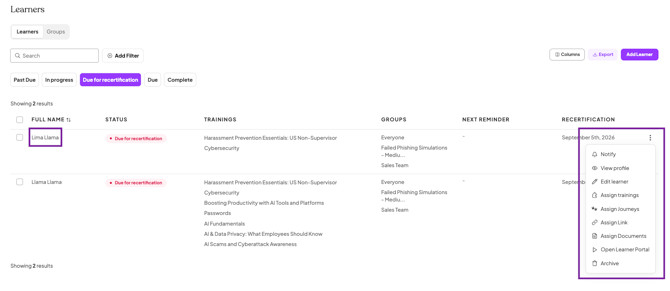
From Learners, find the learner you want to manage and click their name, or open the three-dot menu and select View Profile.
The learner profile opens in a side panel where you can view their learner details and training assignments without leaving the Learners page.
Step 2: Review and manage current assignments
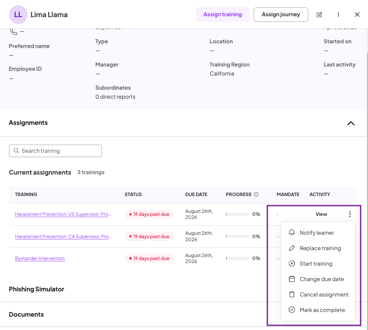
Under Current assignments, you can see the learner's active training, including its status, due date, progress, and activity.
Use the three-dot menu for an individual assignment to manage it, including notifying the learner, changing the due date, canceling the assignment, or marking it complete.
To review the history of an individual assignment, click View under Activity to open its Activity Log.
Step 3: Review and manage upcoming recertifications
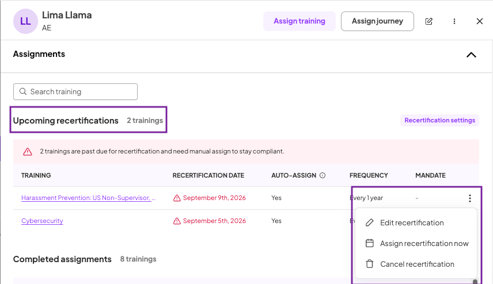
Under Upcoming recertifications, you can see recurring training scheduled for the learner, including the recertification date, Auto-Assign status, and frequency.
Use the three-dot menu for an individual recertification to Edit recertification, Assign recertification now, or Cancel recertification.
If a recertification requires manual action, EasyLlama will display a warning so you know it needs attention.
Step 4: Review completed assignments
Under Completed assignments, you can review the learner's completed training, including completion date, time spent, score, and activity.
Click View under Activity to open the Activity Log for an individual completed assignment.
Quick Questions
What's the difference between Recertification Settings and Upcoming recertifications in the learner profile?
Settings > Recertification is where Admins configure recurring training at the individual training level, including frequency and Auto-Assign. Upcoming recertifications shows how those settings apply to an individual learner and provides options for managing that learner's scheduled recertification.
Why doesn't an upcoming recertification have an Activity Log?
An upcoming recertification isn't a training assignment yet, so there is no assignment activity to track. Once the recurring training is assigned, it becomes a Current assignment and receives its own Activity Log.
What happens when a learner completes recertified training?
The training moves to Completed assignments, and the learner's recertification cycle restarts based on the new completion date and the training's configured recertification frequency.
What happens if a learner is archived or on leave when their recertification is due?
EasyLlama delays the assignment while the learner is inactive. When the learner is restored or returns from leave, EasyLlama checks for deferred recertifications and assigns applicable training, giving the learner 30 days to complete it.
What happens if an upcoming recertification can't be assigned?
If a recertification can't be assigned, such as because there aren't enough available seats, the learner profile indicates that Admin action is required so the issue can be addressed.
What's Next?
- Understanding Automatic Recertifications
- Setting a Training's Recertification Frequency
- Turning Off Automatic Recertification
- Manually Recertifying Learners
Llama Fact: Llamas are highly observant and keep a close eye on the rest of their herd. Sounds like they’d appreciate having everything in one view! 🦙