![logolimanobkg-1.png]](https://help.easyllama.com/hs-fs/hubfs/logolimanobkg-1.png?height=40&name=logolimanobkg-1.png)
Before You Start
What You'll Need
- Administrative access to the EasyLlama dashboard
- Access to Settings > Training Settings
- A passing threshold that makes sense for your organization
- Knowledge of which courses may need different thresholds
Quick Reference
- Default behavior: All learners pass (no minimum score)
- Global setting: Applies to all courses assigned after the setting is enabled
- Override: Change threshold per course during manual assignment
- Video tutorial: Click here
Set a Global Default Minimum Score
Step 1: Access Training Settings
From the left navigation menu, click Settings > Training Settings.
Step 2: Find Minimum Score Section
On the Training Settings page, find the Minimum Score heading.
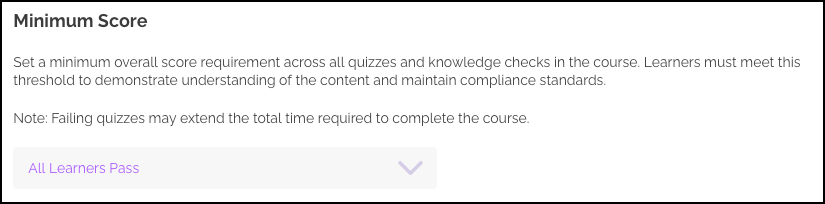
Step 3: Choose a Threshold
Select a passing score from the dropdown menu.
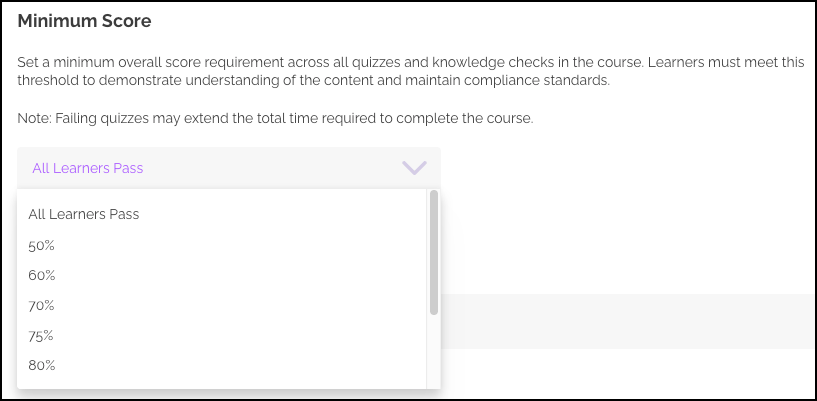
Step 4: Save Your Settings
Scroll to the bottom of the page, and click Save to apply the global minimum score.
Important: This setting only applies to courses assigned after you save it. Existing assignments are not affected.
Set Varying Thresholds for Different Courses
While a default passing score applies globally, you can override it when assigning courses manually.
During Manual Course Assignment:
- From the Learners tab, assign a course to an individual or a group
- Look for the Minimum Score dropdown menu in the assignment interface
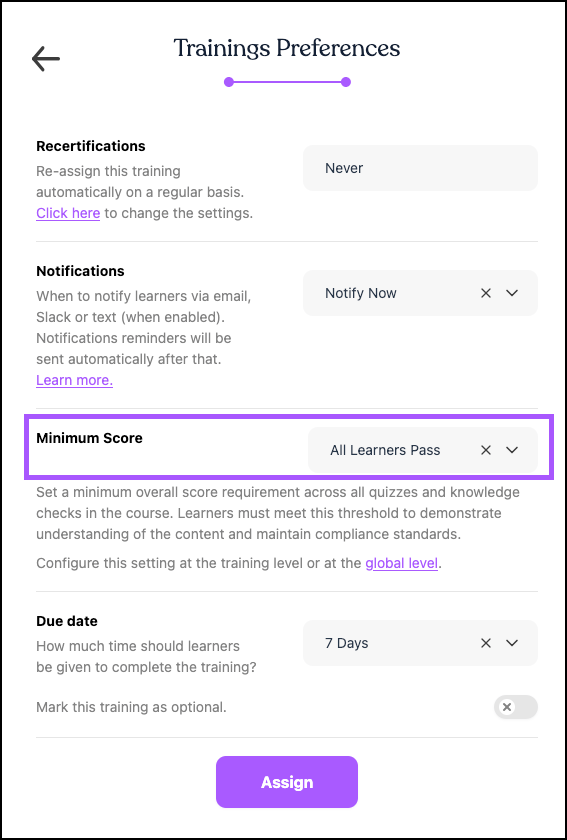
- Choose the Minimum Score, then click Assign.
Important Notes
- This override applies only to the courses you are currently assigning
- It does not change the global default passing score
- It does not change the passing score for individual courses permanently
Set a Minimum Score Requirement Per Course
This allows admins to set custom passing scores per course.
- From the left navigation menu, click Training Library.
- Use the search or filters to find the course you’d like to set a minimum score for.
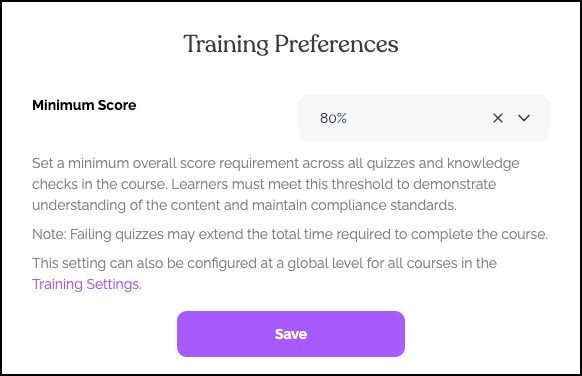
- Click the three dot icon > Set minimum score requirement
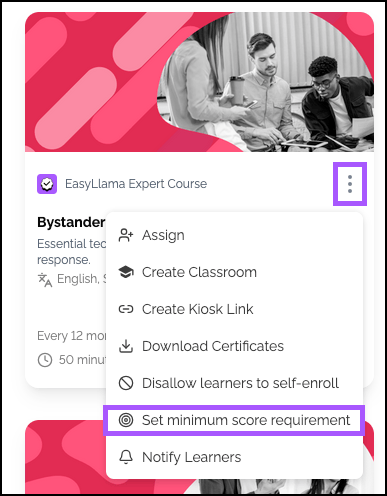
- Select the minimum score, and click Save.
Learner Experience
During the Course
- Learners take knowledge checks and quizzes as usual
- The minimum score requirement is visible at the beginning of the course
- Progress tracking shows their performance in real-time
If They Pass
- Course completion is recorded
- Score history is saved
- Course moves to Completed Courses section in their profile
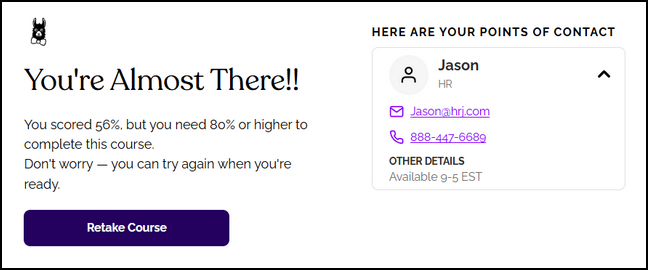
If They Do Not Meet the Minimum Score
- Course status becomes "Not Passed"
- The course remains in the Current Assignments section
- Progress is reset to 0%
- Status shows as "In Progress" or "Past Due" if applicable
- Learner is prompted to retake the course
- They can retake immediately or return later
⚠️ Important: When a course is reassigned due to a non-passing score, the learner starts from the beginning. They are not only prompted to retake the knowledge checks—they retake the entire course.
When They Pass After Retake
- Course moves to Completed Courses section
- Score history shows their achievement
- Certificate reflects successful completion
Admin View of Learner Records
For Learners Who Have Not Passed
- Course remains in the Current Assignments section
- Progress shows 0%
- Status: "In Progress" or "Past Due" (if applicable)
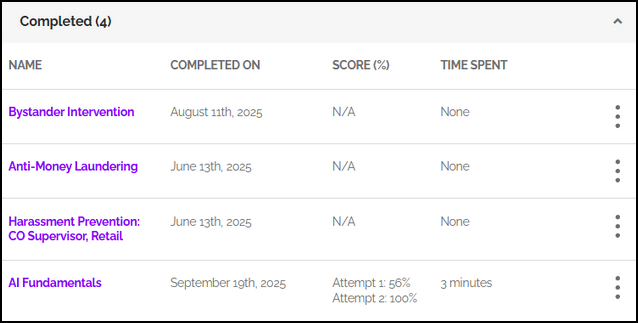
For Learners Who Have Passed
- Course appears in Completed Courses section
- Score history is visible
- Completion date recorded
Best Practices and Tips
Setting Your Threshold
- Start with 70% – This balances rigor with reasonable completion rates
- Adjust higher or lower based on your organization's needs and course complexity
Communication
- Communicate the passing threshold in the course introduction
- Include it in assignment emails so learners know expectations upfront
- The threshold is also visible at the beginning of the course itself
Course Design (for Custom Courses)
When creating your own courses using the Course Authoring Tool:
- Use shorter, focused knowledge checks
- This reduces guesswork and improves reliability of the assessment
- Well-designed questions lead to more meaningful pass/fail decisions
Helpful Tips
Remember to save the global setting
Changes don't apply until you click "Save" at the bottom of Training Settings.
Existing courses are NOT affected
The global setting only applies to courses assigned after it's enabled. Existing assignments keep their original rules.
Communicate the threshold to learners
Learners perform better when they know what's expected. Always communicate the passing score.
What's Next?
- Review learner performance in Insights
- Create custom courses with effective knowledge checks
- Set up notifications for failed attempts
Quick Questions
What happens if a learner fails multiple times?
Each failure resets progress to 0% and the learner must retake the entire course. The course remains in Current Assignments until they pass.
Can I exempt certain learners from the minimum score?
During an individual manual course assignment, you can choose "All Learners Pass" to disable the requirement for that specific assignment.
Does the minimum score apply to all quiz types?
Yes, the score is calculated based on performance across all quizzes and knowledge checks in the course.
Can learners see their score during the course?
Yes, progress tracking shows their performance, and they know whether they're on track to meet the threshold.
Llama Fact: Llamas are intelligent animals that can learn complex tasks with consistent practice and clear expectations—similar to how minimum passing scores set clear expectations for learner achievement!