![logolimanobkg-1.png]](https://help.easyllama.com/hs-fs/hubfs/logolimanobkg-1.png?height=40&name=logolimanobkg-1.png)
Before You Start
What You'll Need
- Administrative access to the EasyLlama dashboard
- Learners with completed courses (certificates available)
- Access to the Learners tab
Quick Reference
- Bulk method: Best for multiple certificates email link may take time
- Single method: Best for 1-2 certificates - immediate download from learner profile
- Bulk selection: Use checkboxes and purple action bar
- Select all: Use "Select all Learners" functionality for organization-wide downloads
Bulk Certificate Download
Use this method when you need certificates for multiple learners. An email with a download link is sent to the requestor.
Step 1: Select Learners
- From the EasyLlama dashboard, click the Learners tab.
- Check the box to the left of each learner for whom you need certificates.
- The purple action bar appears once learners are selected.
For all learners: Use the Select All Learners functionality to include everyone in the download.
Step 2: Initiate Download
- In the purple action bar, click More.
- Select Download Certificates.
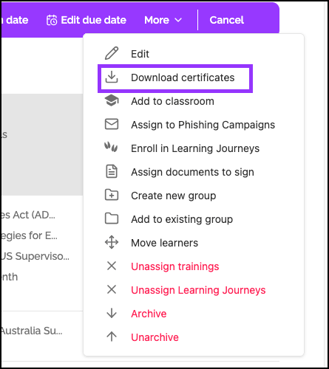
Step 3: Confirm and Wait for Email
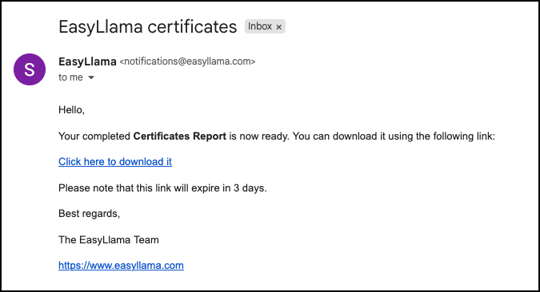
- Click Confirm. An email with a link to download certificates is sent to you.
- Processing time: Can take several minutes depending on:
- The number of certificates being downloaded
- Current server traffic
Step 4: Access Certificates
- Check your email inbox for the download link
- Click the link to download the certificate files
- Save or distribute as needed
Single Certificate Download
Use this method when you need immediate access to one or a few certificates, or when a learner has multiple courses and you only need the certificate for a specific one.
Step 1: Access Learner Profile
- Click the Learners tab,
- Use the search to find the desired learner.
- Click the learner's name to access their learner's profile.
Step 2: Locate Completed Course
- Scroll to the Completed Section and expand it to view the completed courses.
- Find the specific completed course you need a certificate for.
Step 3: Download Certificate
- To the right of the completed course, click the three dots (⋮).
- Select Download Certificate.
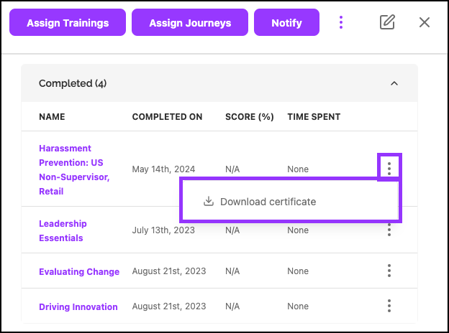
- The certificate downloads immediately.
Helpful Tips
Using bulk method for multiple certificates
If you only need one or two certificates, use the single method for immediate download instead of waiting for an email link.
Wait a few minutes for the bulk download email
For bulk downloads, the email may take several minutes. Don't repeatedly request downloads—this can slow processing.
Quick Questions
How long does bulk certificate download take?
Processing time varies based on the number of certificates and server traffic. You'll receive an email when the download is ready.
Can I download certificates for specific courses only?
In bulk mode, you download all certificates for selected learners. For course-specific certificates, use the single method from the learner's profile.
What format are the certificates?
Certificates are downloaded as PDF files, ready for printing or digital distribution.
Do certificates include the learner's name and completion date?
Yes. Each certificate includes the learner's name, course title, completion date, and any required signatures or seals.
Llama Fact: Llamas have excellent memories and can recognize individual herd members by their unique characteristics—similar to how each learner's certificate uniquely identifies their training achievements!