![logolimanobkg-1.png]](https://help.easyllama.com/hs-fs/hubfs/logolimanobkg-1.png?height=40&name=logolimanobkg-1.png)
We're delighted to offer a solution for your employees to safely and anonymously report and discuss concerns or incidents regarding workplace harassment, workplace safety, cybersecurity, and other issues - all directly within our platform.
They can also submit general feedback and questions, or send a positive note to appreciate someone. The Anonymous Reporting Tool offers 2-way chat, easy case management, and case tracking analytics without exposing the identity of the person on the other line.
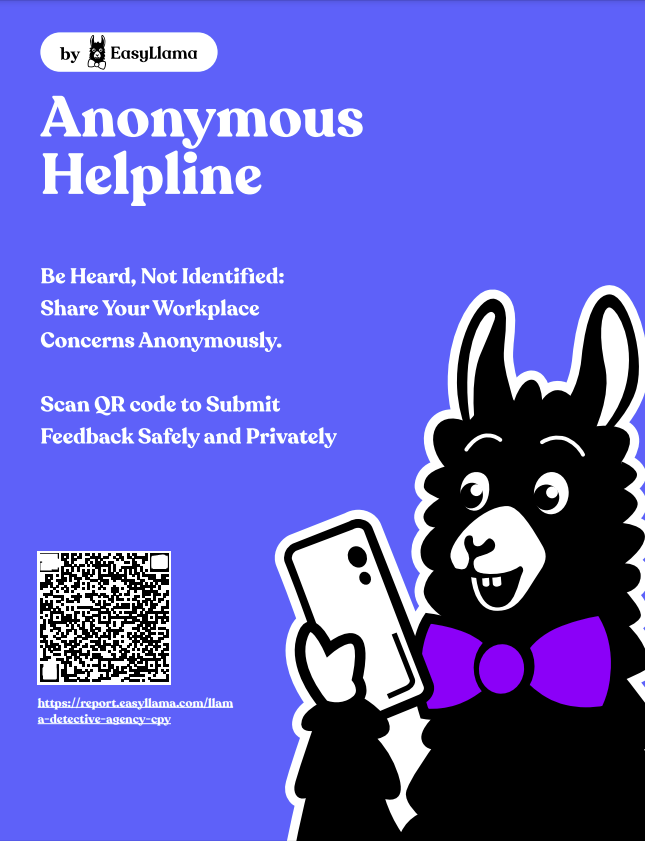
Learners can submit cases either directly in their course or via a link copied from the dashboard. Admins can also download a poster with a QR code that reporters can scan using their mobile device.
For more information on this feature, please read on!
If you are ready to add this tool, or would like a demo or pricing, please contact accounts@easyllama.com!
Learner Feedback Experience
How to access the Anonymous Reporting portal - 3 Ways
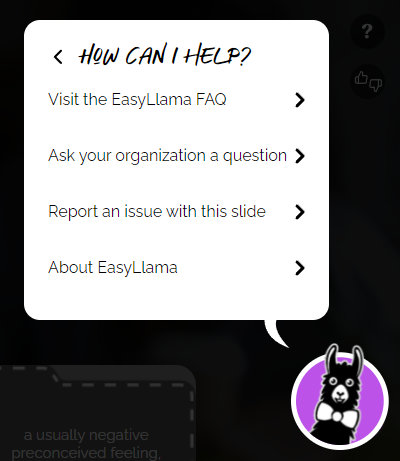
- Open a case from within a course: Click the Question mark at the top right of any course and choose "Ask your Organization a Question"
- Click a Link or Scan a QR code: From Case Management > Share admins can access link that can be shared and a poster that can be downloaded. The printable poster includes a QR code Learners can click to access the Anonymous Reporting Tool.
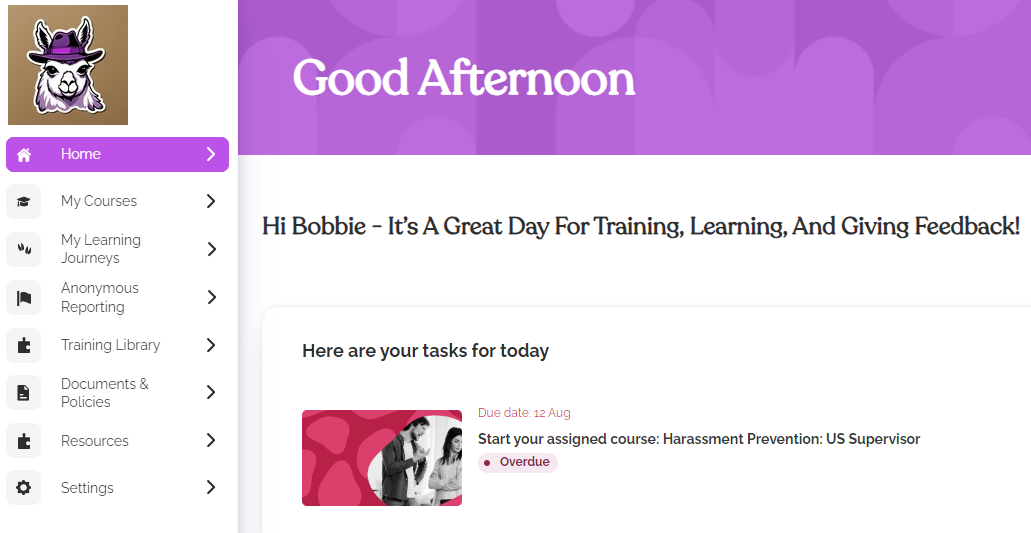
- Open a case from the Learner Portal: In the Learner Portal, the Learner will have an Anonymous Reporting tab. Clicking the tab opens the Anonymous Reporting portal.
How to Use the Anonymous Reporting Portal
First, the reporter will choose the type of feedback they would like to submit.
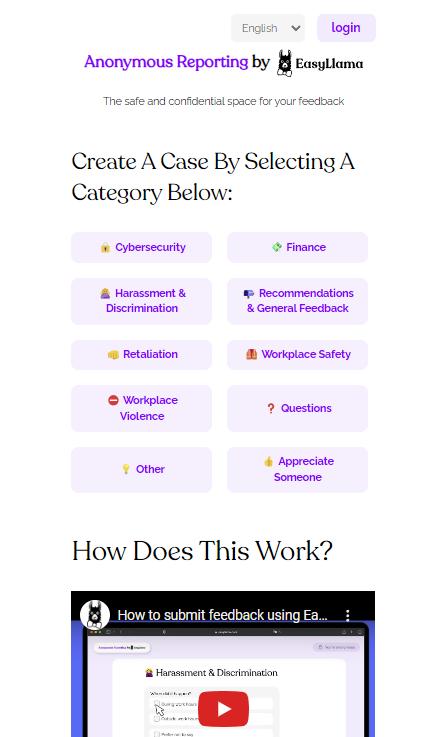
Once they choose the type of feedback, they will be taken through a series of questions to guide them through reporting the incident.
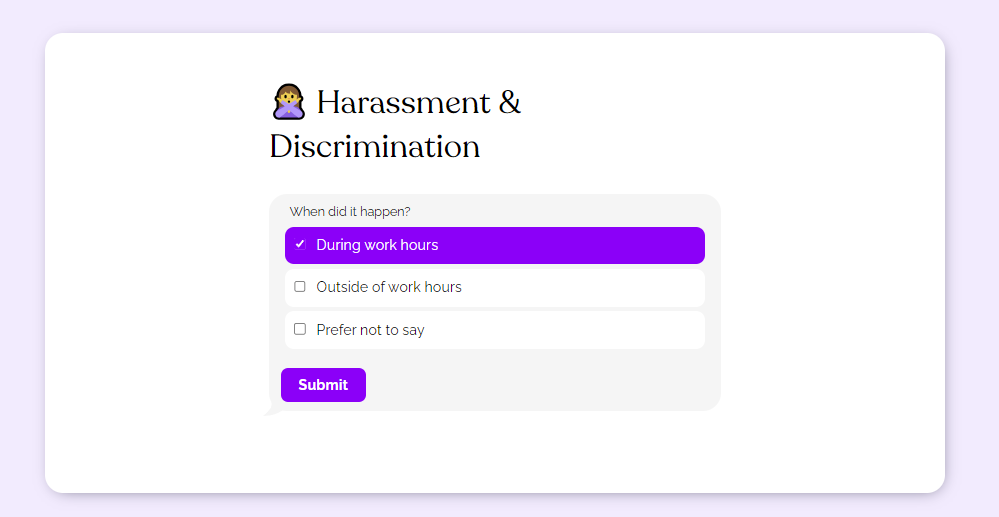
When they have filled out the information, they will have the option of whether or not to disclose their name and email address. Whether they choose to disclose or not, they will also be prompted to share a mobile phone number. This phone number is not shared with admins. It's used so the reporter can report and log in anonymously. To send a report or to access their case once submitted, they will enter this phone number and receive a code via text. Once they verify with the code texted to them, they see a confirmation page. When an admin replies, they receive a text message and can communicate anonymously with the administrator. The reporter is notified of any replies or changes in the case's status.
Case Admin Experience
All administrators with full dashboard access and/or Anonymous Reporting Access receive email notifications when a new case is opened. There is an option under Settings > Notifications to stop receiving case notifications, if needed. The notification includes the type of report, case number, and date submitted, along with a button to click to review the case. This takes them to the Case where they can respond to the report.
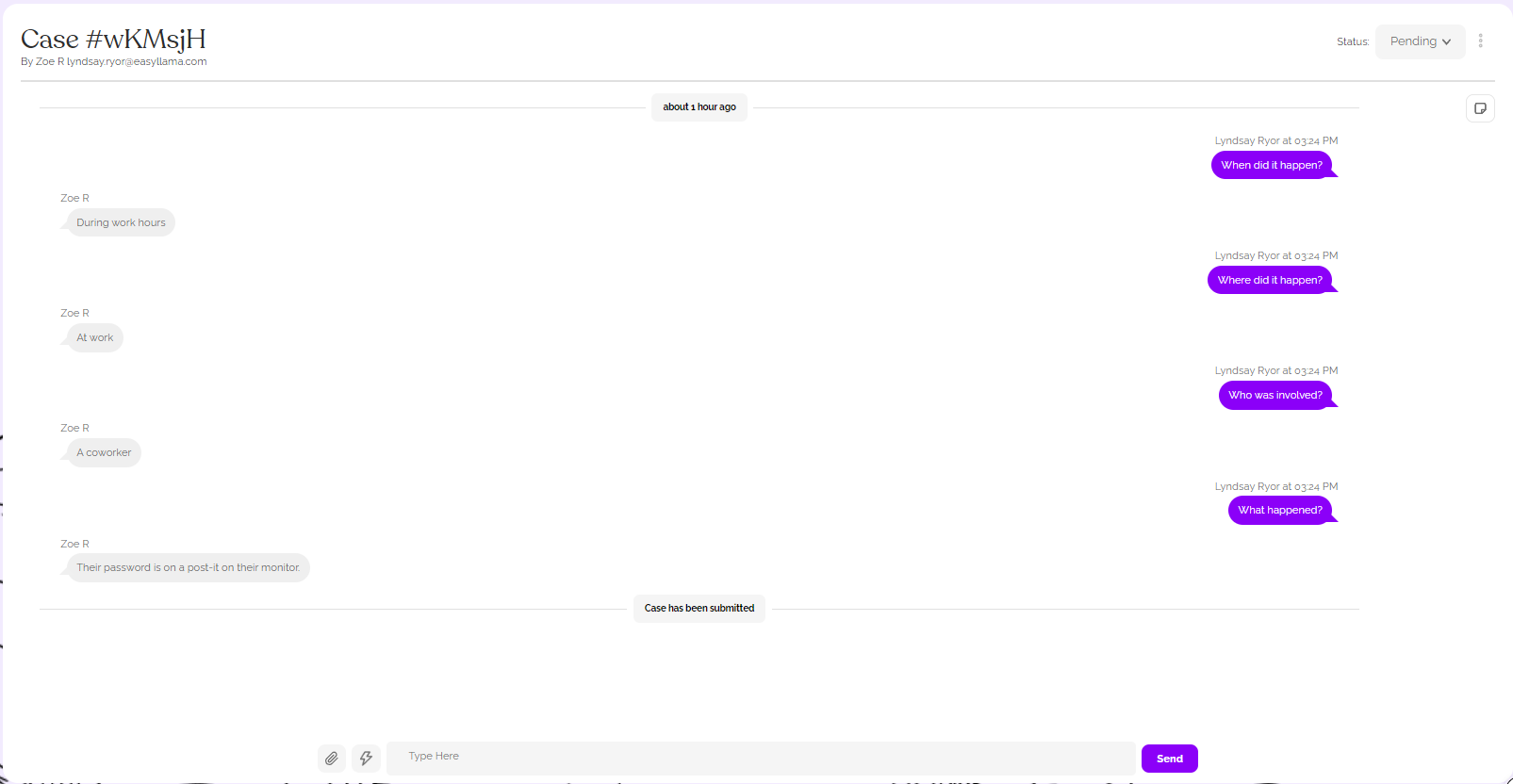
They may type their own response or use a preset template by clicking the "flash" button to the left of the response text box. There are templates for each category, plus an option to create a new one. The template response is copied into the reply, and it can and should be edited to align with your organization's protocol and policies.
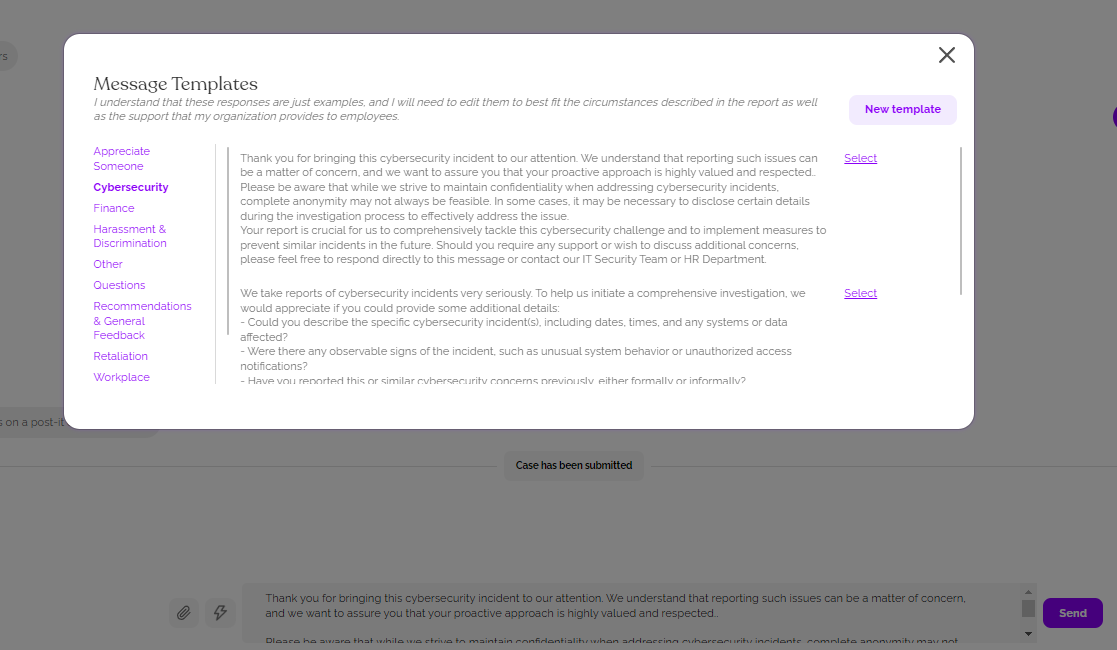
When the admin sends a response, the learner receives a text notification to read the response and will be able to send further information and receive responses in the same way from the case admin.
Admins can assign cases to themselves or other admins, and change the status of a case from Pending to Open, and from Open to Closed.
Case Analytics
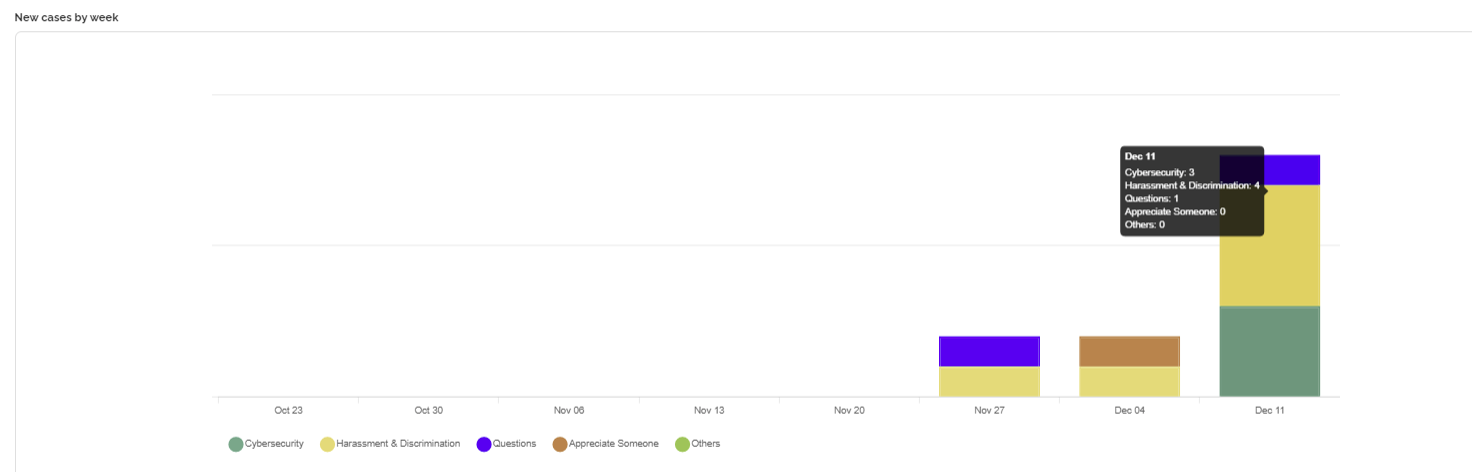
In the Summary tab, admins will be able to see a summary of cases, with a breakdown by status and a visual breakdown by type over time.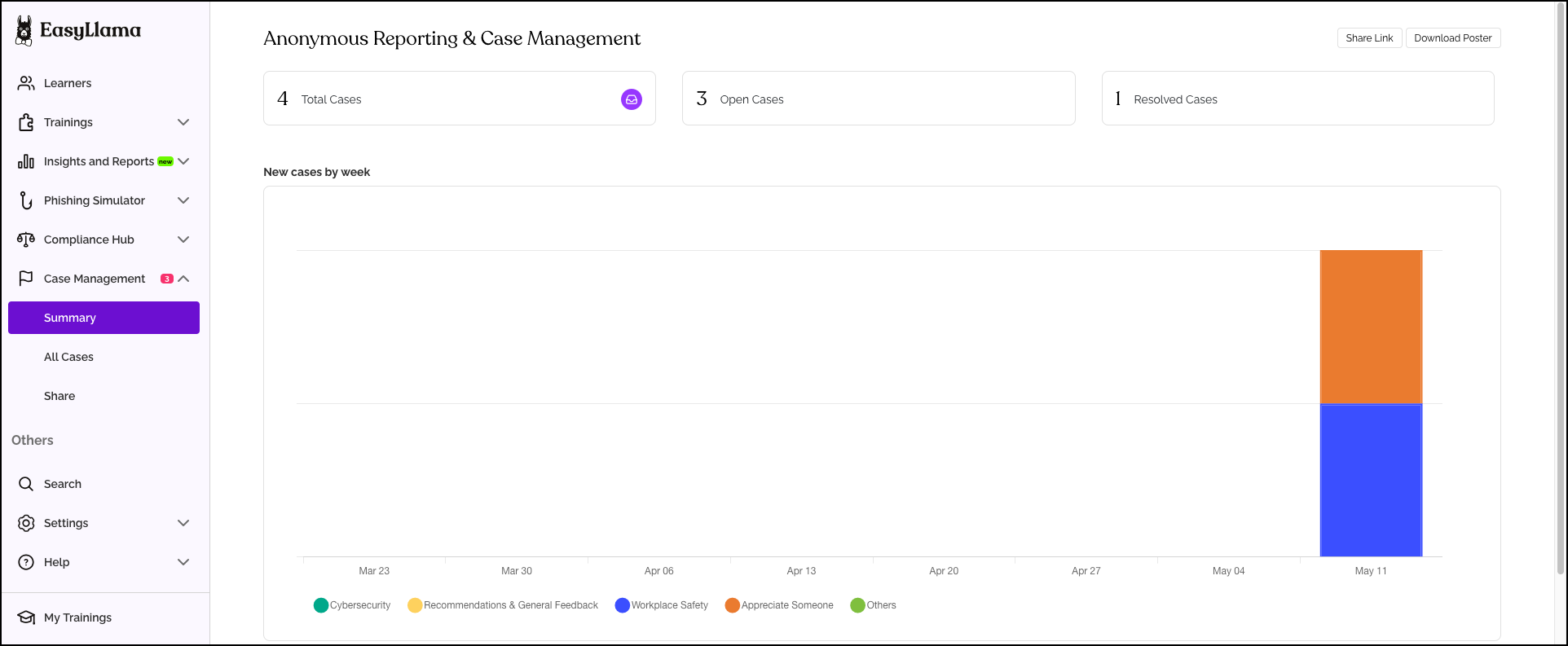
These are clickable shortcuts that will take an admin to a list of all cases in each status:

Hovering over the bars in this chart will give more detailed data regarding the number of cases for each case type:
Anonymous Reporting Roll-out
When you're ready to add this valuable tool, you can reach out to accounts@easyllama.com for more information, pricing, or a demo with an Account Manager! Once Anonymous Reporting is enabled, you'll have access to share the link with your learners, download a poster with a QR code, and find links to more information - all within the Share tab, as shown here: 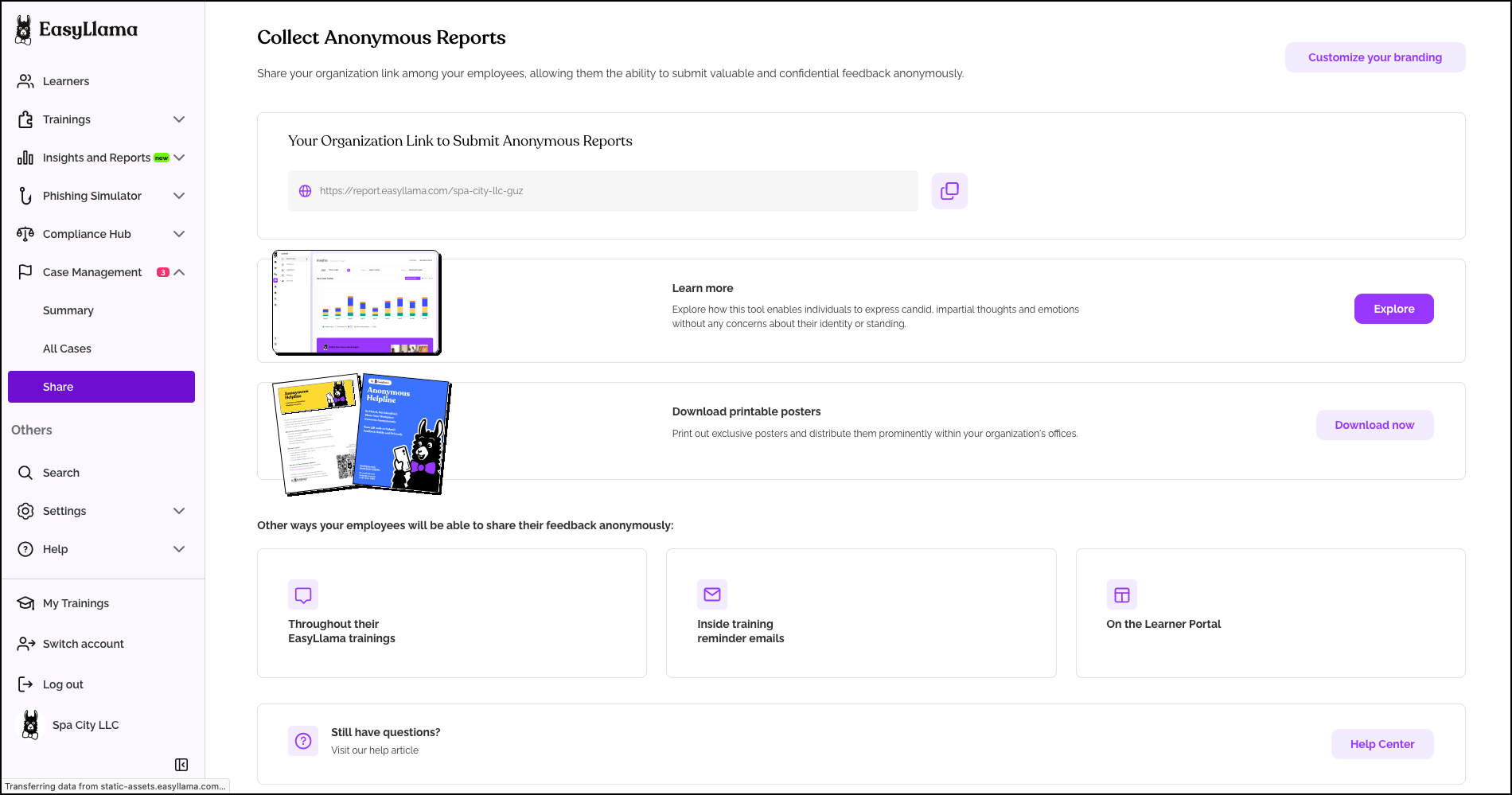
EasyLlama staff, with rare exceptions such as developers troubleshooting issues, do not have access to your Anonymous Reporting Tool to maintain privacy. In the rare exceptions, we do not read private reports.