![logolimanobkg-1.png]](https://help.easyllama.com/hs-fs/hubfs/logolimanobkg-1.png?height=40&name=logolimanobkg-1.png)
The Document Manager is used to:
- Manage policies
- Collect e-signatures
- Track and schedule recurring acknowledgments
- Maintain audit trails for compliance requirements
Documents appear at the end of training workflows or can be assigned manually.
Before You Start
What You Need
- Administrative access to the Dashboard
- PDF Documents ready for upload
- Access to Compliance Hub > Document Manager
Quick Reference
- Primary method: Upload and configure documents to courses using the Document Manager
- Alternative: Assign documents manually to learners without courses
Primary Method: Upload and Configure Documents
Step 1: Access Document Manager
Go to Compliance Hub > Document Manager and click the purple Upload Document button.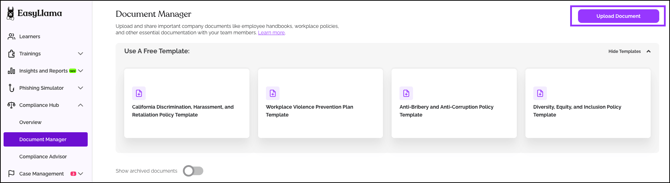
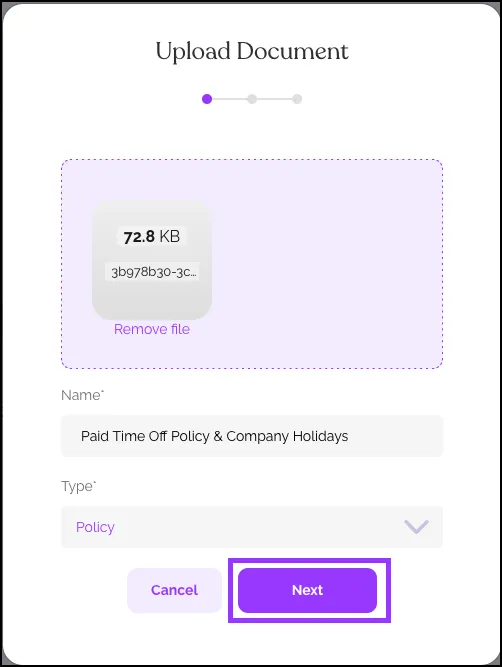
Step 2: Upload and name your document
Drag and drop your PDF or click Browse files to select it. Name your document clearly and select a document type. Click Next to proceed.
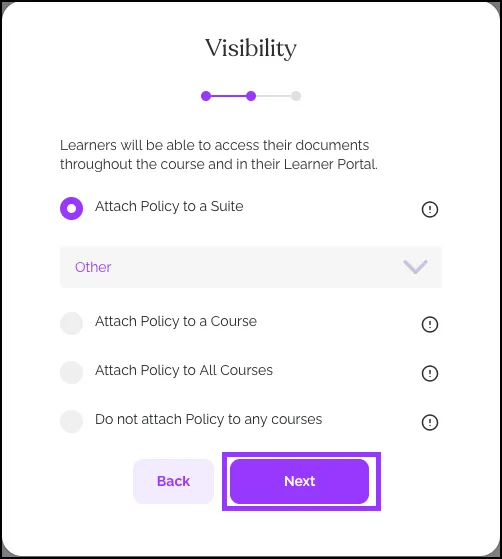
Step 3: Set visibility and attachment
Choose how learners will access the document:
- Attach to a Suite: Document appears with all courses in that suite
- Attach to a Course: Document appears only with specific courses
- Attach to All Courses: Document appears with every course
- Do not attach: Document must be assigned manually
Tip: Use "Attach to a Suite" for universal policies, such as employee handbooks. Use "Attach to a Course" for role-specific documents.
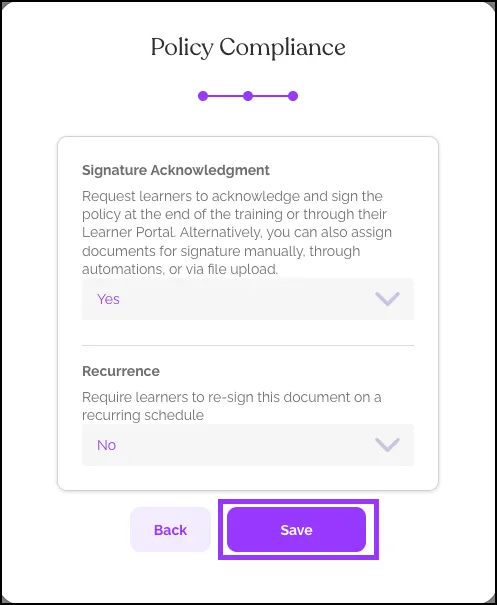
Step 4: Configure signature requirements
Enable Signature Acknowledgment to require signatures. Set Recurrence (6 months, 1 year, 2 years) for automatic re-signing. Click Save to complete.
Alternative Method: Assign Documents Manually
Use this method to require signatures without assigning training courses, or to notify learners of newly attached documents.
- From the Learners tab, select one or more learners
- Click More in the action bar, then select Assign Documents to Sign
- Choose documents from the dropdown menu
- Click Assign
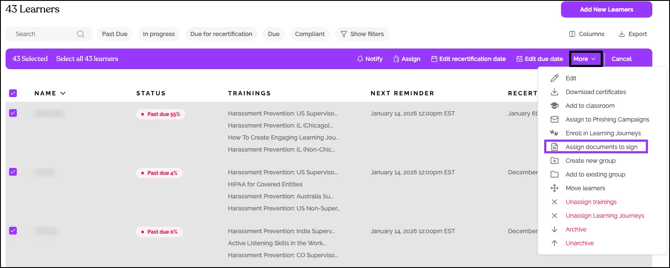
NOTE: Manual assignments don't trigger automatic notifications. Use the Notify bulk action to send alerts.
Managing Documents and Signatures
Track compliance
Check the "Signed By" column in Document Manager to see assignment counts and completion rates. Click numbers to view specific learners.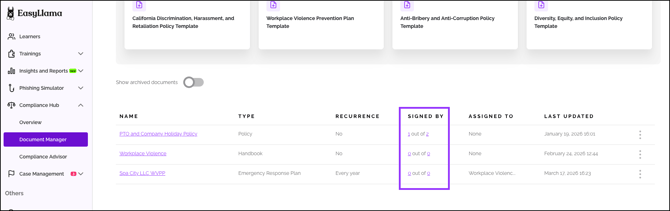
Document actions menu
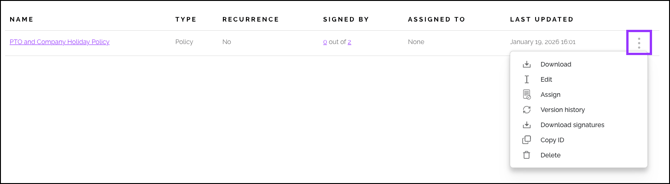
Click the three dots (⋮) next to any document to:
- Download the original document
- Edit settings or upload new versions
- View Version History
- Download Signatures for audit purposes
- Delete the document (signatures remain on certificates)
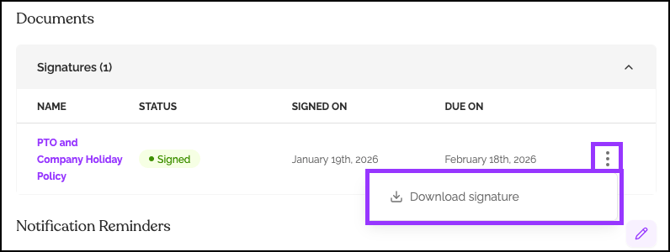
Learner profile signatures
View and download signed documents from individual learner profiles in the admin dashboard.
Actions to Avoid
Attaching documents to the wrong courses
Review visibility settings carefully. Documents attached to courses are automatically available to all learners enrolled in those courses.
Not notifying learners of manual assignments
After manually assigning documents, use the Notify bulk action to send alerts, or learners may miss signature requirements.
Quick Questions
Are e-signatures legally binding?
The electronic signatures are designed to demonstrate acknowledgment and receipt, which is typically sufficient for internal policy compliance. For specific legal advice, consult your counsel.
What happens when I upload a new document version?
The old version archives automatically. Learners who haven't signed see the new version; previously signed documents remain in historical records.
Can learners sign without taking a course?
Yes. Use manual assignment to require signatures independently of training.
Llama Fact: Llamas follow established herd trails for safety and efficiency—just like document management ensures your entire organization follows consistent policy trails with clear audit paths!