![logolimanobkg-1.png]](https://help.easyllama.com/hs-fs/hubfs/logolimanobkg-1.png?height=40&name=logolimanobkg-1.png)
Before You Start
What You'll Need
- Administrative access to the EasyLlama dashboard
- Clear understanding of which Learners need bulk actions
- Preparation of any content for bulk assignments or notifications
- Access to Learners tab
Quick Reference
- Primary method: Select all Learners on page or across entire dashboard
- Alternative: Manual selection of specific Learners
Select and Apply Bulk Actions
Step 1: Select learners
NOTE: When selecting learners individually across multiple pages, moving to another page clears the selections from the previous one. Use “Select All Learners” for cross-page operations, or perform the operation one page at a time.
Option A: Select all on the current page
- Log in to the Dashboard.
- From the left navigation menu, click the Learners tab.
- If desired, use the filters to find the Learners that require selection.
- Helpful tip: if desired, scroll down to Rows per page and select 100 or the number of rows you’d like to take action on at a time.
- To the left of the Name column header, click the checkbox to select all.
- All Learners on the current page are selected.
- At the top of the page, a purple action bar appears showing the selection count.
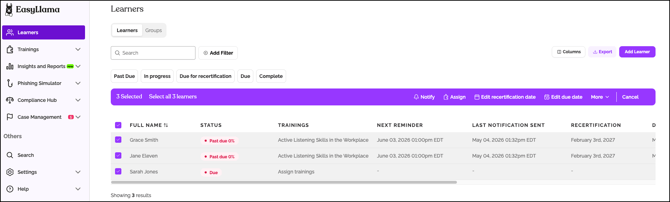
Option B: Select all learners across all pages
Perform steps 1-4 as above, then:
- Click the Select all [X] Learners link that appears.
- All learners in the dashboard that match the filtered selections are selected, beyond the current page.
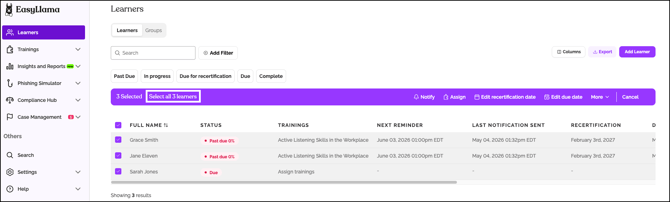
Step 2: Apply bulk actions
Once the learners are selected, use the purple action bar for these operations:
Primary Actions (visible in bar):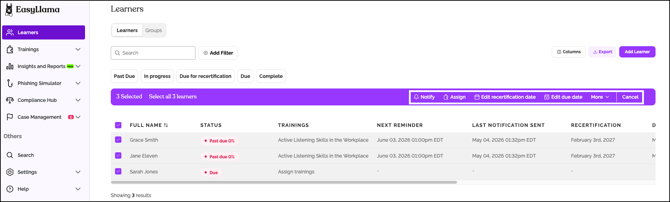
- Notify: Send email notifications to selected learners
- Assign: Bulk assign courses or learning journeys
- Edit recertification dates: Update recertification schedules for Learners
- Edit due date: Updates the date the courses/learning journeys need to be completed by
- More: Additional bulk operation menu
- Cancel: Removes selected Learners and the action bar.
Additional Actions (under "More" menu):
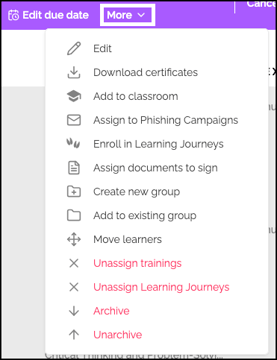
- Edit: Bulk update learner details (Role, Location, Region, Employment Type, Manager, Due Date, Department.)
- Download Certificates: Email download link for certificates (processing time varies)
- Add to Classroom: Adds the selected learners to a classroom for in person or live virtual training
- Assign to Phishing Campaigns (Core & Ultimate Subscribers Only): Will assign the selected users to a phishing campaign
- Enroll in Learning Journeys: Add to structured learning paths
- Assign Documents to Sign: Assigns the learners a document that requires signature
- Create New Group: Creates a group of learners
- Add to Existing Group: Adds the learners to a group that was created previously
- Move Learners: Assign the Learner to a new company
- Unassign trainings: Remove courses with ≤50% completion
- Archive: Archive selected learners
- Unarchive: Unarchives the selected learners
Step 3: Complete bulk operations
For each action, follow the specific workflow:
- Edit: Update fields in bulk edit modal
- Notify: Choose notification type and timing
- Assign: Select courses and configure settings
- Archive: Confirm action (irreversible for bulk)
Key Considerations for Bulk Operations
Selection limitations
- Page-based selection: Individual check boxes work only on current page (50 learners)
- Cross-page selection: Use "Select all Learners" for entire dashboard operations
- Mixed selection: Combine page selection with "Select all" for complex groupings
Processing time factors
- Large operations (500+ learners) may take several minutes
- Certificate downloads generate email links with variable delivery times
- Server load affects processing speed during peak hours
Irreversible actions
- Bulk edits: Review changes before confirming
Helpful Tips
Remember that moving between pages de-selects learners
Moving between pages clears individual checkbox selections. Use "Select all Learners" for operations spanning multiple pages.
Always verify selection counts
Always check the purple action bar's selected count before applying bulk actions to ensure correct scope.
Remember to allow processing time for large operations
Bulk actions on hundreds of learners may take minutes. Allow processing time and avoid duplicate submissions.
Be cautious when bulk archiving
There's no way to reverse archving. Consider testing with smaller groups before archiving large numbers of learners.
Quick Questions
Can I select specific learners across multiple pages?
Not with individual check boxes. For cross-page specific selections, use filtering first to narrow the list, then use "Select all Learners" on the filtered results.
How long do bulk certificate downloads take?
Processing time varies by learner count and server load. You'll receive an email with download link when processing completes.
Is there a limit to how many learners I can bulk edit?
No hard limit, but very large operations (1,000+ learners) may time out. Consider breaking into smaller batches for reliability.
Can I undo a bulk archive action?
No bulk unarchive exists. You must unarchive learners individually from their profiles after filtering for archived learners.
Llama Fact: Llamas are efficient herd managers who handle groups effectively—similar to how bulk action functions help you efficiently manage large groups of learners!