![logolimanobkg-1.png]](https://help.easyllama.com/hs-fs/hubfs/logolimanobkg-1.png?height=40&name=logolimanobkg-1.png)
Before You Start
What You'll Need
- Administrative access to your EasyLlama dashboard
- Identification of learners needing recertification date changes, and their new recertification dates
- Knowledge of which specific training type to update
- Access to Learners tab
Quick Reference
- Primary method: Bulk edit via purple action bar after selection
- Key step: Must select specific training type before updating
- Alternative: Bulk recertify all learners at the same time
Edit Recertification Dates in Bulk
Step 1: Select learners
From the Learners tab, select which learners to update:
- Use the search or filters to find learners.
- Check boxes next to specific learner names, or use the Select all functionality to select all users on the current page. See: Select All Bulk Actions Guide
- The purple action bar appears showing the selection count.
Step 2: Access recertification edit
On the purple action bar, click Edit recertification date.
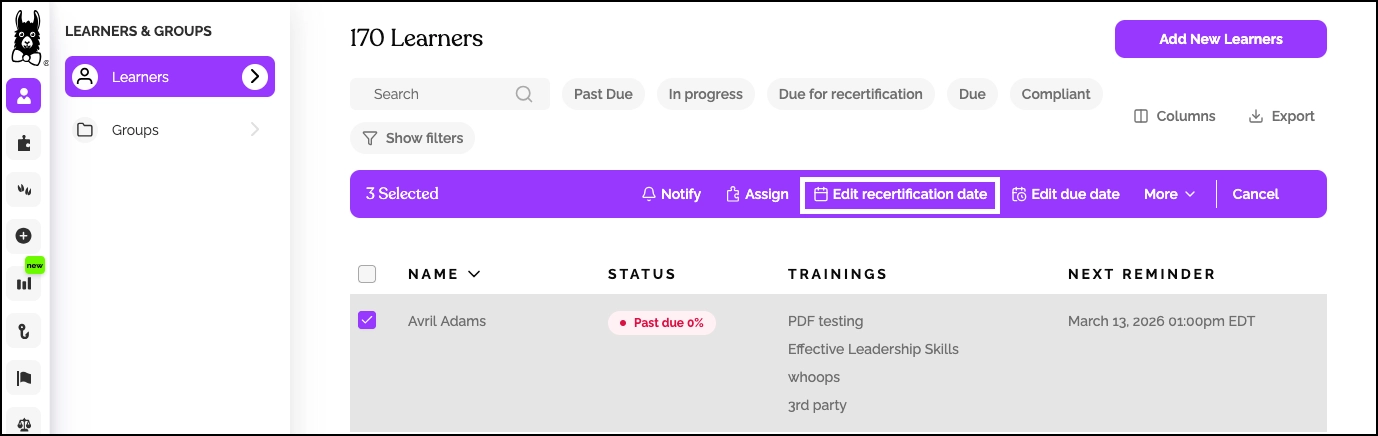
Step 3: Choose training type and date
Critical Step: In the pop-up window:
- Select the Training Type from dropdown (e.g., "Harassment Prevention: CA Supervisor")
- Select Recertify at a specific date, and use the date picker to choose the new Recertification Date.
- Verify both selections before proceeding.
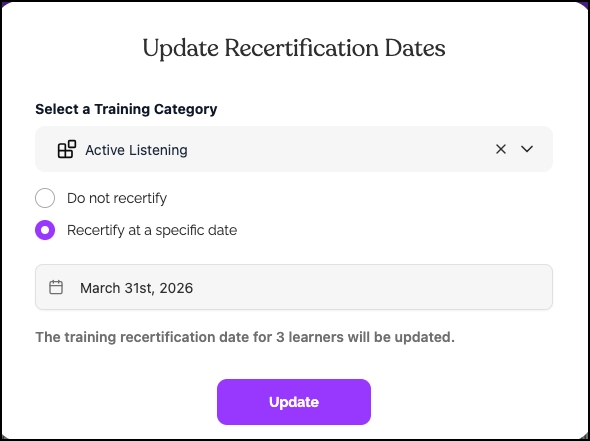
Warning: Remember to select the training category, and verify the selection before clicking Update.
Step 4: Apply changes
Click Update to apply the new recertification date to all selected learners for the specified training type.
Post-Update Verification
Confirm changes
- Click a learner's name from the updated list.
- View their profile to verify that:
- The correct training type was updated.
- Their new recertification date is reflected in their account.
- Any region and role-specific assignments are correct.
Automatic vs. manual recertification process
What happens on or before the recertification date differs based on your Recertification Settings set within Settings > Recertification Settings. For more information, please review the Automatic Recertification Guide
If using Automatic Recertification:
- An email reminder is sent a week before the recertification date, in case changes are needed.
- If no changes are made, the course is assigned and sent to learners with no further admin action required.
If using Manual Recertification:
- An email reminder is sent when it’s time for learners to recertify.
- An admin must manually select and assign courses.
Helpful Tips
Do not forget to select training type
The most common error. Always verify you've selected the specific training type before clicking Update.
Please verify any region/role assignments
After updating, check that learners receive correct version (e.g., CA Supervisor vs. NY Non-Supervisor).
Repeat steps for additional training types
Changes apply only to the selected training type. Other training recertification dates remain unchanged.
Llama Fact: Llamas have excellent internal calendars for seasonal routines—similar to how proper recertification date management keeps your training compliance on a predictable, manageable schedule!