![logolimanobkg-1.png]](https://help.easyllama.com/hs-fs/hubfs/logolimanobkg-1.png?height=40&name=logolimanobkg-1.png)
Before You Start
What You’ll Need
- Administrative access to your EasyLlama dashboard
- A previously customized course that requires updates
- Updated policy language, internal terminology, or workplace details (as applicable)
Important Note
This process applies to previously customized courses that have already been assigned to learners. For creating a new custom course from an EasyLlama Expert Course, follow the standard customization guide.
Quick Reference
- Course location: Training > Library
- Key identifier: Look for the Custom Version button
- Edit access: Full editing permissions on the custom version
- Changes affect: New assignments
Edit a Customized Course
Step 1: Locate the Customized Course
- Go to Training > Library
- Use the search bar or filters to find the course that requires updates
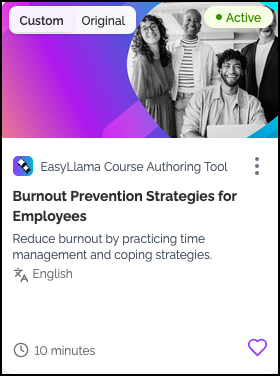
- The course will show a “Custom / Original” tag
- Click on the course card
Step 2: Access the Custom Version
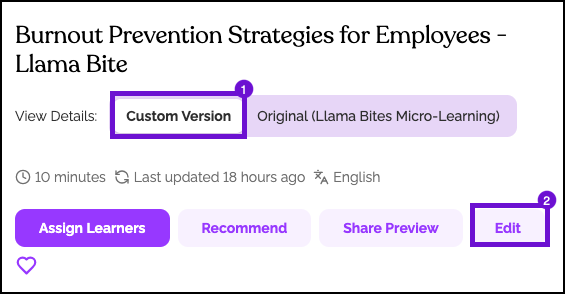
- Next to View Details, ensure Custom Version is selected
- Click the Edit button
- The course editor opens with full editing permissions
Step 3: Make Your Changes
The course editor gives you full permission to make the following edits, with updates saved automatically.
| Action | How to Do It |
|---|---|
| Add new slides or chapters | Click Add New > New Slide or New Chapter |
| Rename, duplicate, or delete slides/chapters | Click the three-dot menu (⋮) > Rename, Duplicate, or Delete |
| Edit text | Click the slide or chapter, then click into the text boxes to update with policy-specific language or internal terminology |
| Change images and videos | Click the Edit Button to reflect your actual workplace environment |
| Update or swap narrations | Click the Slide Narration button, update text, select a voice, then click Re-Generate > Apply |
| Reorder content | Drag and drop content into an order you find more compelling |
| Review changes | Click Preview (slide opens in new tab exactly as learners will see it) |
Step 4: Save and Assign
To view how the updated slides will appear to Learners, click Preview.
When all desired changes have been made, click Publish Changes to update the course for Learners.
Quick Questions
Do changes automatically update for learners already in progress?
Learners who are in progress will complete the course they were originally assigned. If changes are significant, you may wish to reassign the course.
Will editing the course affect the original EasyLlama Expert Version?
No. You are editing only your custom version. The original course remains unchanged.
Llama Fact: Llamas adapt to changing seasons and environments—similar to how your
customized courses can adapt to evolving policies, procedures, and workplace needs!