![logolimanobkg-1.png]](https://help.easyllama.com/hs-fs/hubfs/logolimanobkg-1.png?height=40&name=logolimanobkg-1.png)
💡If you haven’t set up Phishing Simulator yet, please review the Quickstart guide!
What You'll Need
-
An EasyLlama account with a Core or Ultimate plan, or a Legacy Security Awareness Training subscription
-
Account Admin permissions
-
Phishing Simulator configured (see Quickstart guide)
What You Can Do with an Auto-Managed Program
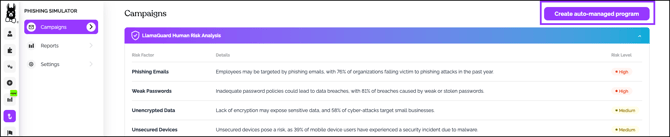
- Launch a recurring program with a single click from the Campaigns screen or Risk Analysis recommendations
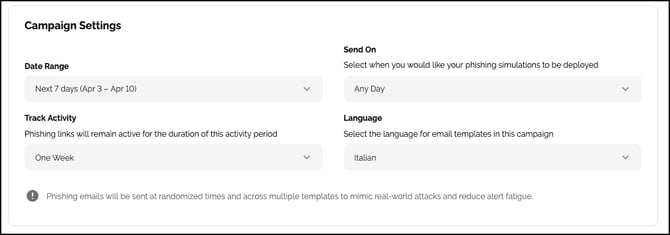
- Choose frequency, deployment days, start date, and language
- Assign to everyone or specific groups
- Use recommended campaigns or manually select and order templates
- Preview the positive, guidance‑first landing page learners see if they click a link
- Add a point of contact to help learners know where to report or ask questions
Setup Guide
Customization Options
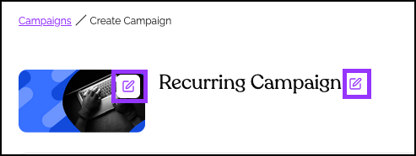
Edit Title and Thumbnail
Campaign Settings
Assigned Learners

Emails and Trainings

Training Landing Page


Publish the Auto-Managed Program
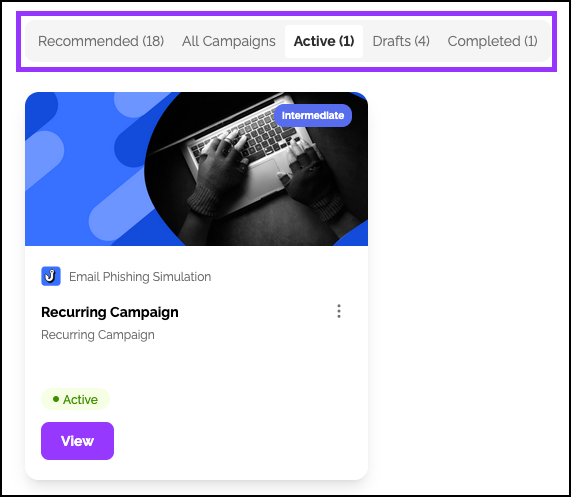
Viewing, Managing, and Editing Your Campaigns
Helpful Tips
- Start monthly on weekdays for a steady cadence without inbox fatigue
- Rotate difficulty and themes to prevent pattern recognition
- Review results after each cycle and adjust selections as your environment changes
Frequently Asked Questions
What can I do with an Auto-Managed Program?
-
Launch recurring programs with one click
-
Choose frequency, deployment days, and start date
-
Assign to everyone or specific groups
-
Use recommended campaigns or manually select templates
-
Preview the positive landing page learners see
-
Add a point of contact for learner questions
How often should I run campaigns?
Start with monthly on weekdays for a steady cadence without inbox fatigue. Rotate difficulty and themes to prevent pattern recognition.
Can I include new hires automatically?
Yes. Toggle auto‑include for new hires in the Assigned Learners section.
What happens if a learner clicks a simulated phishing link?
They're directed to a positive, guidance-first landing page that educates rather than penalizes. You can preview this page during setup.
Can I customize which phishing templates are used?
Yes. In the Emails and Trainings section, you can either accept recommendations or manually select and order templates.
How do I track results?
View campaign details by clicking View on any campaign. For deeper analysis, use the Reports section (see Reports and Insights).
Can I pause or end a program after it's launched?
Yes. From the Campaigns page, click View on the program, then the ellipses menu (⋮) to pause or end.
Can I translate a program into my learner's preferred language?
Yes. To configure realistic phishing simulations in your learners' preferred languages using AI translations, simply select the desired language in the Campaign Settings. The translations are applied to the simulation email, landing page, coaching tips, and training course to ensure learners fully understand the training and coaching they receive after a simulation.
Tips for Success
-
Start monthly on weekdays for a steady cadence without inbox fatigue
-
Rotate difficulty and themes to prevent pattern recognition
- Use AI Translations to present simulations in your learner's preferred language.
-
Review results after each cycle and adjust selections as your environment changes
Llama Fact: Llamas are naturally vigilant and make excellent guards—they'll alert the herd to anything unusual, just like a good phishing program trains your team to spot suspicious emails!