![logolimanobkg-1.png]](https://help.easyllama.com/hs-fs/hubfs/logolimanobkg-1.png?height=40&name=logolimanobkg-1.png)
Before You Begin
What You'll Need
- Admin dashboard access
At a Glance
Course Customization Workflow
- Select a course from the Training Library
- Choose Customize
- Customize the course content
- Publish the customized version
- Activate the customized version
- Assign learners
What to Know
When you customize an EasyLlama course, the original course remains available while a customized version is created for your organization.
This allows you to:
- Keep the original EasyLlama course intact
- Publish and assign a customized version
- Preserve learners already in progress
- Maintain existing automations and recertifications
- Continue editing your customized course over time
New to Course Customizations?
Take the interactive walkthrough to see the complete workflow before getting started.👉 Course Customizations in Action
Creating Your Custom Version
Step 1: Access Training Library
- Log in to the Dashboard.
- Navigate to Training > Library.
Step 2: Choose a Course
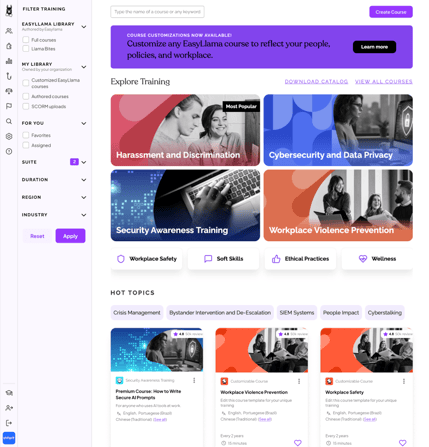
Search or browse the Training Library to find the EasyLlama Expert Course or Llama Bites Micro-Learning you'd like to customize.
Use the EasyLlama Library filters to narrow your search, or select Customized EasyLlama courses under My Library to quickly find courses you've already customized. Customized versions are also labeled Customized Course in the Training Library.
Step 3: Launch Course Editor
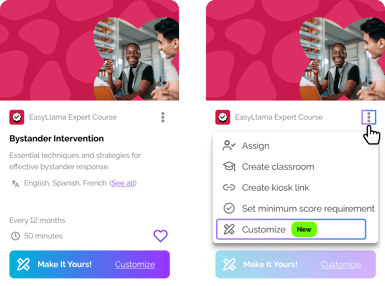
From the course card:
- Click Customize on the Make It Yours! button, or
- Open the (⋮) menu and select Customize
-
Review the introductory dialog pop-up, then click Proceed → Review & Edit
Step 4: Make Modifications
Changes are automatically saved as you edit.
|
Action |
How to Do It |
|---|---|
|
Manage existing course content |
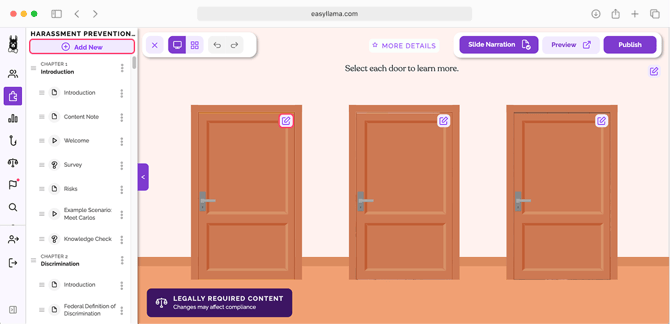
Select a slide or chapter, then click the three-dot menu (⋮) to Rename, Duplicate, or Delete. To reorder content, drag and drop slides or chapters into the desired order. |
|
Add new slides or chapters |
Click Add New > New Slide or New Chapter. For new slides, choose the desired template from the Text-Based, Media, or Knowledge Check categories. |
|
Edit slide text |
Click on the slide, then click into the text box(es) to update with policy-specific language or internal terminology |
|
Edit slide content |
To update images, videos, documents, or other template content, click the Edit icon in the upper-right corner of the slide. |
|
Edit slide narration |
Click Slide Narration, update the narration text, select a voice, then click Re-Generate > Apply. |
|
Preview changes |
Click Preview to review the learner experience. |
Step 5: Publish Your Customized Course
When you're satisfied with your edits, click Publish.
Publishing saves your customized version so it can be assigned to learners.
If you'd like to offer additional languages, you can also add AI Translations after publishing.
See:
How to Manage AI Translations
Step 6: Activate Custom Version
Publishing does not automatically make the customized course the version learners receive.
To activate it:
- Select Custom Version at the top of the page.
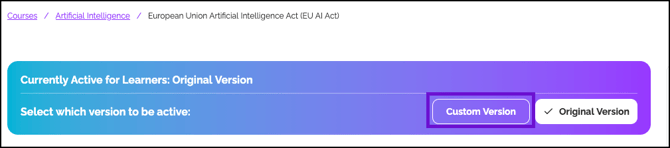
- Click Proceed.
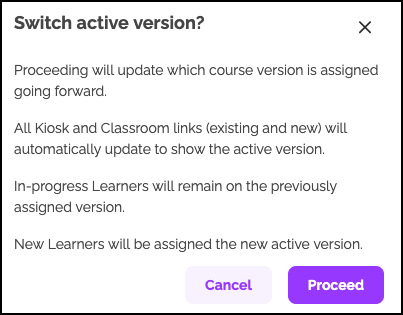
Learners who are already in progress continue the version they originally started.
Why are Publish and Activate separate?
Publishing saves your customized version. Activating determines whether future learner assignments receive the original EasyLlama course or your customized version.
Step 7: Assign Learners
Once activated, assign learners using any standard assignment workflow:
- Assign directly from the course
- Assign through the Learners page (see: How do I assign courses to Learners who are already in the dashboard)
- Use Workflow Automations
Before assigning learners, we recommend previewing the course and confirming any required course timers remain enabled.
Step 8: Continue Managing Your Customized Course
After your customized course has been published and assigned, you can:
- Update content at any time
- Switch future learner assignments back to the original version
For more information, see:
- How to Edit a Previously Customized Course [Post-Publish Updates]
- How to Manage AI Translations
- How to Assign the Original Version of a Customized Course
Additional Considerations
Legal Tags (Compliance Indicators)
-
Purpose: Identify content required for legal compliance
-
Compliance Courses: Legal Tags appear on all slides.
-
Harassment Prevention Courses: Tags appear only on legally mandated slides.
-
-
Action Required: Review Legal Tags before removing or significantly modifying compliance content.
| Edit Type | Examples |
|---|---|
| Lower risk (typically compliant) | Minor text edits, adding org-specific examples, replacing images |
| Higher risk (may affect compliance) | Removing slides with Legal Tags, altering definitions, deleting required knowledge checks |
Required Course Timer Toggle (For Mandated Courses)
For courses with minimum time requirements, the Required Course Timer enforces the minimum duration, even after customization.
Keep enabled for the below courses where jurisdiction mandates a minimum time (all customer types):
- 2-Hour: CA Supervisor, Chicago Supervisor, CT Supervisor, CT Non-Supervisor, All States Supervisor, All States Non-Supervisor
- 1-Hour: CA Non-Supervisor, Chicago Non-Supervisor, Chicago Bystander Intervention
Disabling the timer may cause the course to no longer satisfy applicable legal requirements.
AI Translations
Customized courses do not automatically inherit the languages enabled on the original EasyLlama course.
After publishing:
- Select the desired languages.
- EasyLlama automatically generates translated:
- On-screen text
- Narration
- Subtitles
Translations are regenerated whenever new content is published.
Managing Customized Courses
You can continue updating customized courses after they've been assigned.
When updates are published:
- Learners already In Progress continue their existing version.
- Learners who have not started receive the updated version.
- Future learner assignments receive the latest published version.
Quick Questions
Which courses can I customize?
All customers can customize any EasyLlama Expert Course available in their library.
Is Course Customizations included with my subscription?
Yes. Course Customizations are included with your subscription. Advanced or white-glove customization services are also available as a paid add-on.
What happens if I remove legally required content?
Review Legal Tags before making significant changes to compliance content. If you're unsure whether your changes affect compliance, consult legal counsel or contact EasyLlama Support.
Please reach out to support by going to Help > Contact Us in your Dashboard.
Can I update a course after people have already taken it?
Yes — post-publish editing allows you to update content without disrupting existing Learner progress or assignments (available to all customers).
Can I attach my company’s policy documents?
Yes. All customers can upload and attach handbooks, policies, or procedures directly to customized courses using the Embedded PDF Viewer slide template.